RPT Viewer PLUS Online Tutorial

RPT Viewer PLUS is an report viewer app that can open, convert and print Crystal Reports (.rpt) files.

Sponsored Links

In this quick-start guide, we cover the following topics: can RPT Viewer PLUS open Crystal Reports files? how to view a .RPT file? how to convert RPT to PDF? how to print a .RPT file?
Can RPT Viewer PLUS open Crystal Reports Files?

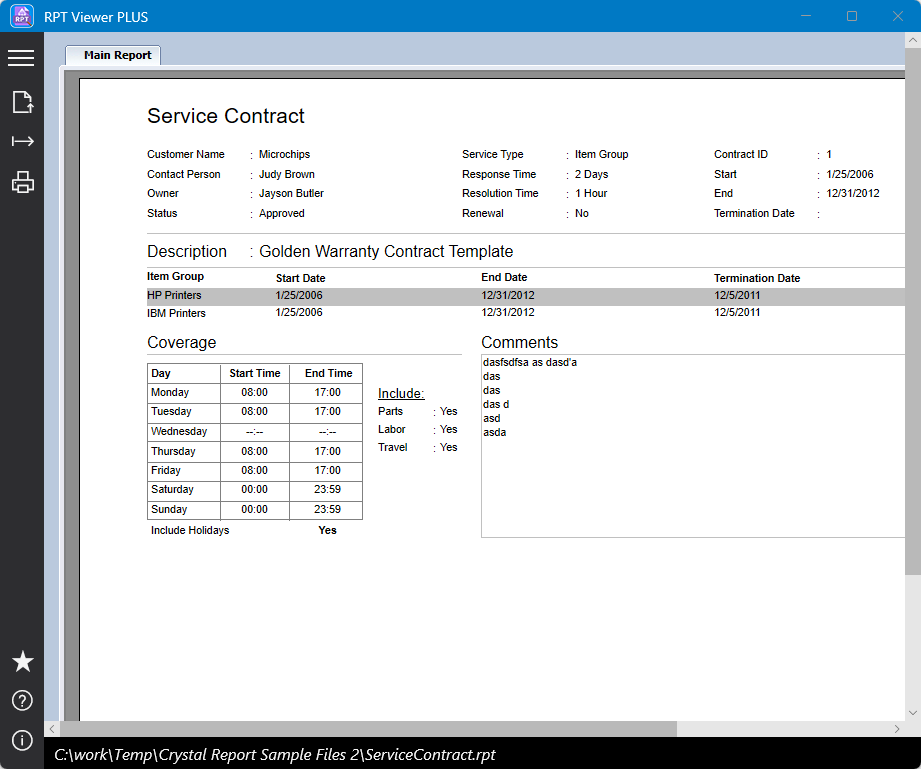
Yes, RPT Viewer PLUS can open Crystal Reports Files with one exception. The exception is that RPT Viewer PLUS cannot open a Crystal Reports file that requires to retrieve data from the database. For this case, the RPT file only includes the design of the report but no data, thus this app cannot display the content of the report.

Note: RPT Viewer PLUS requires an internet connection to work.
How to Open a .RPT File?

There are three ways to open an RPT file in RPT Viewer PLUS.

Sponsored Links

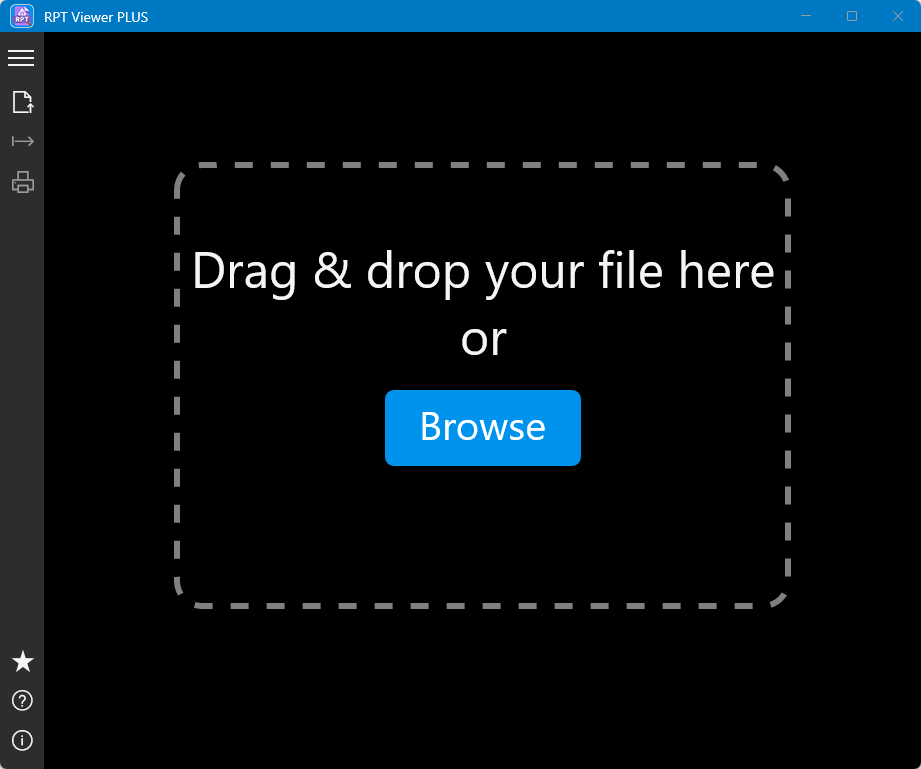
Method 1, drag the file from File Explorer and drop them into the area marked as “Drag and Drop your file here” in the app.

Method 2, click the button “Browse”, select the file, and then click the button “Open”. 

Method 3, click the menu item “Open” in the menu bar.

Note: it may take a long while for the app to render the report if your file is very large. Be patient.

How to Convert RPT to PDF?

You can use RPT Viewer PLUS to export your .RPT file to PDF format. 

Sponsored Links

1, open the .RPT file

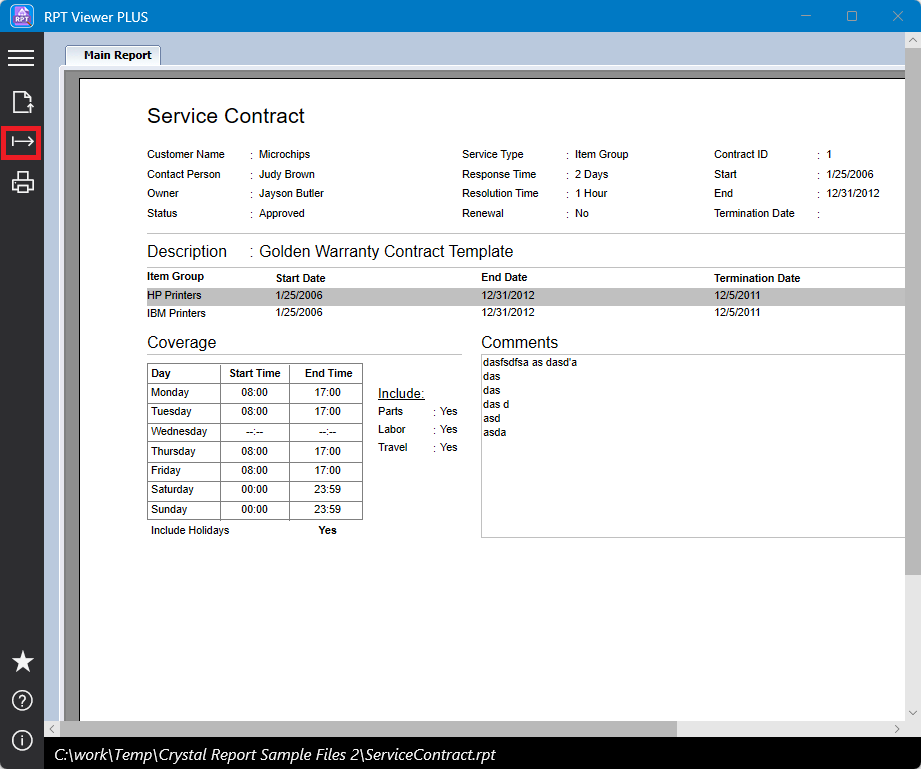
2, click the menu item “Export” in the menu bar, and choose a folder to save the exported PDF file.

How to Print a .RPT File?

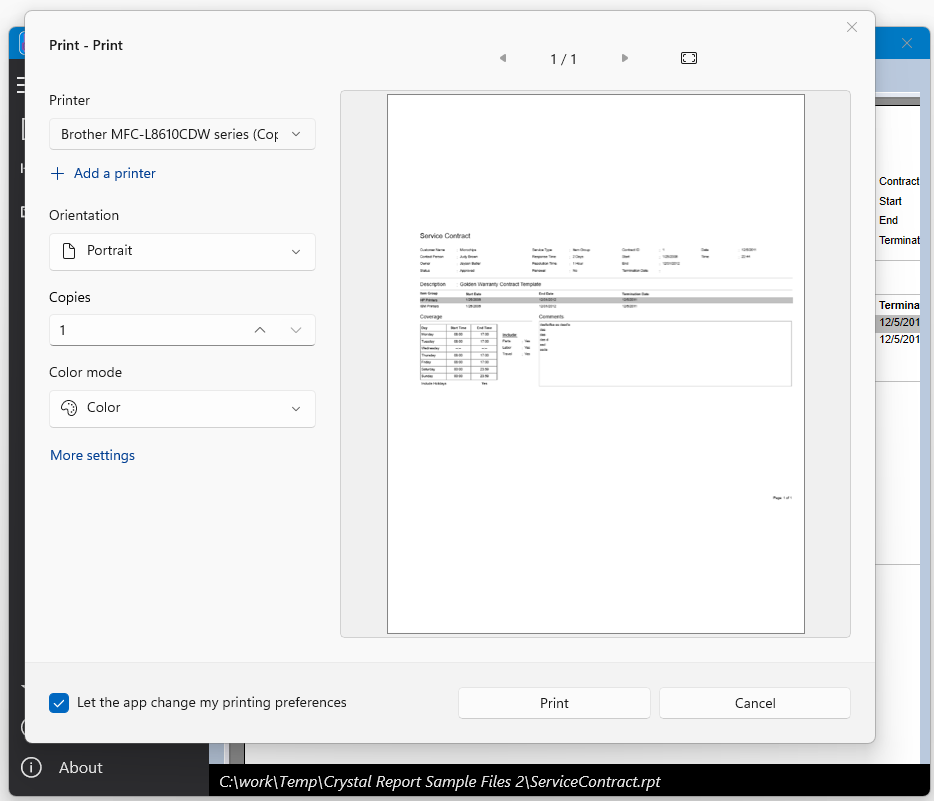
After a .RPT file is open in the app, you can print it by clicking the menu item “Print” in the menu bar.

Sponsored Links

Screenshot:

E-mail Support

If you have any further questions or feed-backs about the app, please feel free to reach us by email. We are here to listen and help.