Real eBooks Reader / File Viewer Max eBook Reader Online Tutorial

This tutorial is for Real eBooks Reader and File Viewer Max eBook Reader users so that they can know and make use of the app better. Although the screenshots in this article are taken from Real eBooks Reader, the instructions work for all products mentioned above.

Sponsored Links

New feature – the dark mode. You can change the theme for the app now. There are three options: light, dark or darker.
In this online tutorial, we cover the following topics: how to open an eBook? what document formats are supported? how to navigate a book? how to use zoom, rotate and presentation mode? How to change to dark mode?

Note: Real eBooks Reader is a product by XiaoyaLab. At XiaoyaLab, we focus on these areas: PC optimization and cleaning, video processing and converting, audio processing and converting, video editing, image process and converting, etc.

How to Open an eBook?

There are three ways to open and start to read an eBook document.

Sponsored Links

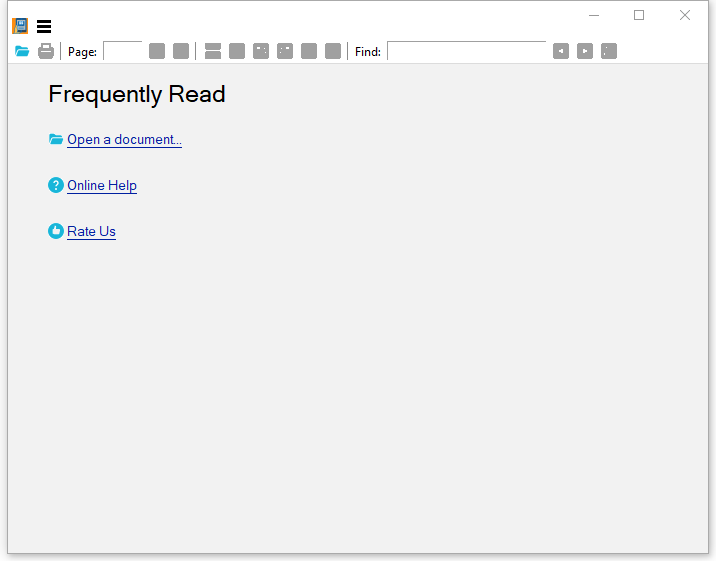
Method 1, in the main UI, directly click the link “Open a document”.

Method 2, click the open button which is located at the left end of the toolbar.

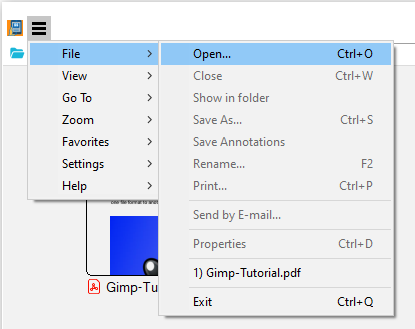
Method 3, click the menu button then “File” -> “Open”. 

What Document Formats are Supported?

Real eBook Reader supports all popular digital publication formats, including:

Sponsored Links

– .azw, .azw3 (un-encrypted Kindle eBook file format)
– .epub (un-encrypted EPUB)
– .mobi (Mobipocket Reader file format)
– .pdf (Portable Document Format)
– .djv, .djvu (DjVu file format)
– .xps, .oxps, .xod (Open XML Paper Specification format)
– .cbr, .cbz, .cbt, .cb7 (Comic book format)
– .fb2, .fb2z, .zfb2 (FictionBook format)
– .pdb (Palm Doc format)
– .tcr (Psion Series 3 palmtop devices format)
– .chm (Microsoft Compiled HTML Help file format)
– .jpg, .png, .gif, .webp, .tiff, .tga, .j2k, .bmp, .dib (Images formats)
– .tar, .7z, .zip, .rar (Archive file formats)

How to Turn on the Dark Mode?

You can turn on the “Dark Mode” by changing the app’s theme. There are three theme options: Light (by default), Dark and Darker.

Sponsored Links

To switch the theme, click the menu button, then “Settings” -> “Theme”. Now you can select “Dark” or “Darker” now. 

How to Navigate through a Book?

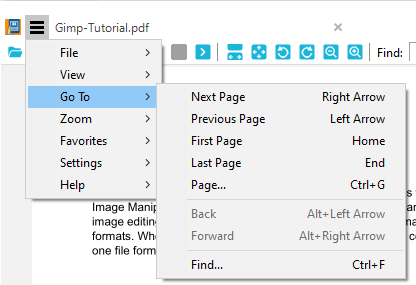
Similar to other common eBook Reader software, Real eBooks Reader provides you the basic navigation control by menus, as shown below.

Sponsored Links

What makes Real eBooks Reader more convenient to use, is that it provides a whole set of keyboard shortcuts to control and navigate through a book.

j / k – Scroll up / down by line
Up / Down – Scroll up/down by line
space – Scroll by screen
Shift + space – Scroll back by screen
n / p – Next / previous page
Page Down / Page Up – Next / previous page
Ctrl + Down / Ctrl + Up – Next / previous page
Alt + Left – Go back
Alt + Right – Go forward
Ctrl + G – Go to page
g – Go to page
Home – Go to first page
End – Go to last page
b – Flip a page in book mode
Ctrl + Shift + Right – Open next document in the directory
Ctrl + Shift + Left – Open previous document in the directory

How to use zoom, rotate and presentation mode?

Note: zoom, rotate and presentation mode only work for PDF format.

Sponsored Links

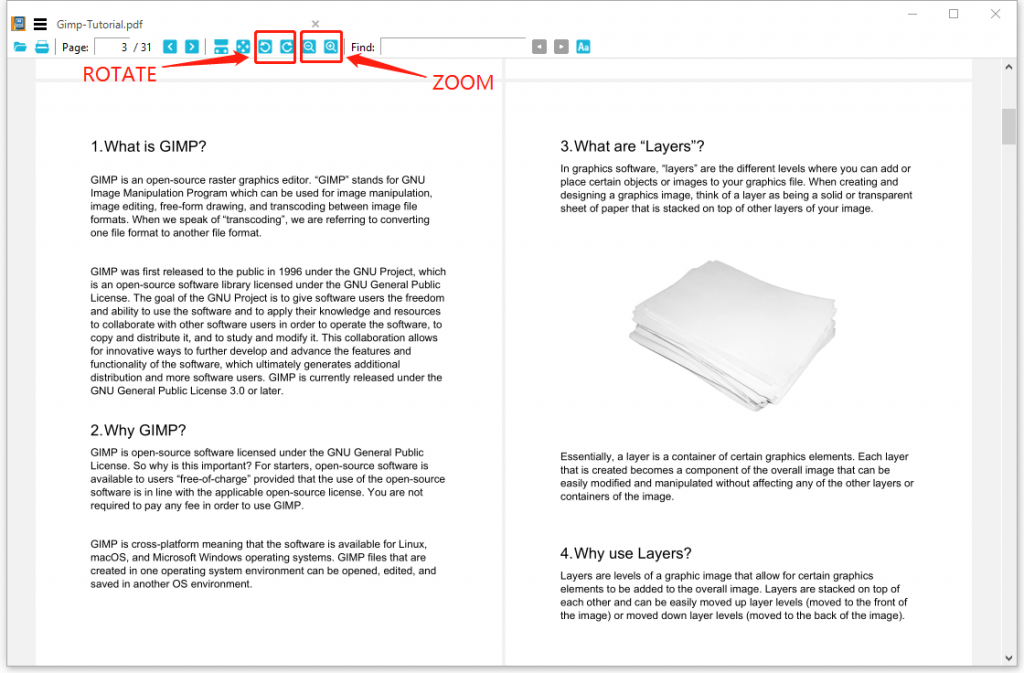
Zoom and Rotate buttons are located in the toolbar, as shown below.

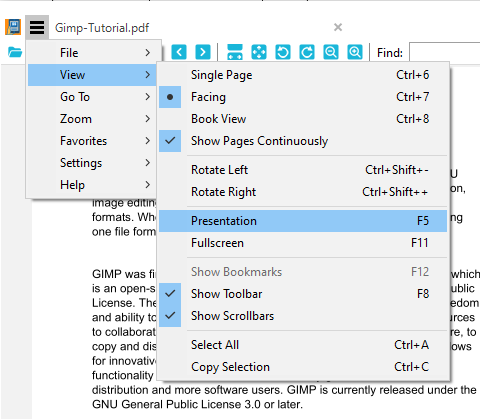
The presentation mode can be enabled from the menu, as shown below. 

To exit the presentation mode, just press the key “Esc”.

E-mail Support

If you have any further questions or feed-backs about the app, please feel free to reach us by email. We are here to listen and help.