Super File Viewer Online Tutorial

Dear Super File Viewer customer

Sponsored Links

You may have noticed that this app has been un-published by Microsoft store.

Luckily, one of our developers decides to continue maintaining this app in his own account. The new product name is called “File Viewer Max”, and please download it from  https://www.microsoft.com/store/apps/9N71RK585K7S

If you want to read the original online tutorial for Super File Viewer, please directly scroll down.

Thanks for your support.

Easthills Media Inc.

************************************************************************************************************

This online tutorial is for new Super File Viewer users and only include the basic features introduction. If you are an advanced user and require special help, feel free to contact our support by email. 
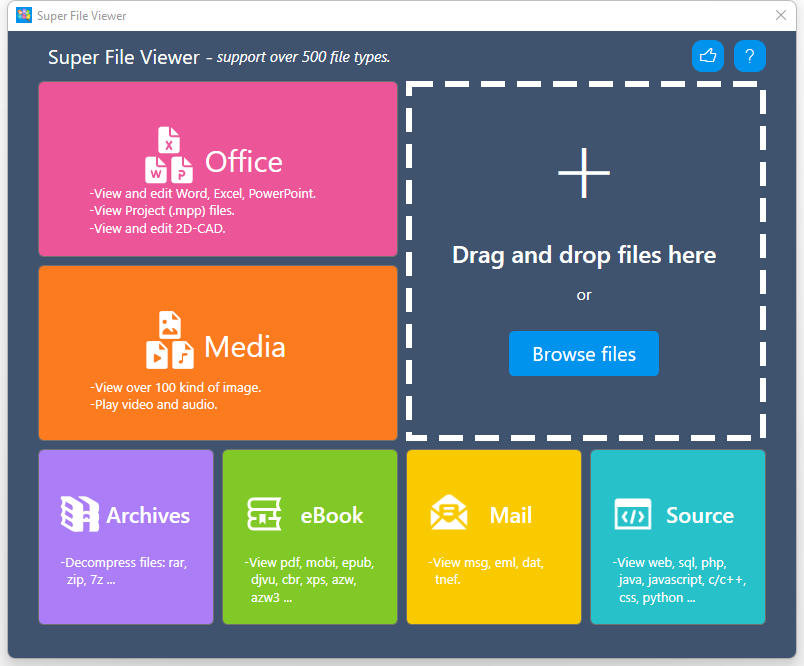
We cover the following topics in this tutorial. 

  • Main Features and Components
  • Office Editor
  • Microsoft Project File Viewer (.mpp)
  • 2D CAD Editor
  • Image Viewer
  • Media Player (Video Player & Audio Player)
  • Archive Opener
  • eBook Reader
  • E-mail Message Reader
  • Source Code Viewer

How to Open a File in Super File Viewer

There are three ways to open a file in Super File Viewer.

Sponsored Links
  1. Drag and drop files – drag any file to the app and drop it to the right top rectangle area.
  2. Click the button “Browse files“ – similar to the first method, you can pick any file using this method. The app will try to figure out the file’s format and use corresponding component to open it.
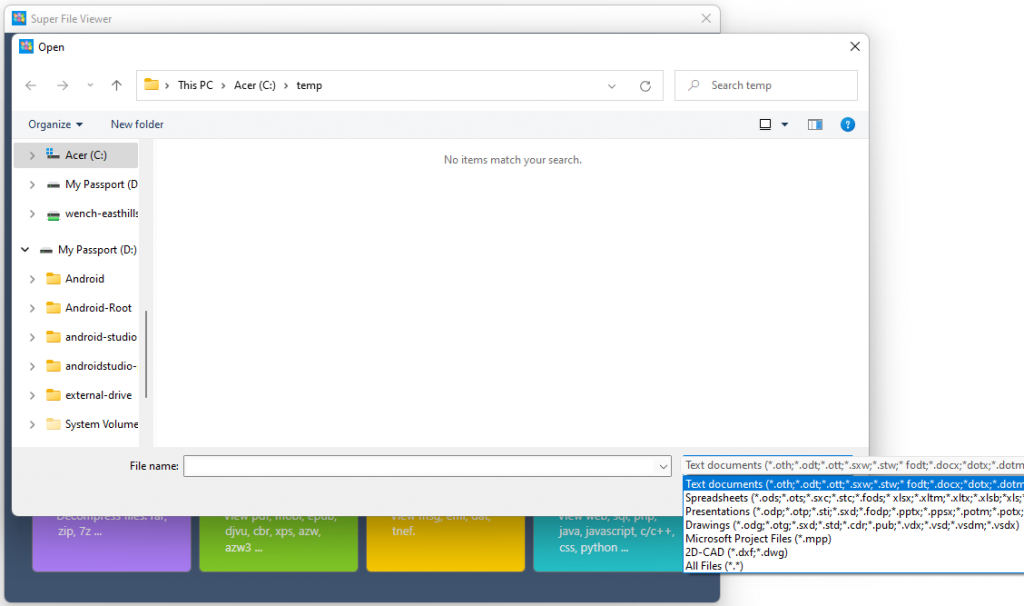
  3. Click the specific component buttons – if you know the file type, you can click the corresponding component button to open it. If you cannot find you file, please change the file type filter at the bottom right corner and select the correct one, as shown below.

Main Features and Components

Super File Viewer contains the following components. Some of them are built in the main app while others are separate executables.

  • Office Editor – edit, save, convert and print Office files
  • Microsoft Project File Viewer – open and view .mpp files
  • 2D CAD Viewer
  • Image Viewer
  • Video Player & Audio Player
  • Archive Opener
  • eBook Reader
  • E-mail viewer
  • Source Code Viewer

With all these components, Super File Viewer can:

  • Open over 500 file formats
  • Edit, save, convert and print Office files
  • Extract files from compressed archives
  • Play video and audio files
  • Read popular eBook formats
  • Open webpage files
  • And a lot more

Office Editor

Note: we have a much more detailed tutorial for this Office Editor component separately, you can read it by clicking here.

Sponsored Links

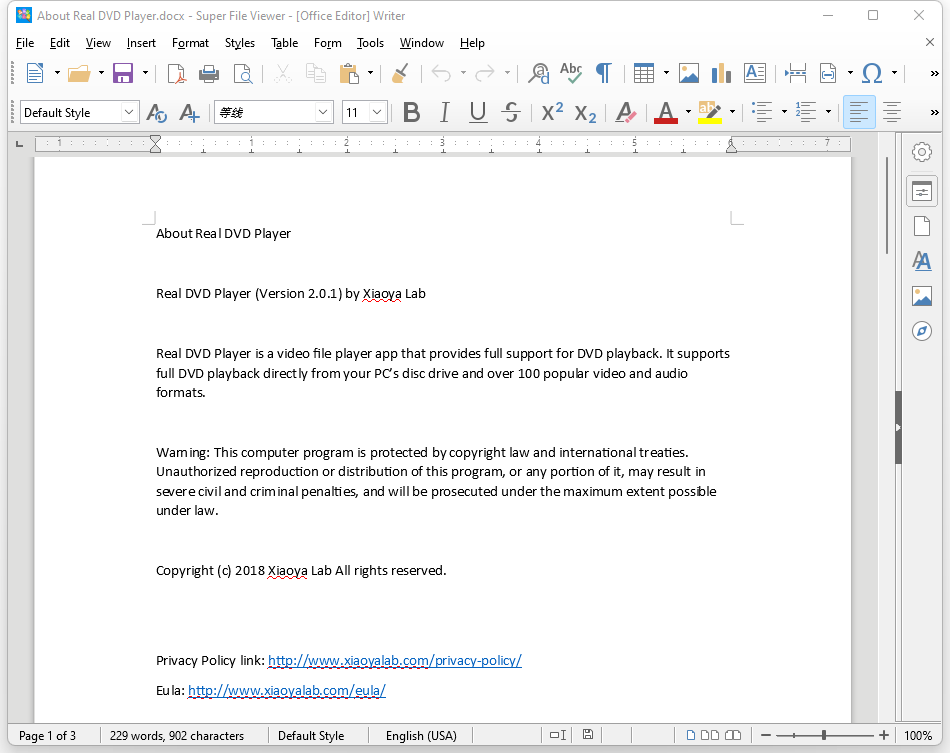
Super File Viewer Office Editor is a component with a complete feature set to handle all Office file types, including Word, Excel, Powerpoint files and etc.

With Writer, you can create, edit, save and print Word (mainly .DOCX and .DOC) files.

With Calc, you can create, edit, save and print Excel (mainly .XLSX and .XLS) files.

With Impress, you can create, edit, save and print Powerpoint (mainly .PPTX and .PPT) files.

There are also Draw and Base that enable you to draw diagram and handle database files.

We have a much more detailed tutorial for this Office Editor component separately, you can read it by clicking here.

Microsoft Project File Viewer

Super File Viewer Project Viewer is a viewer to view .mpp files.

Sponsored Links

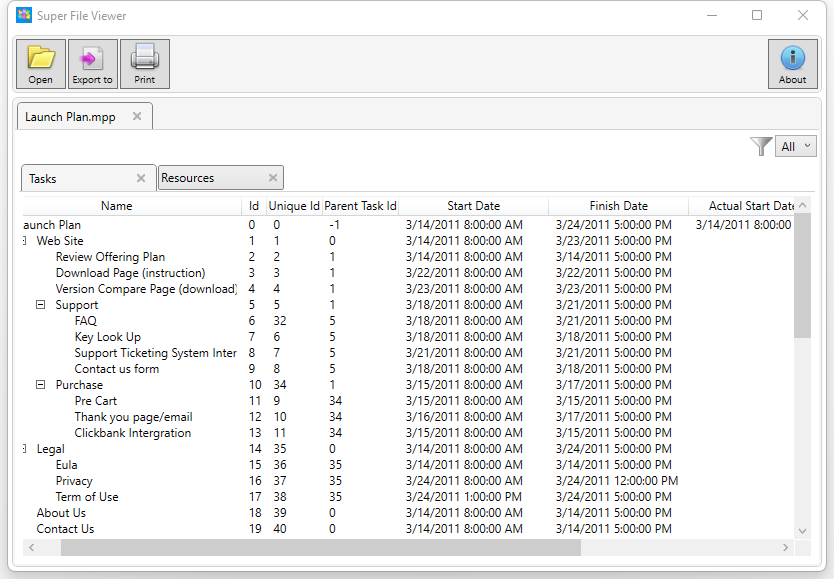
To open a mpp file, you can drag and drop the file to the app, or click the “Browse files” button to pick the file, or click the button “Office” at the left top corner and then, in the open window, select the file type filter “Microsoft Project Files (*.mpp)”.

With Super File Viewer Project Viewer, you can:

  • Export the project file into Excel file (.xlsx) by clicking the button “Export to”
  • Print the file by clicking the button “Print”
  • View the project in two views: tasks and resources (Click the tab to switch)
  • Filter the viewer using the filters
  • View task details by right clicking the task and selecting “Task details”

2D CAD Editor

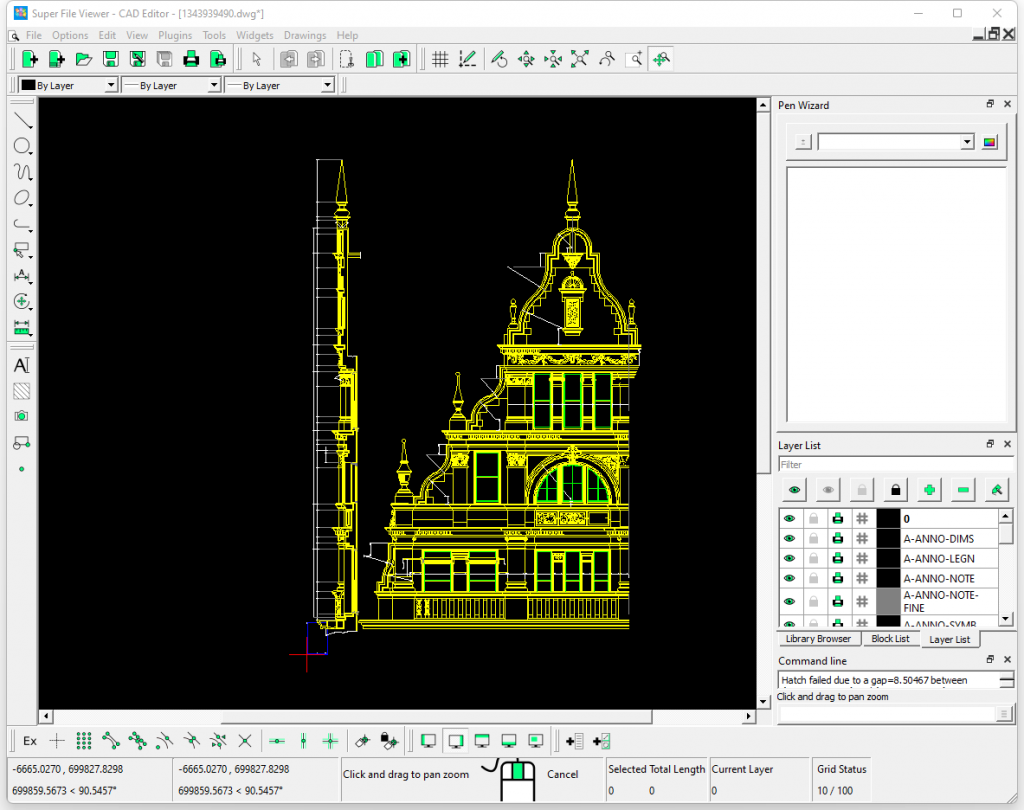
Super File Viewer CAD Editor is a 2D CAD Editor with a full feature set. It can not only open the 2D CAD file but also create new designs.

Sponsored Links

To open a CAD file, you can drag and drop the file to the app, or click the “Browse files” button to pick the file, or click the button “Office” at the left top corner and then, in the open window, select the file type filter “2D CAD (*.dxf; *.dwg)”.

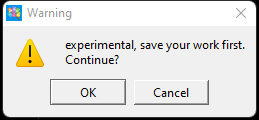
When the CAD Editor starts, it pop up a warning (as shown below). Make sure you click “OK” instead of “Cancel”. Otherwise, it doesn’t work.

FAQ 1, I got a error message “unsupported DXF/DWF file version”, what should I do?

As the message said, it means that the file you are trying open is not a 2D CAD file. It may be a 3D CAD design.

FAQ 2, I opened the file, but I couldn’t see anything but a “+” sign.

Please click the menu “View” -> “Auto Zoom”, then you will be able to see the design.

Image Viewer

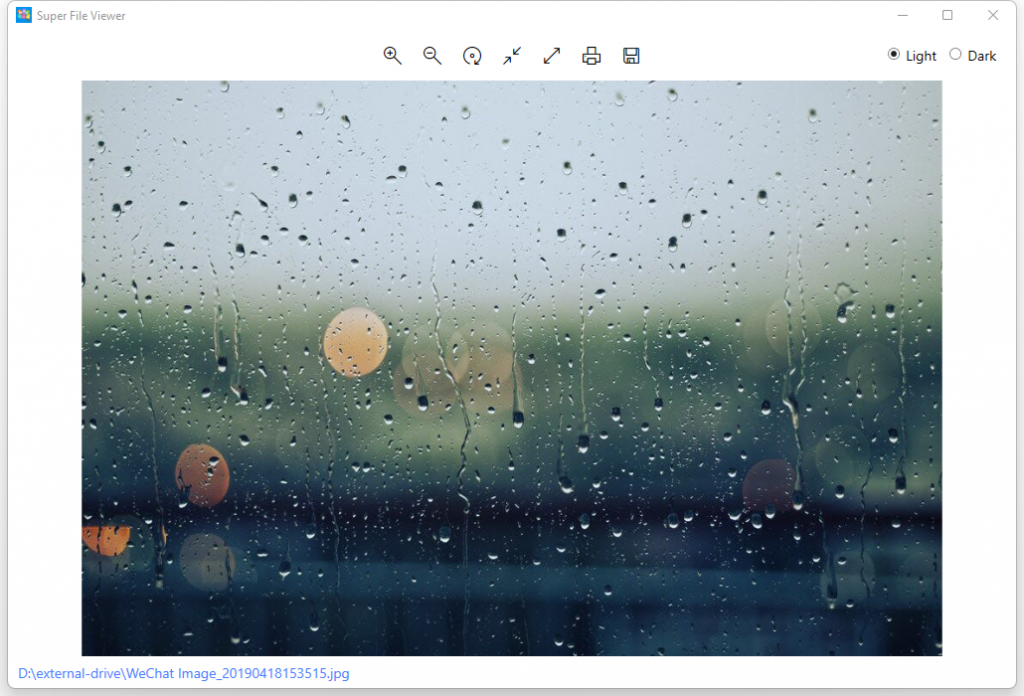
Super File Viewer Image Viewer is a built-in viewer for common image file formats with basic features.

Sponsored Links

To open a image file, you can drag and drop the file to the app, or click the “Browse files” button to pick the file, or click the button “Media” and then, in the open window, select the file type filter “common image files”.

With Super File Viewer Image Viewer, you can:

  • Print the image
  • Save the image to other format
  • Rotate the image
  • Zoom in/out
  • Switch between light background or dark background

Media Player (Video Player & Audio Player)

Note: we have a much more detailed tutorial for this Media Player component separately, you can read it by clicking here.

Sponsored Links

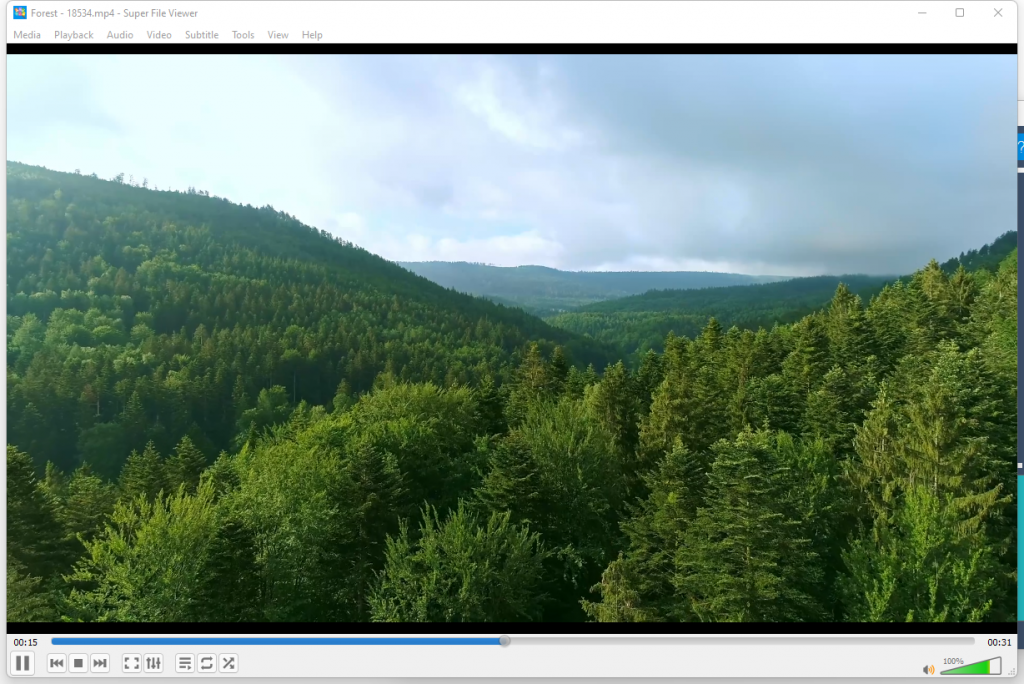
Super File Viewer Media Player is a component with a complete feature set to play all media file types, including videos, audio, DVD, Blu-ray and etc.

Super File Viewer Media Player even has a video conversion feature. It can help you convert your video to mp4 or other formats. For details, please reference to the detailed tutorial below. 

Note: we have a much more detailed tutorial for this Media Player component separately, you can read it by clicking here.

Archive Opener

Super File Viewer Archive Opener is a built-in component for decompressing common archive file formats.

Sponsored Links

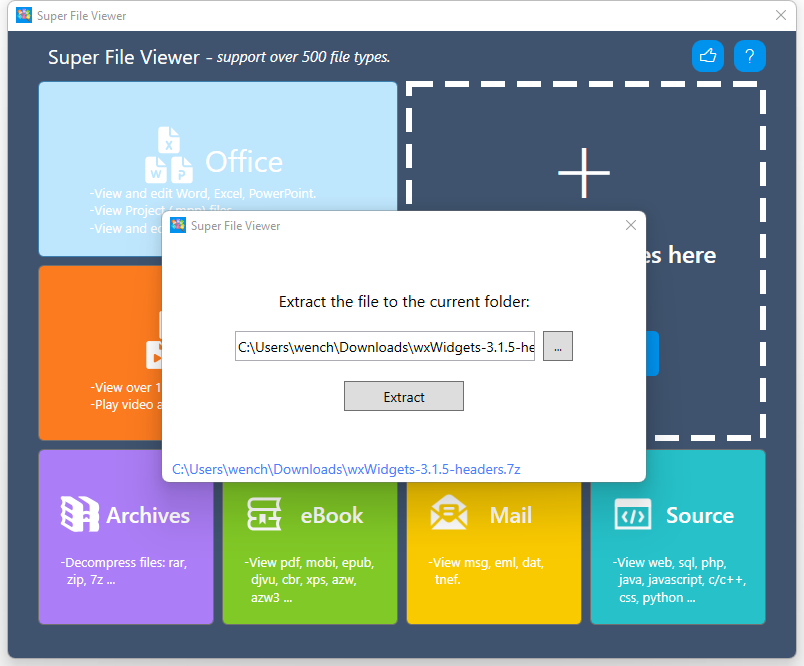
To decompress an archive file, you can drag and drop the file to the app, or click the “Browse files” button to pick the file, or click the button “Archives” and then, select the file.

As shown in the screenshot above, just click the button “Extract” and the archive file will be unzipped.

eBook Reader

Note: we have a much more detailed tutorial for this eBook Reader component separately, you can read it by clicking here.

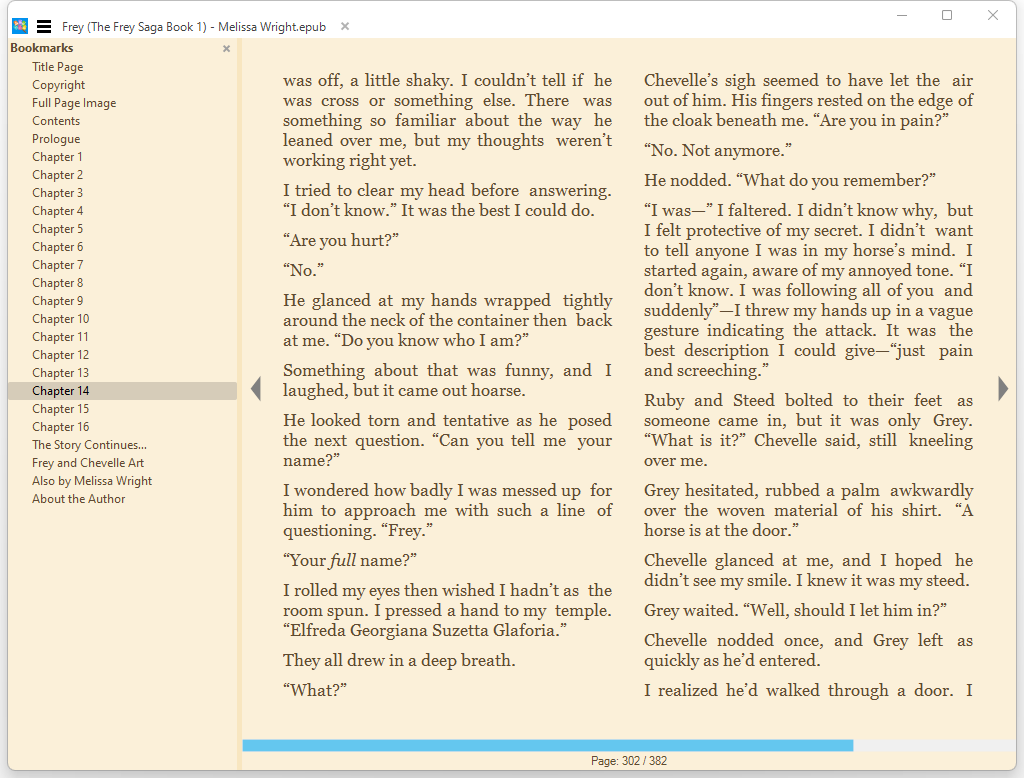
Super File Viewer eBook Reader is a component with a complete feature set to read all common eBook file types including .azw, .azw3, .epub, .pdf, .cbz and etc.

To start reading an eBook, you can drag and drop the file to the app, or click the “Browse files” button to pick the file, or click the button “eBook” and then, select the file.

Note: we have a much more detailed tutorial for this eBook Reader component separately, you can read it by clicking here.

E-mail Message Reader

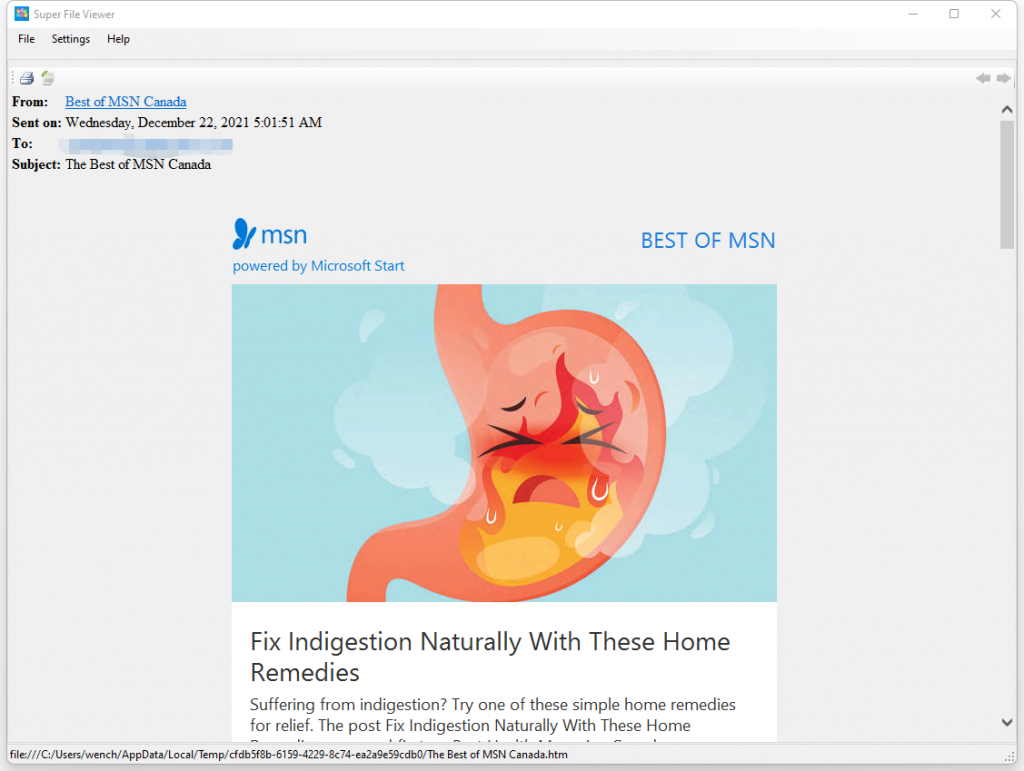
Super File Viewer Message Reader is a viewer to view Email files.

Sponsored Links

To open a email file, you can drag and drop the file to the app, or click the “Browse files” button to pick the file, or click the button “Mail” and then, select the file.

With Super File Viewer E-mail Message Reader, you can:

  • Print the email
  • Save the email as text

Source Code Viewer

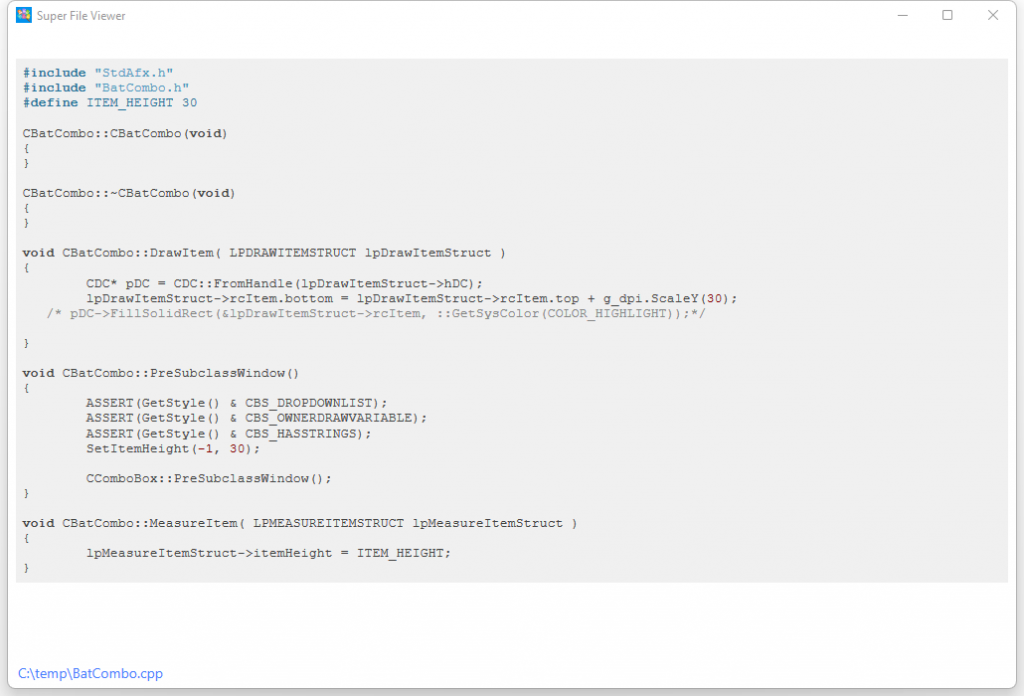
Super File Viewer Source Code Viewer is a built-in text viewer. All the source code files will be displayed in this text viewer except that the webpage (.html) file is opened using a special browser component.

To open a source code file, you can drag and drop the file to the app, or click the “Browse files” button to pick the file, or click the button “Source” and then, select the file.

FAQ 1 – I cannot open a file in your support format list, what can I do?

If you find any file format that exists in the support list but cannot be opened by the app, please contact our support team (support@easthillsmedia.com).

Sponsored Links

E-mail Support

If you have any further questions or feed-backs about the app, please feel free to reach us by email. We are here to listen and help.