Where to Find Captured Screenshots?
After a screenshot is captured, Screenshot Made Easy displays a menu that lets you choose what to do with the image.
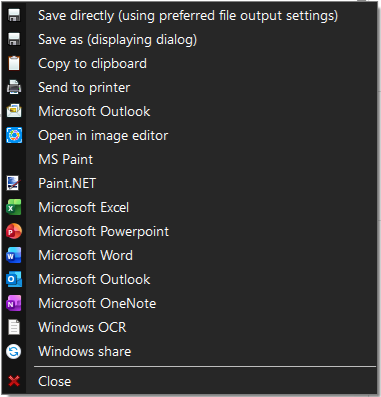
Available options include:
Save directly (using your preferred output settings) — Saves the screenshot silently to the configured output folder
Save As — Opens a dialog to choose the save location and file name
Copy to Clipboard — Copies the screenshot for immediate pasting
Send to Printer — Sends the screenshot directly to a printer
Microsoft Outlook — Opens Outlook (old version) and pastes the screenshot
Open in Image Editor — Opens the screenshot in the built-in image editor
MS Paint — Opens Microsoft Paint and pastes the screenshot
Paint.NET (if installed) — Opens Paint.NET and pastes the screenshot
Microsoft Excel — Opens Excel and pastes the screenshot
Microsoft PowerPoint — Opens PowerPoint and pastes the screenshot
Microsoft Word — Opens Word and pastes the screenshot
Microsoft Outlook — Opens Outlook and pastes the screenshot
Microsoft OneNote — Opens OneNote and pastes the screenshot
Windows OCR — Performs OCR and copies the extracted text to the clipboard
Windows Share — Opens the Windows Share panel
If you have already set a destination, the app will skip the menu and send the screenshot there automatically.