Real Speed Test V2.X Online Tutorial

Note: This old online tutorial is for Real Speed Test V2.X, which is no longer functioning. Please use the new Real Speed Test V3.X instead. The V3 online tutorial can be found here.

Sponsored Links

Based on Ookla speedtest technology, Real Speed Test is a free and simple app to measure your download speed, upload speed, network delay and consistency.

This tutorial is for Real Speed Test users so that they can know and make use of the app better.
In this quick guide, we cover the following topics:

How does Real Speed Test measure your internet speed?
How to perform an internet speed test?
What to do if upload speed test doesn’t work?
How to change a server to test internet speed?
What is a good internet speed?
What to do if my internet speed is slow?
Why do I get different speeds every time I test?
What is my IP address?

How does Real Speed Test measure your internet speed?

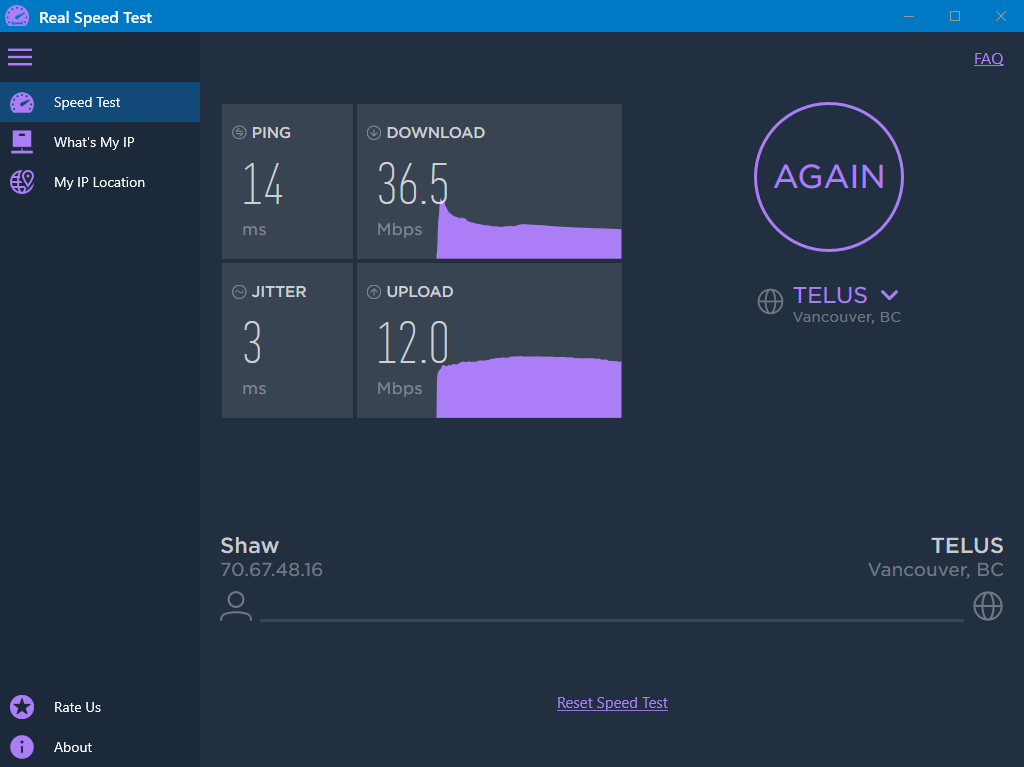
This app measures Ping(Latency), Jitter, download speed and upload speed.

  • Ping: also called latency, is the reaction time of your connection–how quickly your device gets a response after you’ve sent out a request. Ping is measured in milliseconds (ms).
  • Jitter:  is a measure of the variability in ping over time. High jitter can result in buffering and other interruptions. Jitter is measured in milliseconds (ms).
  • Download speed: how quickly you pull data from a server on the internet to your device.
  • Upload speed: How quickly you send data from your device to the internet.
Note: Real Speed Test is a product by XiaoyaLab. At XiaoyaLab, we focus on these areas: PC optimization and cleaning, video processing and converting, audio processing and converting, video editing, image process and converting, etc.
How to perform an internet speed test?

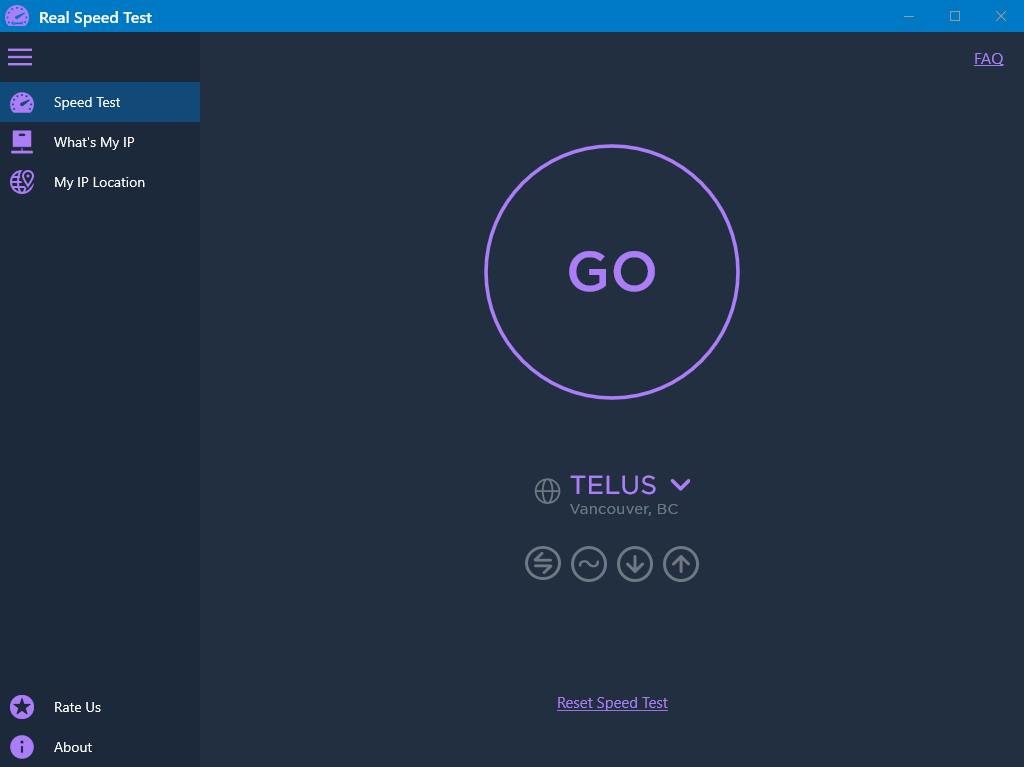
In Real Speed Test, performing an internet speed is simple and straight-forward.

Sponsored Links
  1. Click the button “Go”
  2. Wait for the download speed test and upload speed test to complete
  3. Read the test result.

If the upload speed test failed to start, please read the method below.

What to do if upload speed test doesn’t work?

If you find the upload speed test won’t start, we recommend you to try the web version of the app by clicking here. Be sure to use an advanced web browser like Chrome, Firefox or Edge to open the web version of the app.

The most common cause of this problem is that somehow your computer cannot connect to the server.

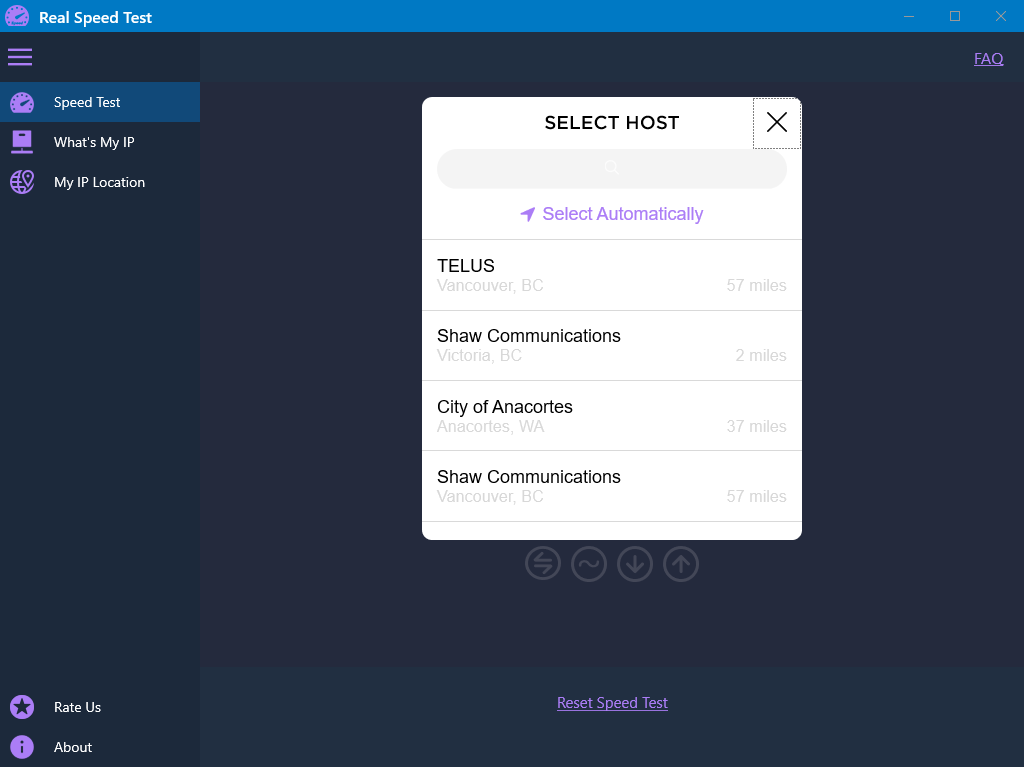
How to change a server to test internet speed?

By default, Real Speed Test automatically picks the best server for you to do the test. If you want to use a specific server to test, you can change it by clicking the server drop-down list and selecting a new one. Using different servers to test can give you a better idea how your internet speed really is like.

Sponsored Links

Screenshot:

What is a good internet speed?

Generally speaking, your internet speed needs to be at least 20 Mbps be to called a good one. If it’s less than 20 Mbps, very likely you will encounter problems watching online videos like Netflix, YouTube and etc.

What to do if my internet speed is slow?

There are many factors impacting your internet speed test result. If you find your download speed test is slow, the things you can try include rebooting the router, rebooting your computer, or even select a different test server. If you have tried all these but your download speed is still slow, you may need to contact your ISP to report the problem or upgrade your plan.

Sponsored Links

Why do I get different speeds every time I test?

There are many dynamic factors impacting your internet speed test result. Every time your internet speed test result could be a little bit different.  That’s normal. What you need to focus on is the internet speed you get when all your neighbors in your neighborhood are using the internet, because that impact your internet experience the most.

What’s my IP address?

Like a mailing address in the physical world, the IP address is your device’s address in the internet world. Other internet users will use the IP address to communicate with your device, and it identifies your device.

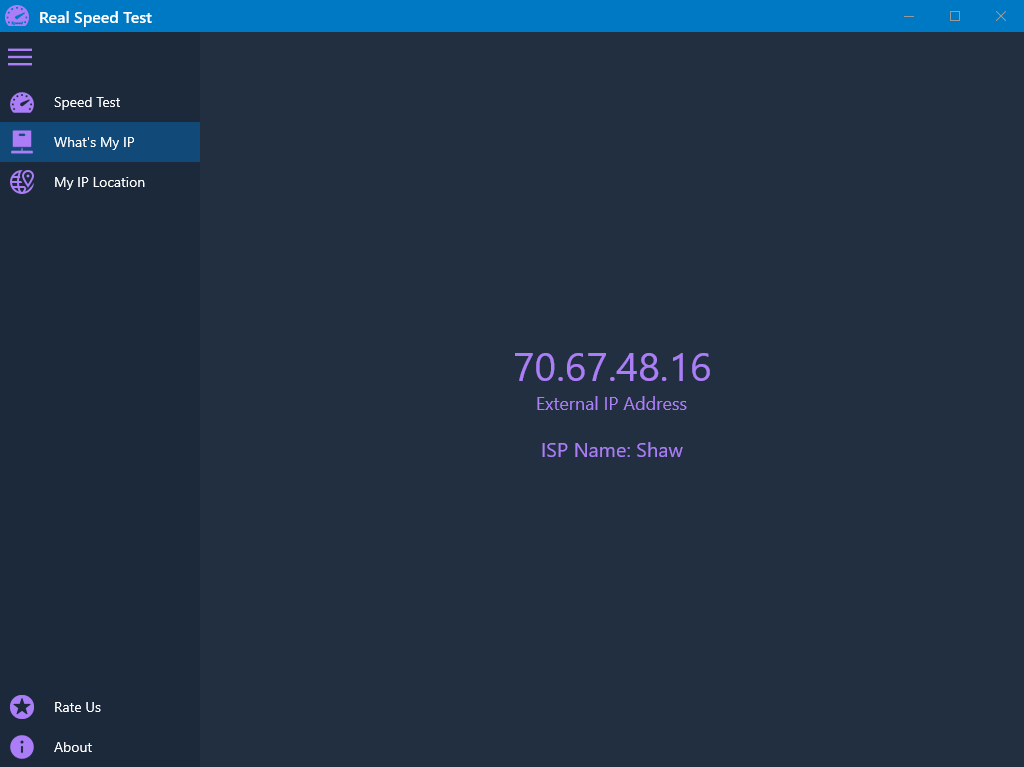
In Real Speed Test, click the tab “What’s My IP”, and you will find your public IP address. You may need this information when you contact your ISP.

E-mail Support

If you have any further questions or feed-backs about the app, please feel free to reach us by email. We are here to listen and help.

Sponsored Links