Real PDF Editor PLUS Guide for Upgraded Users

Real PDF Editor PLUS is the new name of the product (previously Real PDF Suite). 

Sponsored Links

This guide is for the existing Real PDF Editor users who have upgraded Real PDF Editor to Real PDF Editor PLUS. If you are a new user and have never used Real PDF Editor,  we recommend you directly  read Online Tutorial for new users.

In this online guide, we cover the following topics: new features, switch between UI 3 and old UI, PDF viewer, annotation, fill PDF forms and convert other formats to PDF.
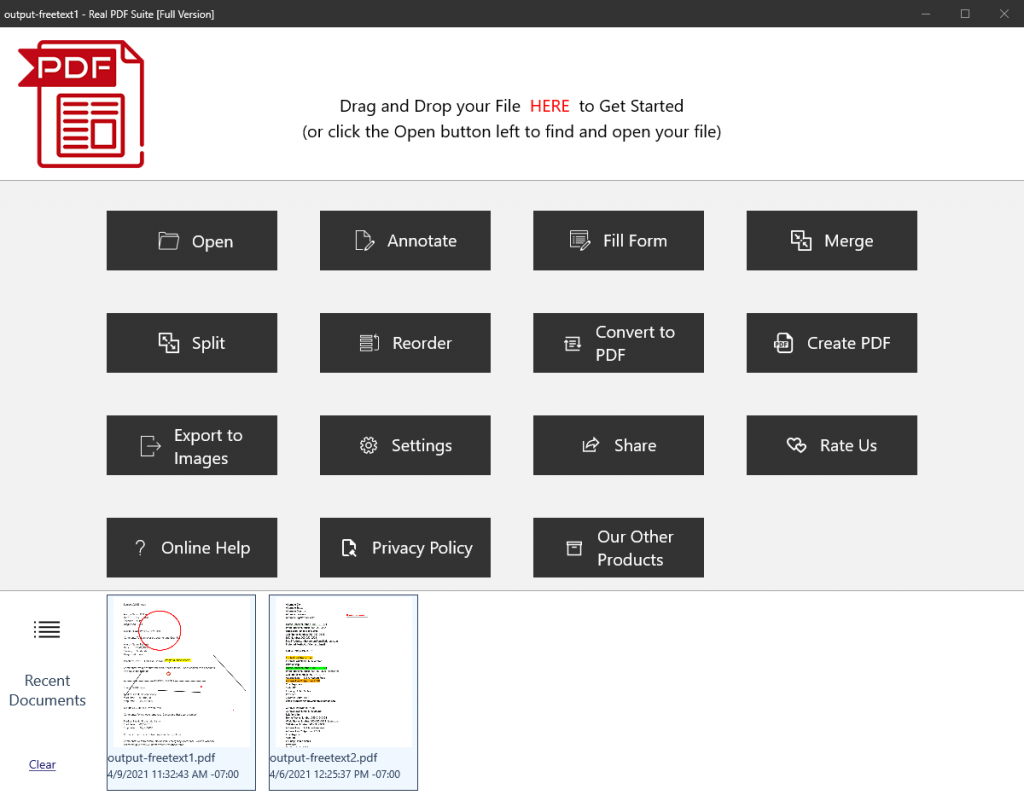
What’s New in Real PDF Editor PLUS?

New UI 3.0
New PDF Viewer with much more stable annotation tools
Convert Other Formats to PDF
Create Blank PDFs
Can open many more formats now

Note: PDF annotation and filling forms become free features in the new Real PDF Editor PLUS UI 3.0 now.

Note: split, merge, reorder and export to images are almost the same as before so we will not mention them in this guide.

UI 3.0 and Old UI

Besides the look, the main difference between UI 3.0 and the Old UI is that UI 3.0 uses a new PDF Viewer and Annotation module, which is much more stable compared to the one in the Old UI.

Sponsored Links

By default, Real PDF Editor PLUS switches to use the new UI 3.0. However, if you prefer to using the old style UI, you can always switch it back to the Old UI.

Click the button or menu item “Setting” and then you can do your selection in the UI Settings window.

Note: we highly recommend you use the default UI 3.0 because we may get rid of the old UI in the future.

Supported Formats

Besides PDF, Real PDF Editor PLUS can also open many other formats. It works well as a e-book reader and a image viewer.

The formats are: PS (.epfs, .epfi and .ps), Tiff (.tif and .tiff), CHM, DjVu (.djv and .djvu), Images (.bmp, .dib, .icb, .ico, .jpe, .jpeg, .jpg, .jpg2, .mng, .png, .pbm, .pcx, .pgm, .ppm, .rgb, .tga, .tpic, .vda, .vst, .xbm, .xcf, .xpm .gif, .webp and etc.), DVI, XPS (including .oxps), ODT, Fiction Book (.fb2), Comic Book (.cb7, .cbt, .cbr and .cbz), Plucker, EPub (.epub), Fax (.g3 and .fax), Mobipocket (.mobi), Okular, Prc, Wwf

New PDF Viewer

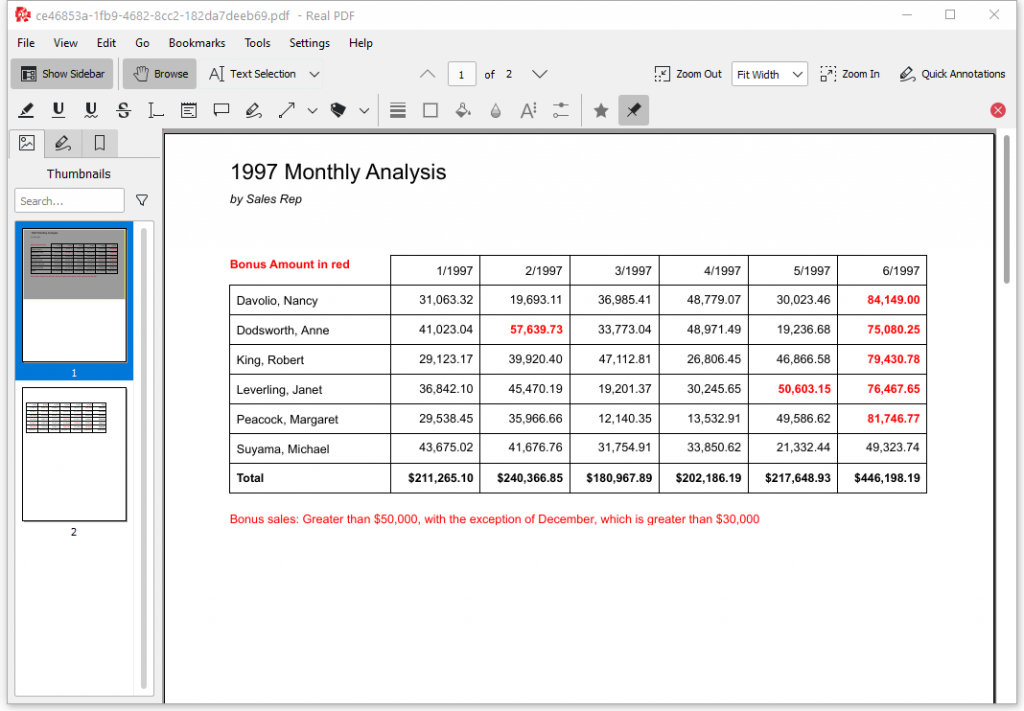
The viewer component in Real PDF Editor PLUS UI 3.0 is a PDF viewer with a complete feature set including thumbnail view, turning pages, zoom in/out, one page view & window width view and rotate.

Sponsored Links

You can open the viewer by clicking the button “Open”, “Annotate” or “Fill Form”.

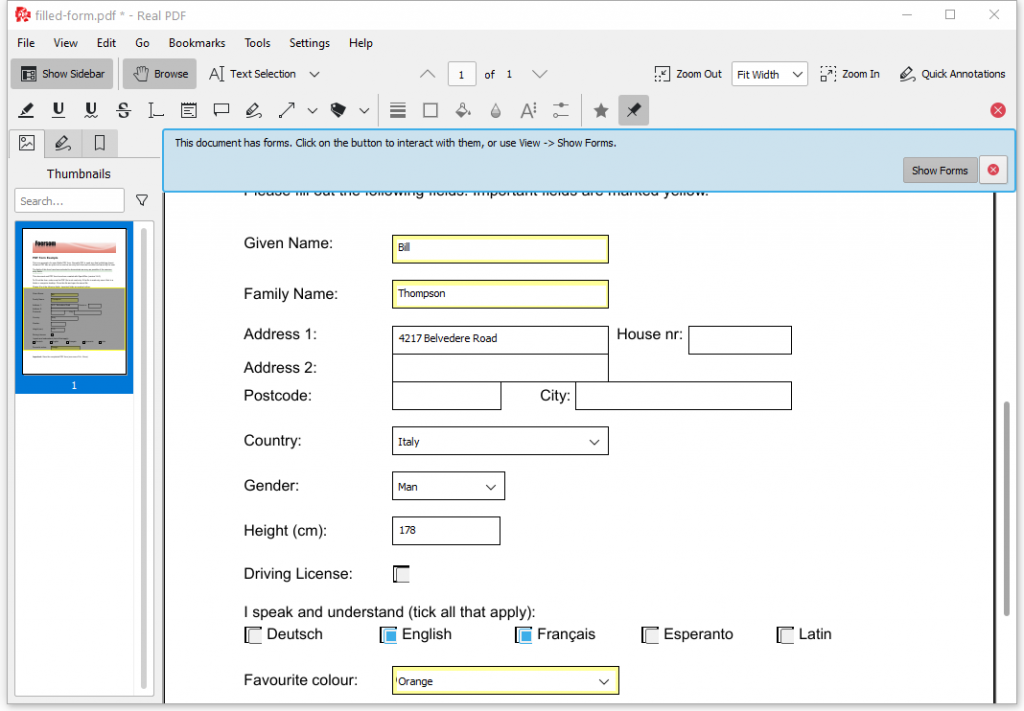
Fill a PDF Form

If the PDF file is a fillable form, with the new PDF Viewer, you can simply open the file and fill the content. It’s just that straight forward. Don’t forget to save it after filling in all content.

Note: not all PDF files are fillable. If the PDF file is not fillable, you can still use the annotation tool “Typewriter” to fill a form.

PDF Annotation Tools

The new full set of annotation tools in Real PDF Editor PLUS is easy to use.

Sponsored Links

Screenshot:

The new Real PDF annotation tools include highlighter, underline, squiggle, strike out, typewriter, inline note, popup note, freehand line,  line and shapes (straight line, arrow, rectangle, ellipse and polygon) and stamps. All these tools are customizable.

Freehand line, straight line, arrow, rectangle, ellipse and polygon – click to pick the tool you would like to use, and then, in the PDF file, start to draw anywhere you want.

Typewriter, inline note and popup note – click to pick the tool you would like to use, and then, in the PDF file, click the position where you want to add text and start typing.

Highlighter, underline, squiggle and strike out – click to pick the tool you would like to use, and then select the text you would like to annotate.

Stamps – click the stamp dropdown list and choose one stamp,  then in the PDF file, click the place you would like to add it. Note: the stamps added using this software are not visible in PDF viewers than Real PDF and Okular.

Convert Other Document to PDF

Real PDF Editor PLUS provides a new tool to help you convert other documents to PDF. You can access it by clicking the button “Convert to PDF” or “Create PDF” in the main UI.

The supported source formats include Word (doc and docx), images (jpg, png, bmp, gif and more), Excel (xls and xlsx), Powerpoint (pptx), URL and Html files.

Sponsored Links

We also recommend you to read the online tutorial for this tool only.

Create a Blank PDF

Real PDF Editor PLUS also provides you a feature of creating blank PDFs in the new converter tool mentioned above.  In the Real PDF Creator, click the button “Create Blank PDF” and follow the instructions to do it.

E-mail Support

If you have any further questions or feedbacks about the app, please feel free to reach us by email. We are here to listen and help.