PDF Converter +, Real/Super PDF Creator/Converter Online Tutorial

This tutorial is for PDF Converter +, Real PDF Creator, Real PDF Creator Pro, Real PDF Converter and Super PDF Creator users so that they can know and make use of the apps better. PDF Converter +, Real PDF Creator, Real PDF Creator Pro, Real PDF Converter and Super PDF Creator use the same code base, thus, we have this common online tutorial for all of them. Note: although the screenshots below are all taken for Real PDF Creator, they are almost identical in PDF Converter+, Real PDF Creator Pro, Real PDF Converter and Super PDF Creator.

Sponsored Links

In this quick guide, we cover the following topics:
How to convert word to PDF
How to convert images to PDF
How to convert Excel to PDF
How to PowerPoint to PDF
How to convert webpage/HTML to PDF
How to create blank PDF
How to add watermark to PDF.
How to use the PDF Viewer and the annotation tools.
How to Convert Word to PDF?

In this software, converting a Word document to PDF is very straight-forward.

Sponsored Links

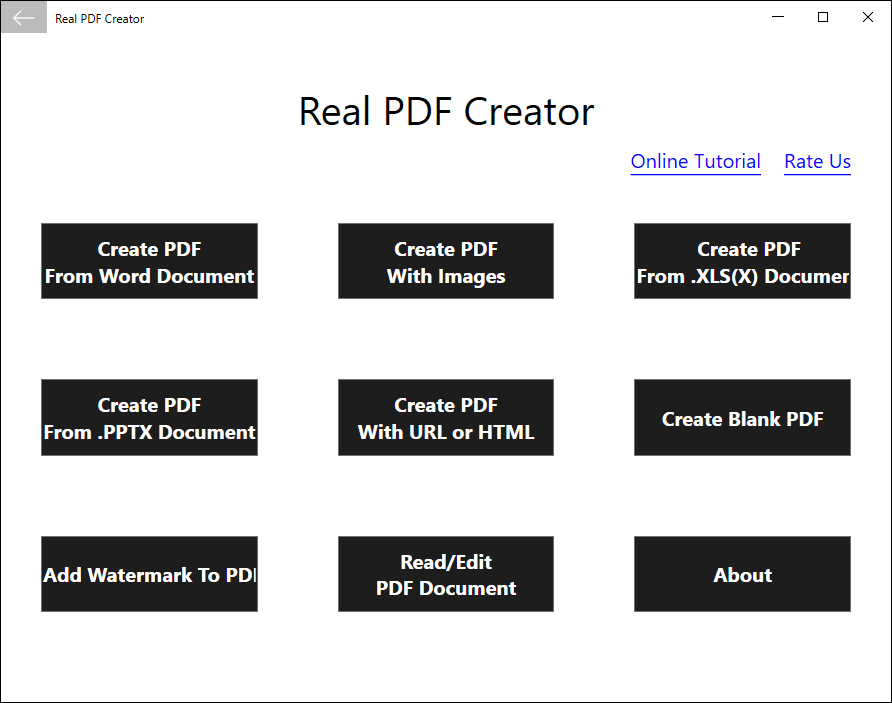
Step 1, click the button “Create PDF From Word Document”.

Step 2, select the word document file and click the button “Open”.

Step 3, review the converted PDF.

Step 4, if you are satisfied with the PDF, click the button “Save”, otherwise, click the left arrow button at the top left corner to go back, make some changes to your Word document and re-do the whole process.

How to Convert Images to PDF?

In this software, converting images to PDF is very straight-forward.

Sponsored Links

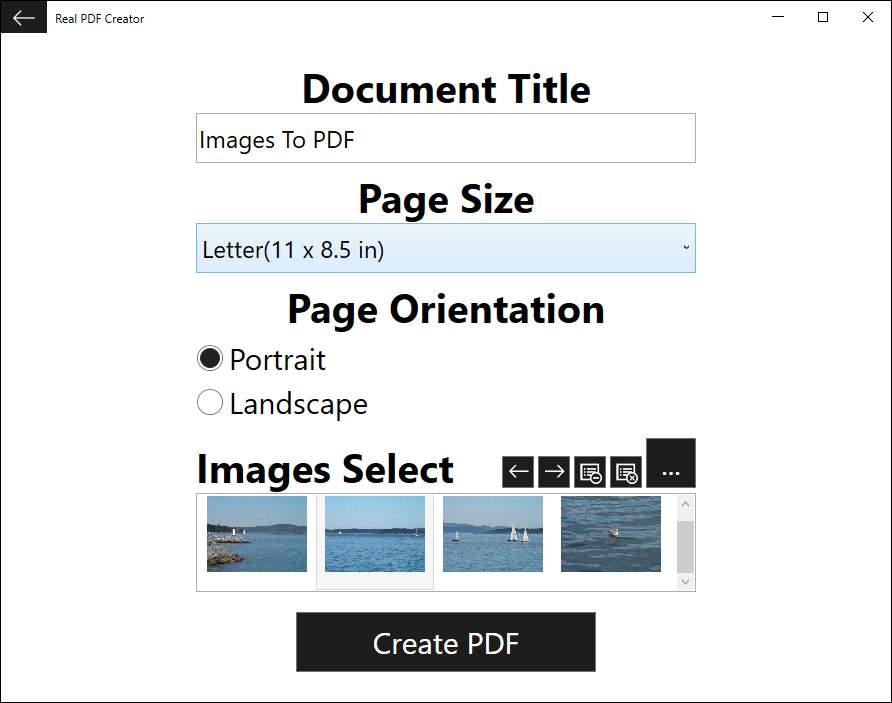
Step 1, click the button “Create PDF With Images”.

Step 2, fill in the document title, adjust settings if required, and click the button “…” to select the images files.

Step 3, with the image files selected, you are able to view the thumbnails of the images, re-order the images, remove the selected image, or clear the whole selected images list.

Step 4, click the button “Create PDF”.

Step 5, review the converted PDF.

Step 6, if you are satisfied with the PDF, click the button “Save”, otherwise, click the left arrow button at the top left corner to go back, adjust the settings and /or make required changes and re-do the whole process.

How to Convert Excel to PDF?

In this software, converting Excel to PDF is very straight-forward.

Sponsored Links

Step 1, click the button “Create PDF From .XLS(X) Document”.

Step 2, select the Excel document file and click the button “Open”.

Step 3, with the Excel file selected, you need to select one layout option to convert the document.

Step 4, click the button “Create PDF”.

Step 5, review the converted PDF.

Step 6, if you are satisfied with the PDF, click the button “Save”, otherwise, click the left arrow button at the top left corner to go back, choose different layout options and /or make required changes and re-do the whole process.

How to Convert PowerPoint to PDF?

In this software, converting PowerPoint to PDF is very straight-forward. Note: this version of the software doesn’t support .PPT files yet.

Sponsored Links

Step 1, click the button “Create PDF From .PPTX Document”.

Step 2, select the PowerPoint document file and click the button “Open”.

Step 3, review the converted PDF.

Step 4, if you are satisfied with the PDF, click the button “Save”, otherwise, click the left arrow button at the top left corner to go back, make some changes to your PowerPoint document and re-do the whole process.

How to Convert Webpage /HTML to PDF?

In this software, converting Webpage /HTML to PDF is very straight-forward. Note: this version of the software uses a mobile browser to render the webpage /HTML, so it may look different with what it looks like on a PC computer.

Sponsored Links

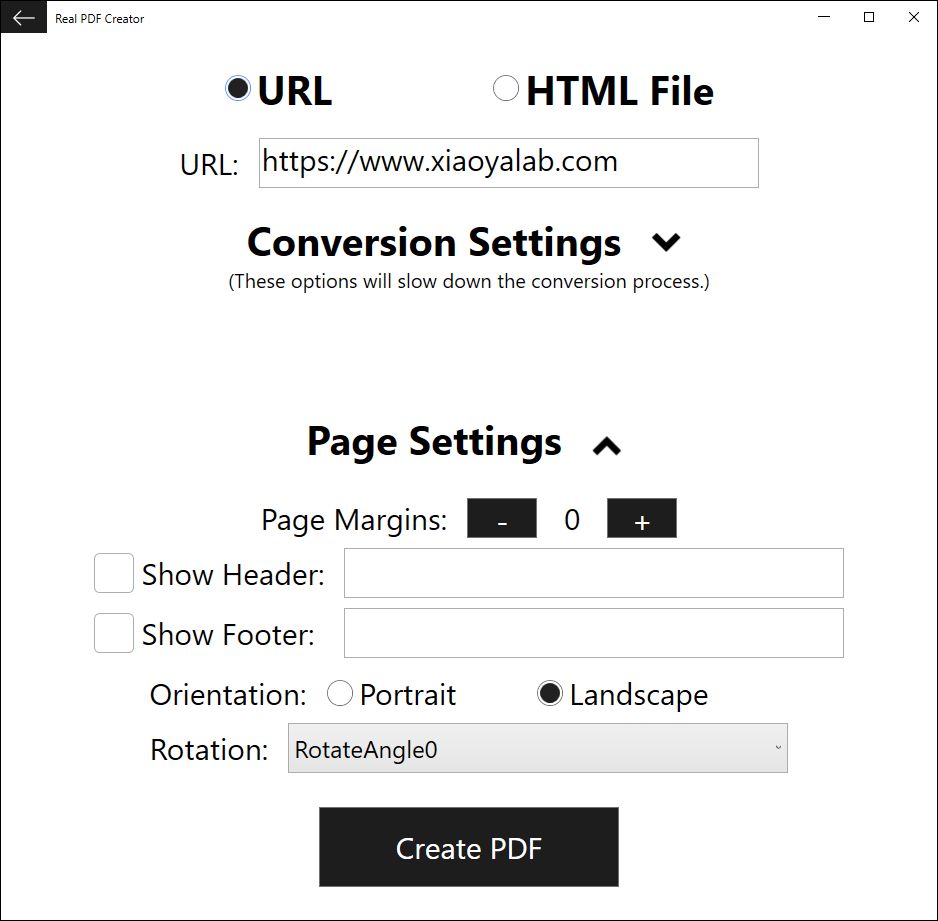
Step 1, click the button “Create PDF With URL or HTML”.

Step 2, if you are converting a webpage, select the option “URL” and input the URL as it is exactly in your browser.

Step 3, if you are converting an offline HTML file, select the option “HTML File”, click the button “…”, select the file and click the button “Open”.

Step 4, click the button “Create PDF”.

Step 5, review the converted PDF.

Step 6, if you are satisfied with the PDF, click the button “Save”, otherwise, click the left arrow button at the top left corner to go back, choose different options and re-do the whole process.

How to Create a Blank PDF?

In this software, creating a blank PDF is very straight-forward.

Sponsored Links

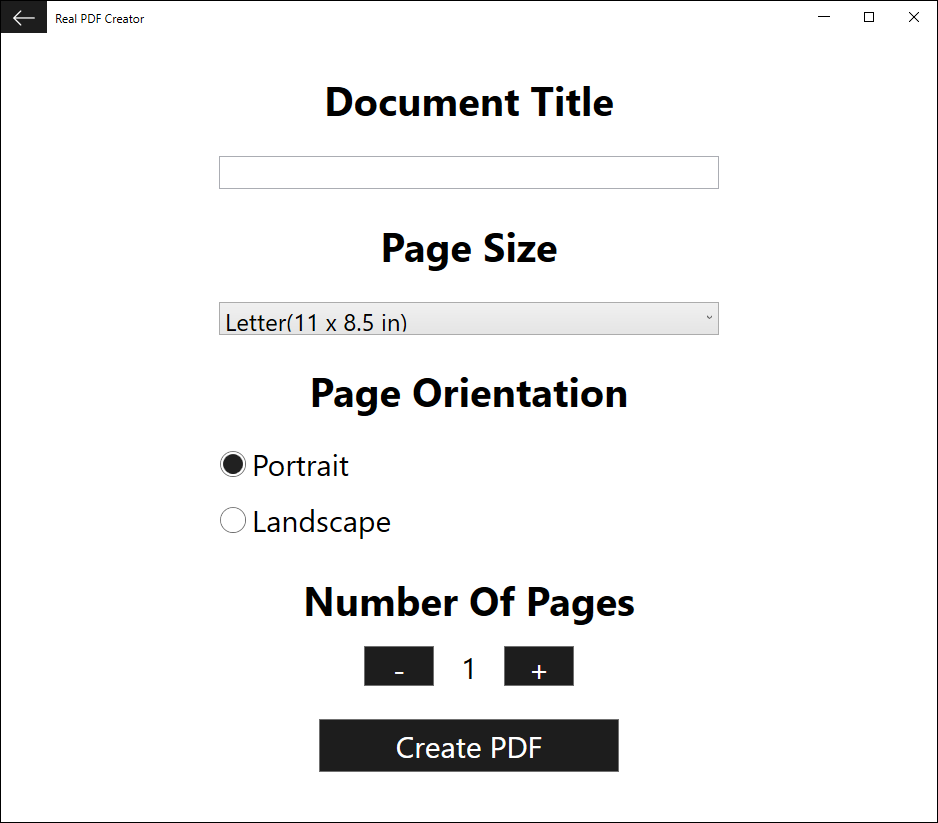
Step 1, click the button “Create Blank PDF”.

Step 2, fill in a title for the new document, adjust setting if needed, then click the button “Create PDF”.

Step 3, review the newly created PDF.

Step 4, if you are satisfied with the PDF, click the button “Save”, otherwise, click the left arrow button at the top left corner to go back, modify the settings and re-do the whole process.

How to Add Text and Image Watermarks to a PDF?

In this software, adding watermarks to a PDF is done by creating a new watermarked PDF, leaving the original document unchanged.

Sponsored Links

Step 1, click the button “Add Watermark to PDF”.

Step 2, choose the original PDF file that you want to add watermarks on, and click the button “Open”.

Step 3, type in the watermark text, then click the button “Create PDF”. You can also choose a picture as the watermark, or use both a text and a picture as watermarks.

Step 4, review the newly created PDF with watermarks.

Step 5, if you are satisfied with the PDF, click the button “Save”, otherwise, click the left arrow button at the top left corner to go back, modify the watermarks and re-do the whole process.

How to Use the PDF Viewer and the Annotation Tools?

This software provides a built-in PDF Viewer and a full set of annotation tools for you to use.

Sponsored Links

Step 1, click the button “Read/Edit PDF Document”.

Step 2, choose a PDF file and click the button “Open”.

Step 3, the PDF file is open in the PDF Viewer and you can read it now.

Step 4, you can access the annotations tools from the top toolbar now.

E-mail Support

If you have any further questions or feed-backs about the app, please feel free to reach us by email. We are here to listen and help.

Sponsored Links