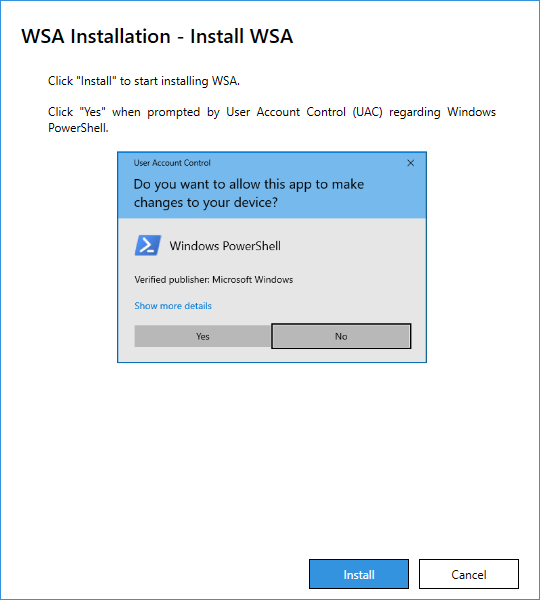
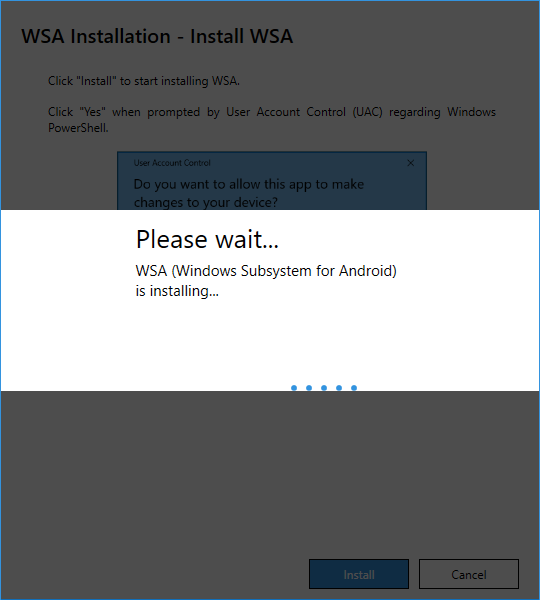
Step 4, Start installing WSA. Click the “Install” button to start the installation. When prompted by User Account Control (UAC) regarding Windows PowerShell, click “Yes”. Wait for the installation to complete.
Step 5, Turn on “Developer mode” in WSA Settings. Click the link in the app to open Windows Subsystem for Android. Go to “Advanced settings” and turn on “Developer mode”. Finally, click the “Finish” button.
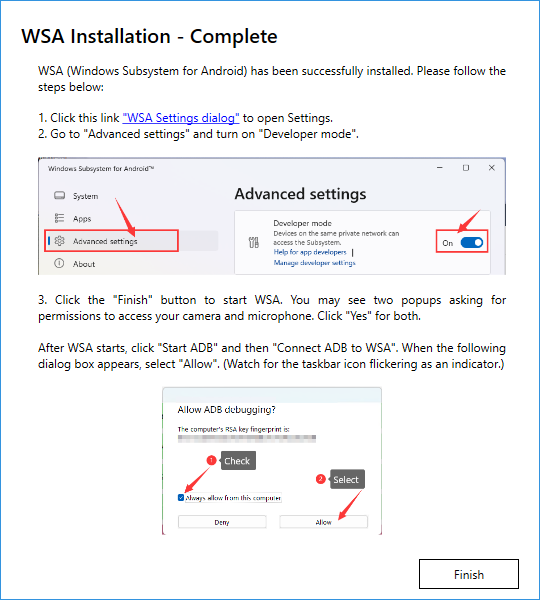
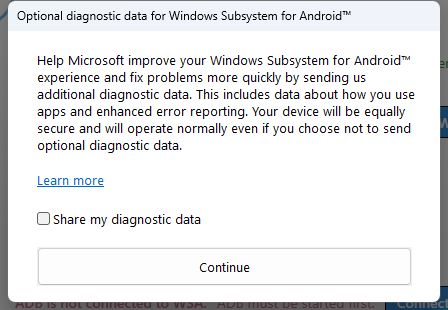
Step 6, After the installation is complete, the app will start WSA automatically. When you see the prompt below, just click the “Continue” button. You may also see two popups asking for permissions to access your camera and microphone. Click “Yes” for both.
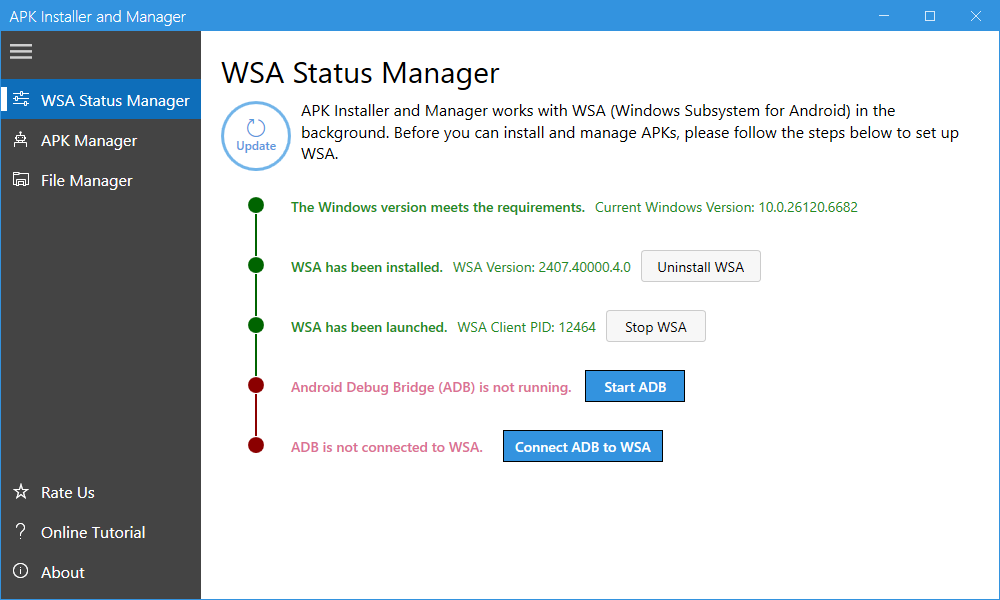
Now WSA has been installed and started.