APK Installer and Manager Online Tutorial

With APK Installer and Manager, you can easily install APK files (Android apps and games, including XAPK, APKM and APKS formats) on Windows 10 and 11. Turn your PC into an Android gaming hub and enjoy your favorite mobile apps on the big screen.

Sponsored Links

In this tutorial, we cover the following topics: How to install Windows Subsystem for Android on your PC? How to connect ADB (Android Debug Bridge) to WSA? How to install APK files on WSA? How to remove and manage apps on WSA? How to transfer files between WSA and the PC?
Main Features

  • Supports Windows 10 and 11.
  • A step-by-step guide to help you configure prerequisites and install WSA.
  • WSA Status Manager to monitor connectivity.
  • APK Manager to install and manage apps.
  • File Manager to upload and download files.

Supported Formats

  • .APK
  • .XAPK
  • .APKM
  • .APKS

How to configure prerequisites and install Windows Subsystem for Android on your PC?

APK Installer and Manager has a step-by-step guide to help you configure prerequisites and install WSA. Click the “Configure Prerequisites and Install WSA” button to begin the guide.

Sponsored Links

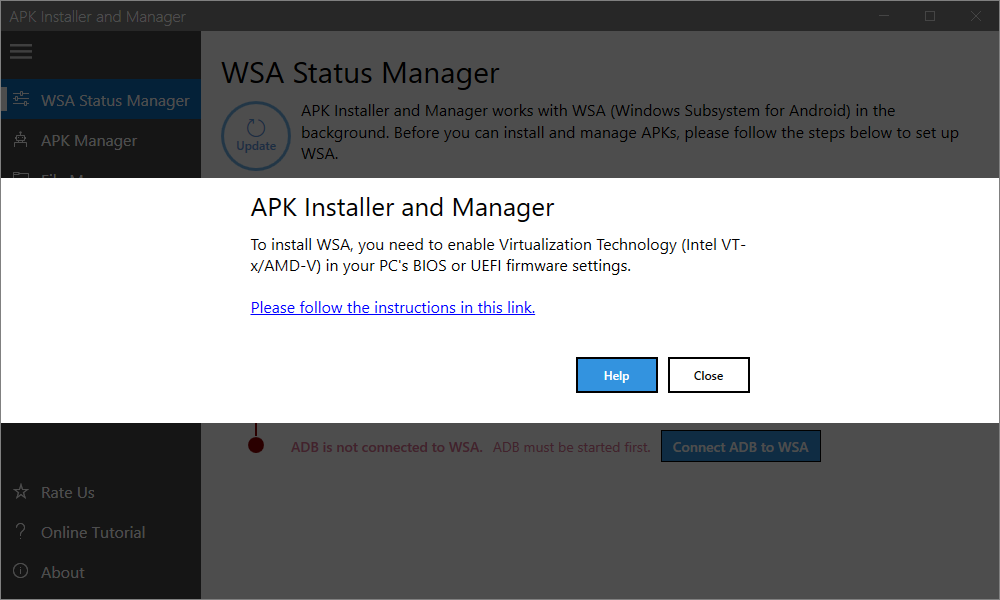
Step 1, Check whether virtualization technology (Intel VT-X/AMD-V) is enabled in the BIOS or UEFI settings. If it’s enabled, you can proceed; otherwise, you will see the following prompt.

When this prompt appears, please click the link in the app and follow the instructions to enable virtualization. After making changes in the BIOS or UEFI settings, restart your PC and run this check again.

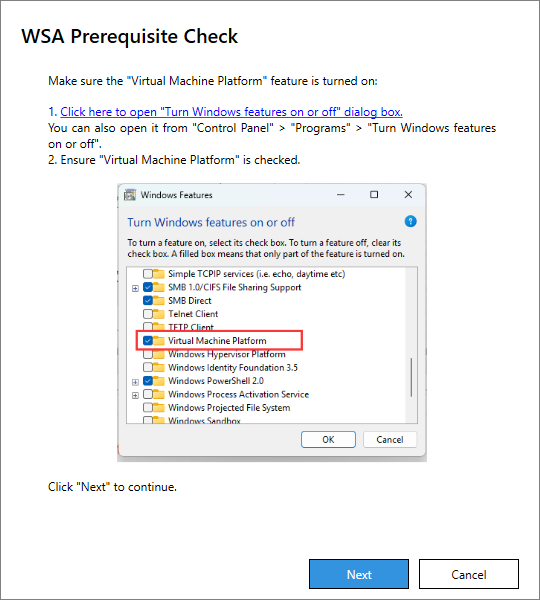
Step 2, Check whether the Windows feature “Virtual Machine Platform” is turned on. Click the link in the app to open the Windows features window. If it is not enabled, turn it on, then click the “Next” button.

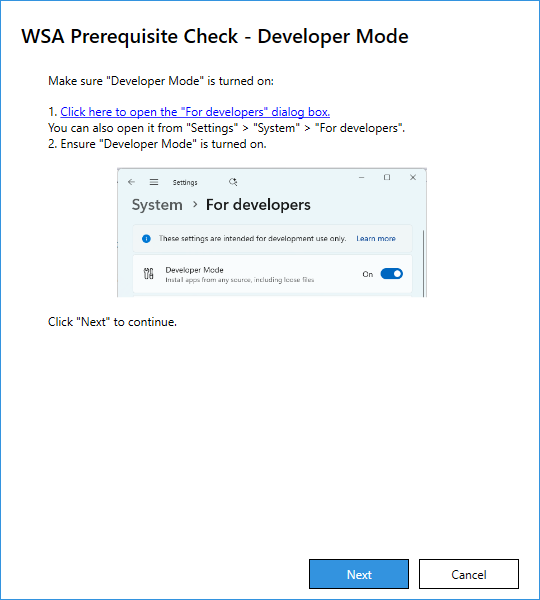
Step 3, Check whether “Developer Mode” is turned on. Click the link in the app to open Settings. If it is not enabled, turn it on, then click the “Next” button.

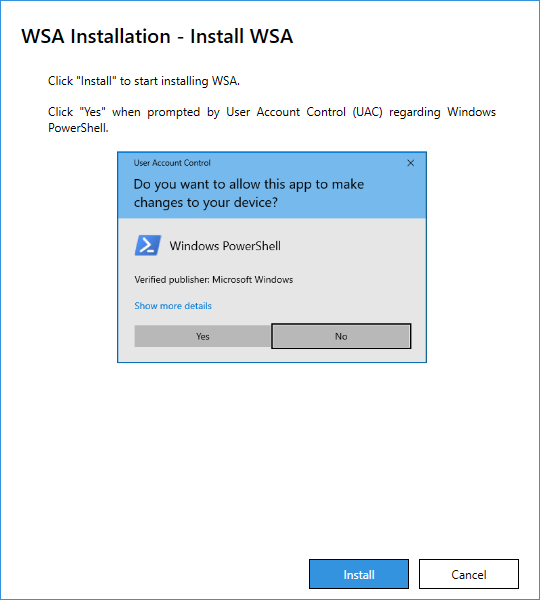
Step 4, Start installing WSA.

Sponsored Links

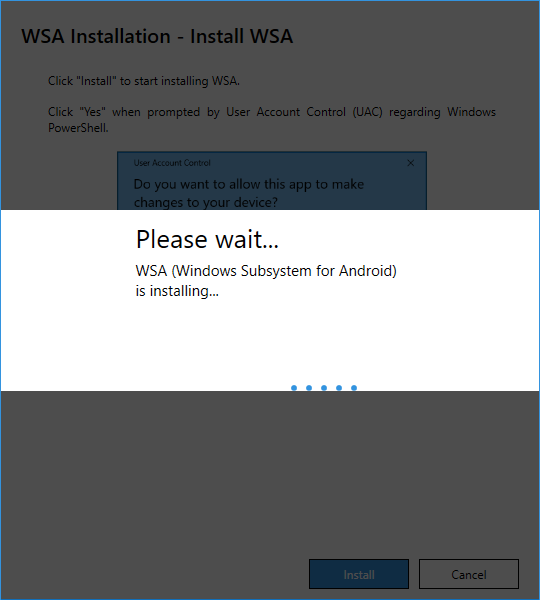
Click the “Install” button to start the installation. When prompted by User Account Control (UAC) regarding Windows PowerShell, click “Yes”. Wait for the installation to complete.

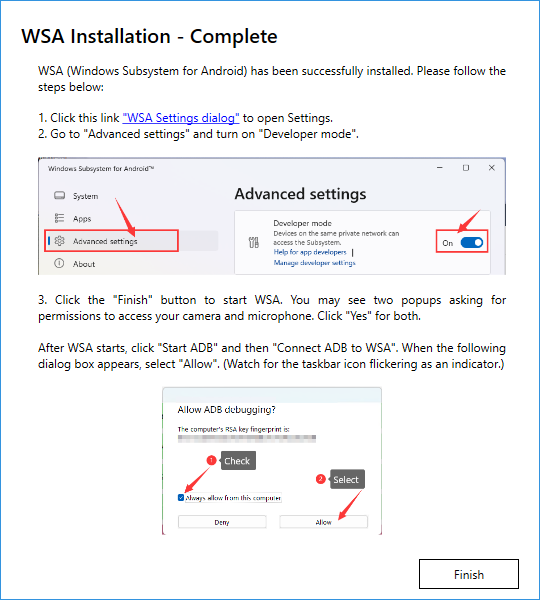
Step 5, Turn on “Developer mode” in WSA Settings. Click the link in the app to open Windows Subsystem for Android. Go to “Advanced settings” and turn on “Developer mode”. Finally, click the “Finish” button.

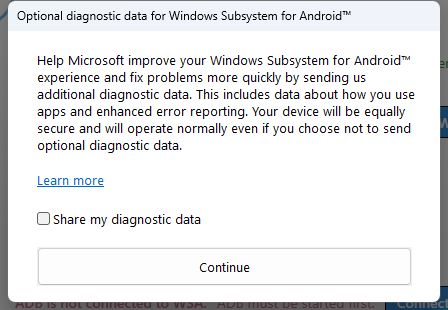
Step 6, After the installation is complete, the app will start WSA automatically. When you see the prompt below, just click the “Continue” button. You may also see two popups asking for permissions to access your camera and microphone. Click “Yes” for both.

Now WSA has been installed and started.

How to connect ADB (Android Debug Bridge) to WSA?

Before you can successfully connect ADB to WSA, make sure that:

Sponsored Links

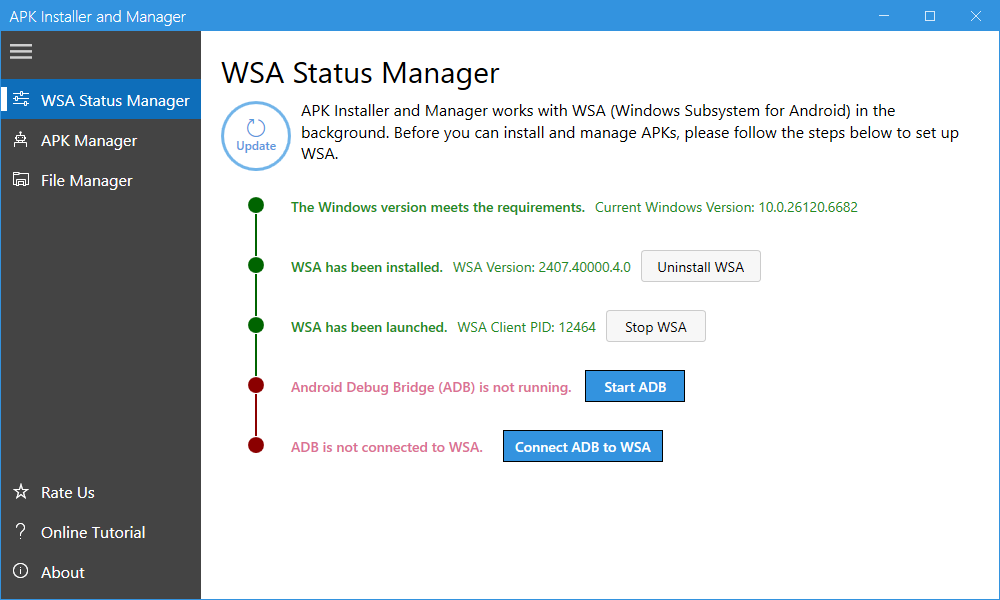
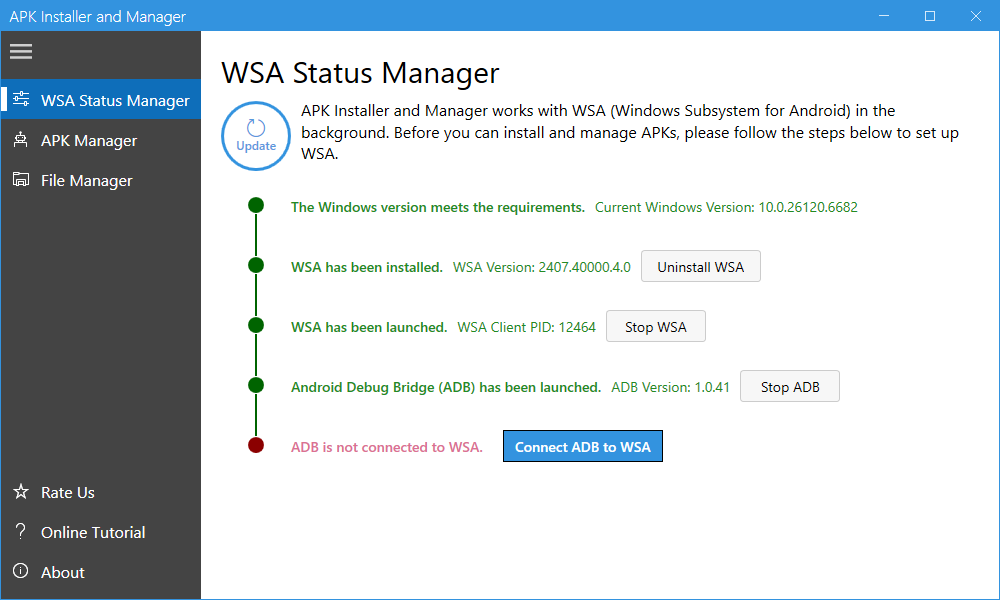
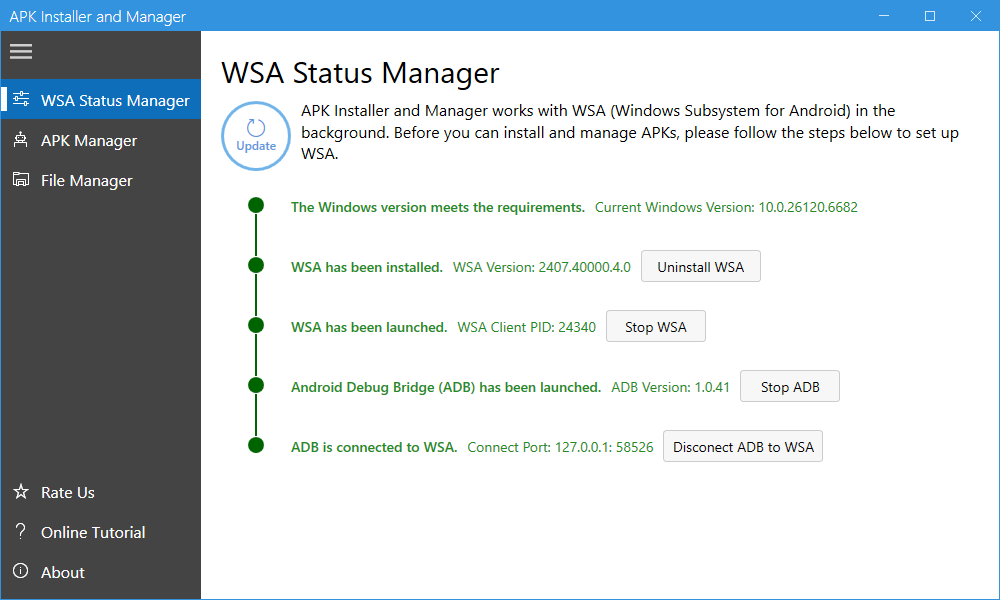
1, WSA is running. If it is not running, click the “Start WSA” button to launch it.

2, ADB (Android Debug Bridge) is running. If ADB is not running, click the “Start ADB” button to start it. When prompted by Windows Security to allow public and private networks access for ADB.exe, click “Allow”.

Once both are running, simply click the “Connect ADB to WSA” button to establish the connection.

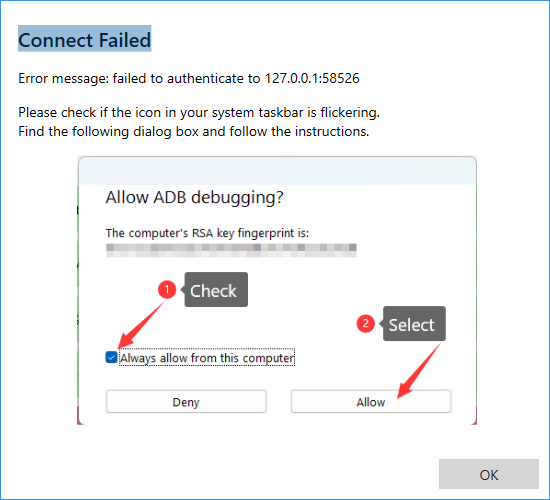
If you encounter the error “Connect Failed. Error message: failed to authenticate to 127.0.0.1:5826”, check whether the icon in your system taskbar is flickering. Locate the flickering window and click the “Allow” button.

How to Use APK Manager to Install, Uninstall, Launch, and Stop Android Apps?

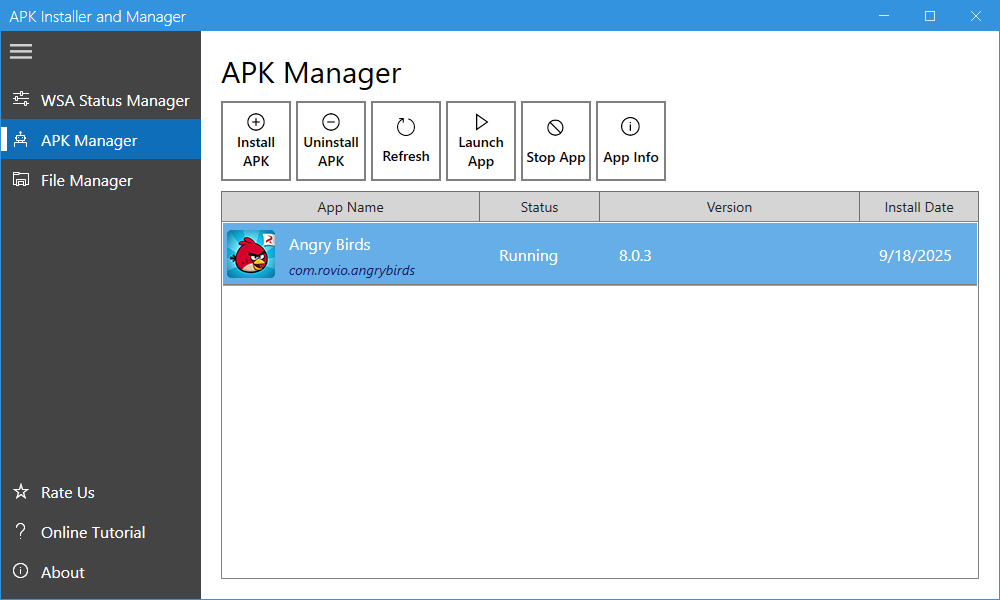
APK Installer and Manager includes an APK manager that allows you to install, uninstall, launch, and stop Android apps.

Sponsored Links

APK Manager screenshot:

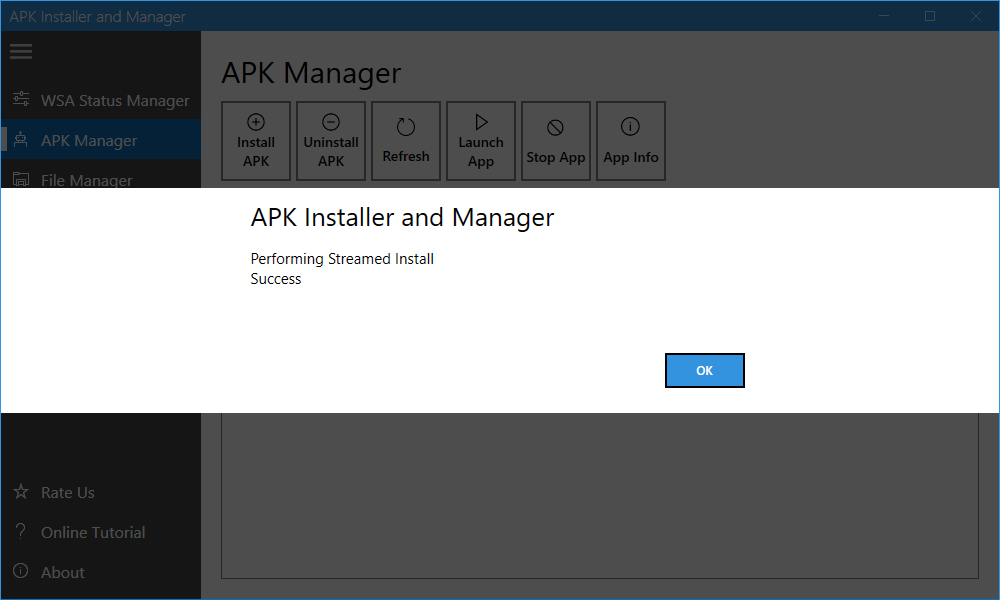
Install: Click the “Install APK” button, select the APK file you want to install, and wait for the process to complete. A response message will appear to confirm the installation result.

Uninstall: Select an Android app and click the “Uninstall APK” button. Click “Yes” to confirm, then wait for the process to complete. A response message will appear to confirm the uninstallation result.

Launch: Select an Android app and click the “Launch App” button.

Stop: Select an Android app and click the “Stop App” button.

How to transfer files between WSA and the PC?

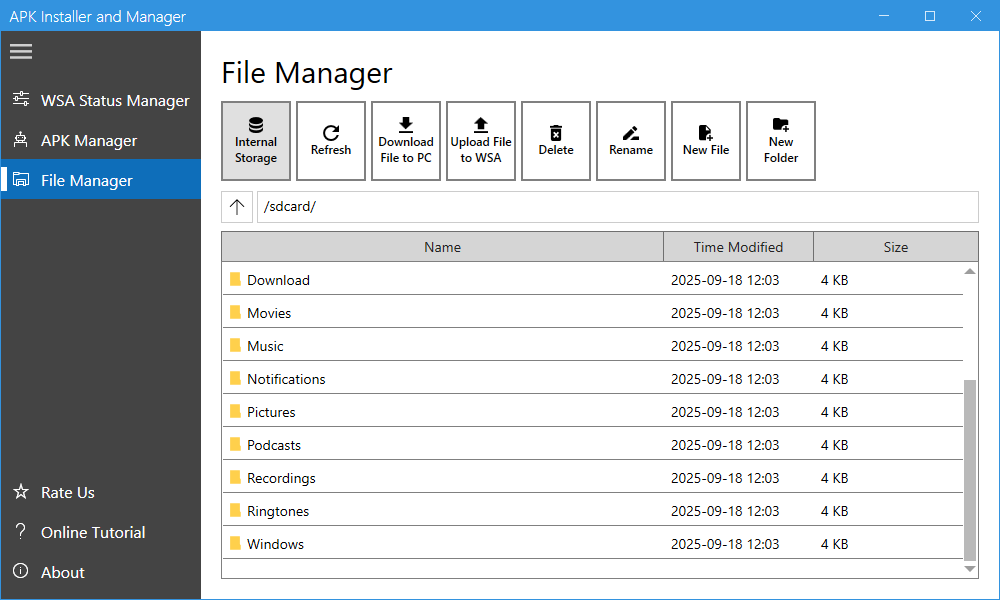
APK Installer and Manager includes a file manager that allows you to upload, download and manage files on WSA.

Sponsored Links

File manager screenshot:

Download Files from WSA: Select (check) the files that you want to download, click the “Download File to PC” button, and choose the destination folder. The download process will begin. and once completed, the destination folder will open automatically.

Upload Files to WSA: Click the “Upload File to WSA”, select the files you want to upload, and click the “Open” button. The upload process will then begin.

Delete Files: Select (check) the files you want to delete and click the “Delete” button.

Rename a File: Select (check) a file that you want to rename, click the “Rename” button and enter a new name.

New File: Click the “New File” button and enter a file name.

New Folder: Click the “New Folder” button and enter a folder name.

E-mail Support

If you have any further questions or feed-backs about the app, please feel free to reach out to us by email. We are here to listen and help.