How to configure prerequisites and install Windows Subsystem for Android on your PC?
APK Installer and Manager has a step-by-step guide to help you configure prerequisites and install WSA. Click the “Configure Prerequisites and Install WSA” button to begin the guide.
Step 1, Check whether virtualization technology (Intel VT-X/AMD-V) is enabled in the BIOS or UEFI settings. If it’s enabled, you can proceed; otherwise, you will see the following prompt.
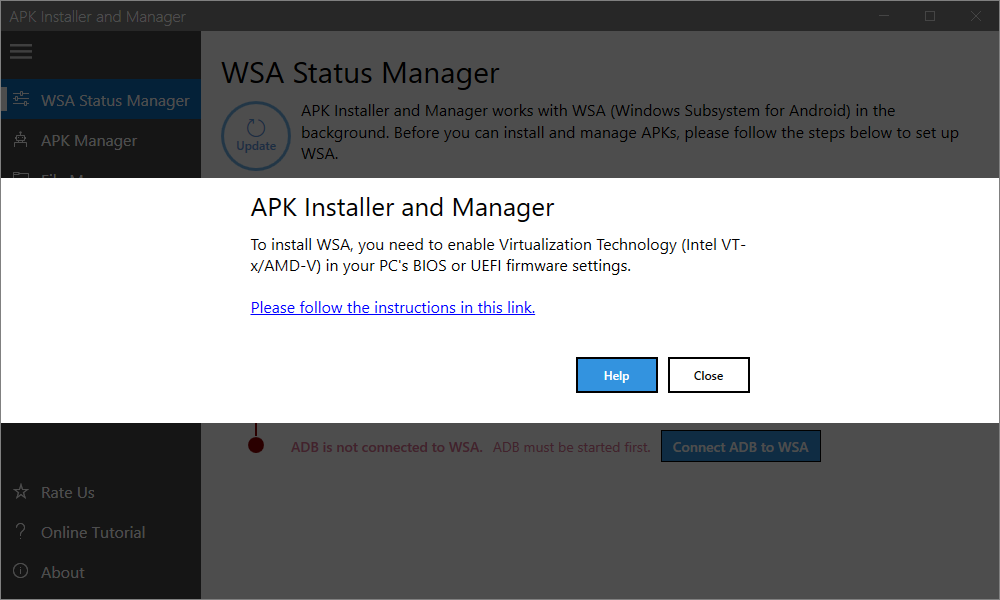
When this prompt appears, please click the link in the app and follow the instructions to enable virtualization. After making changes in the BIOS or UEFI settings, restart your PC and run this check again.
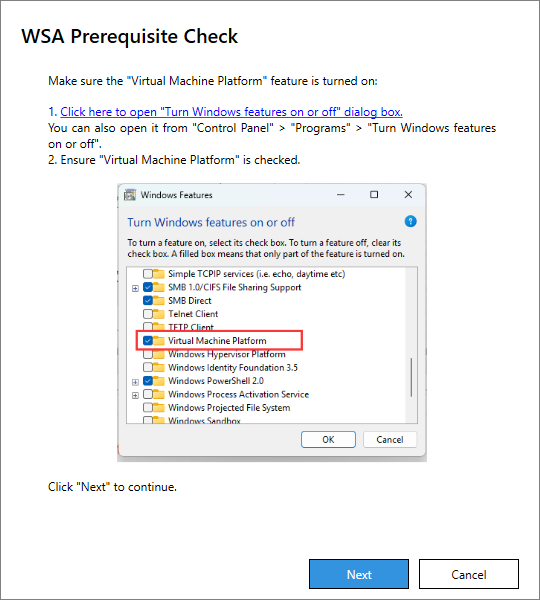
Step 2, Check whether the Windows feature “Virtual Machine Platform” is turned on. Click the link in the app to open the Windows features window. If it is not enabled, turn it on, then click the “Next” button.
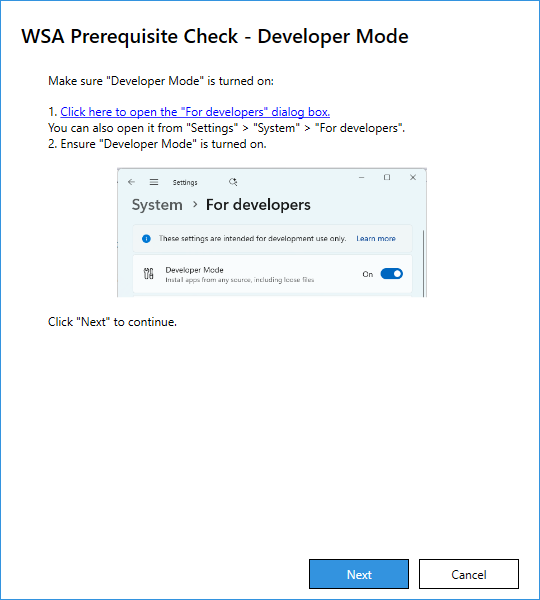
Step 3, Check whether “Developer Mode” is turned on. Click the link in the app to open Settings. If it is not enabled, turn it on, then click the “Next” button.