Real Screenshot Online Tutorial

In this online tutorial, we cover the following topics: 3 Steps to capture a full page screenshot of a webpage, how to navigate to your target webpage, how to capture a full webpage screenshot, how to open the screenshot, how to take a screenshot of the mobile version of the webpage, how to change the output folder.

Sponsored Links

3 Steps to Capture a Full Page Screenshot of a Webpage

  • Navigate to the target webpage
  • Take the screenshot
  • Open the screenshot picture

Step 1, Navigate to the Target Webpage

There are two methods to navigate to the target webpage.

Sponsored Links

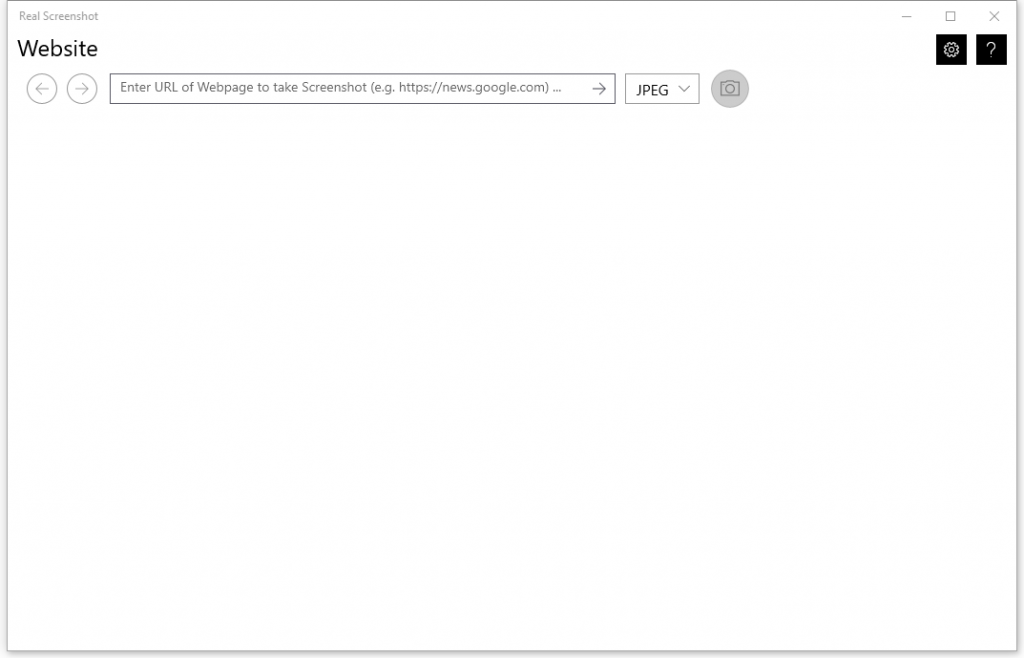
Method 1, directly enter in or copy and paste the URL into the address bar, then press the Enter key on your keyboard, or click the right arrow at the right end of the address bar.  

Method 2, if you don’t know the exact URL, you can use the app as a simplified web browser. For example, start with google.com, then navigate to different links until you reach the webpage that you want to catch the screenshot.

Note: this app is not a web browser and it lacks a lot of advanced features that a normal web browser should have.

Step 2, Take the Screenshot

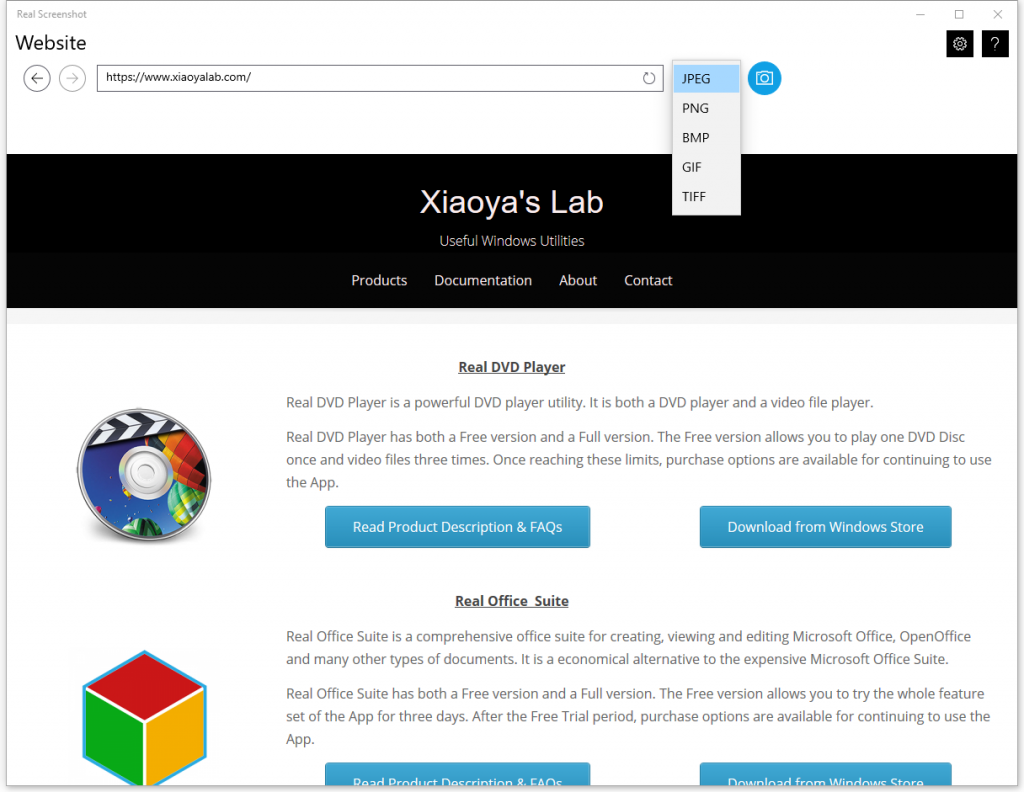
Once you have navigated to the target webpage, you can click the blue round button to the right of the address bar to take the screenshot.

Sponsored Links

If the webpage has a mobile version and you want to take a screenshot for the mobile version, you can make the width of the app smaller by dragging its right or left edge. When the width of the app is smaller enough, the webpage will automatically turn into the mobile version. Then you can click the blue round button to the right of the address bar to take the screenshot.

Also, you can change the image format from the default JPEG to PNG, BMP, GIF or TIFF, as shown above.

Step 3, Open the Screenshot Taken

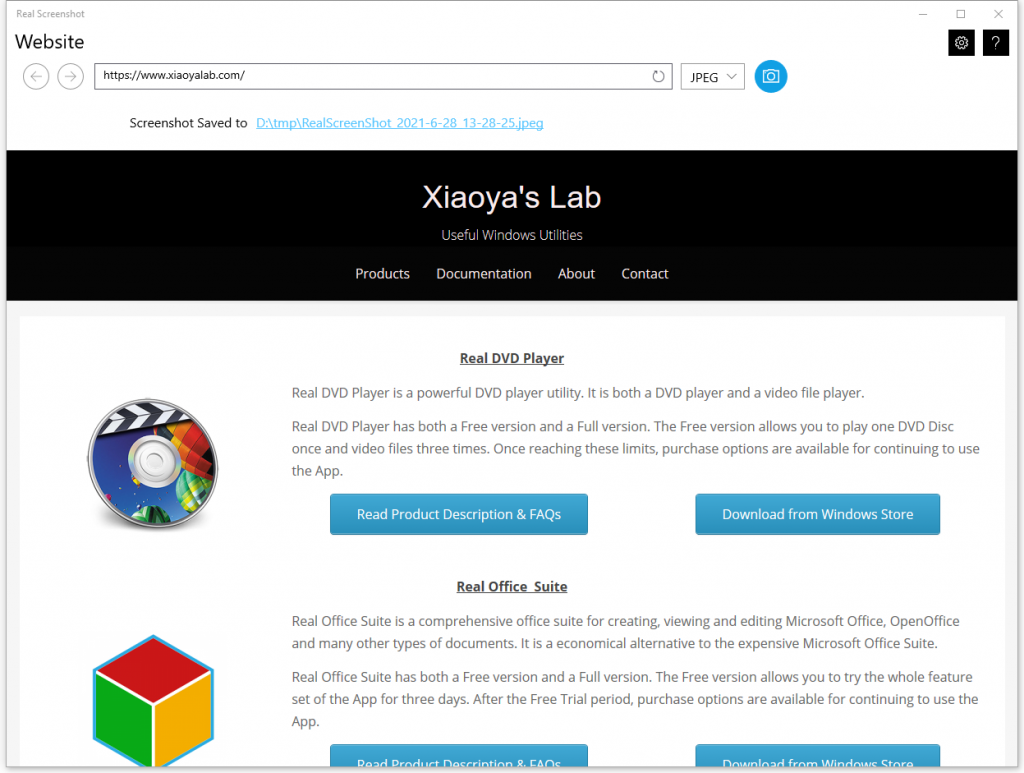
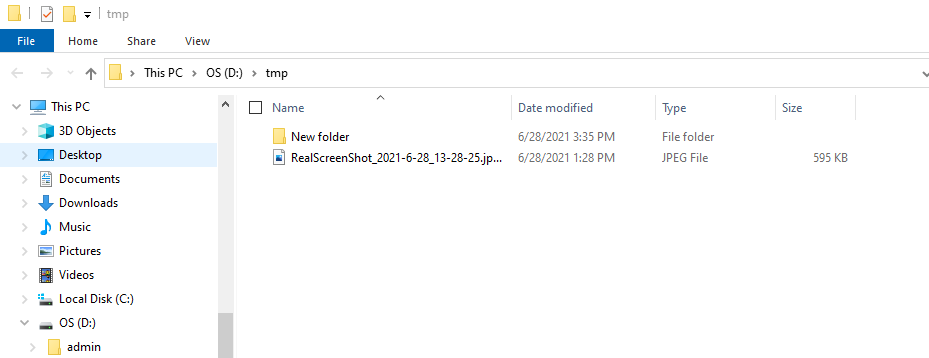
After the screenshot being taken, there will be a message “Screenshot Saved to … “. Click the link in that message, and you will open the folder where the screenshot is located.

Sponsored Links

Screenshot:

You can now open the screenshot image now.

How to Change the Output Folder?

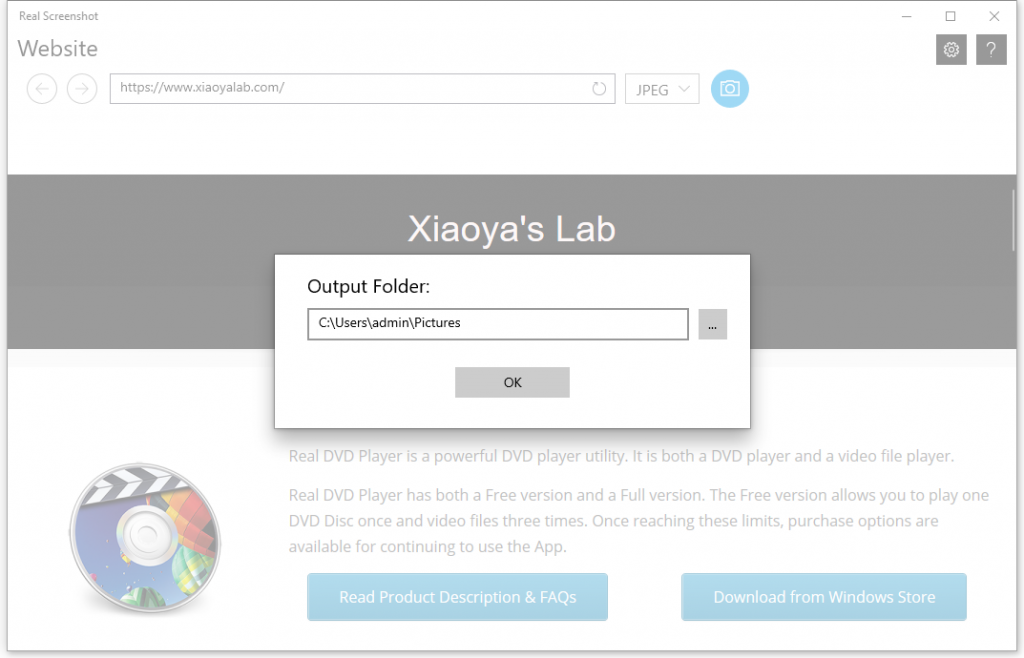
Click the Settings button at the right top corner of the main window and you will open the settings window, where you can change the output folder, as shown below.

Sponsored Links

Screenshot:

E-mail Support

If you have any further questions or feed-backs about the app, please feel free to reach us by email. We are here to listen and help.