PDF Reader Annotator PLUS Online Tutorial

PDF Reader Annotator PLUS (previously PDF Suite PLUS) is a comprehensive PDF reader, annotator, editor, converter, and management tool. It enables you to view, create, fill, sign, compress, encrypt, convert, annotate and organize PDF files. It also provides tools to split, merge or extract pages from a PDF.

Sponsored Links

In this tutorial, we cover the following topics: How to use the PDF Reader to view a PDF? How to use the PDF Page Tool? How to convert PDF to other formats? How to convert other formats to PDF? How to use the Manage Pages tools? How to compress, encrypt, sign, redact and edit PDFs?
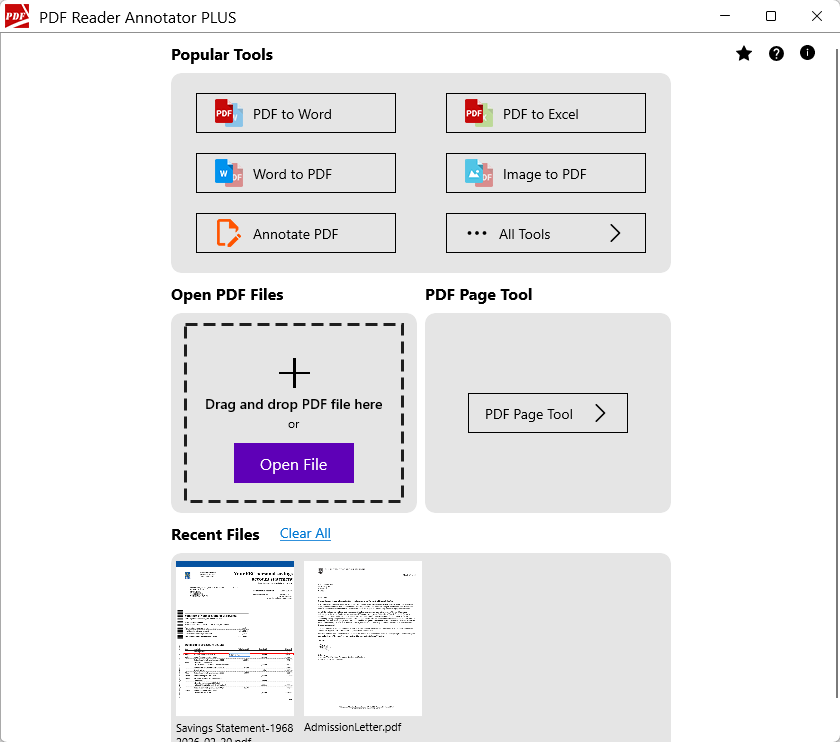
Main Features

  • PDF Reader – View PDF
  • PDF Annotator – Annotate PDF
  • Fill PDF forms
  • PDF Page Tool
  • Convert PDF to other formats
  • Convert other formats to PDF
  • Manage PDF pages
  • Other PDF tools

How to Read a PDF File?

PDF Reader Annotator PLUS includes a PDF Reader that allows you to view PDF files.
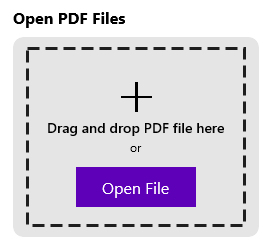
To open a PDF file, you can either drag and drop the file into the designated area or click the “Open File” button to select a file to open.

Once the PDF file is open, you will see the top toolbar, which contains various actions you can perform on the PDF file.
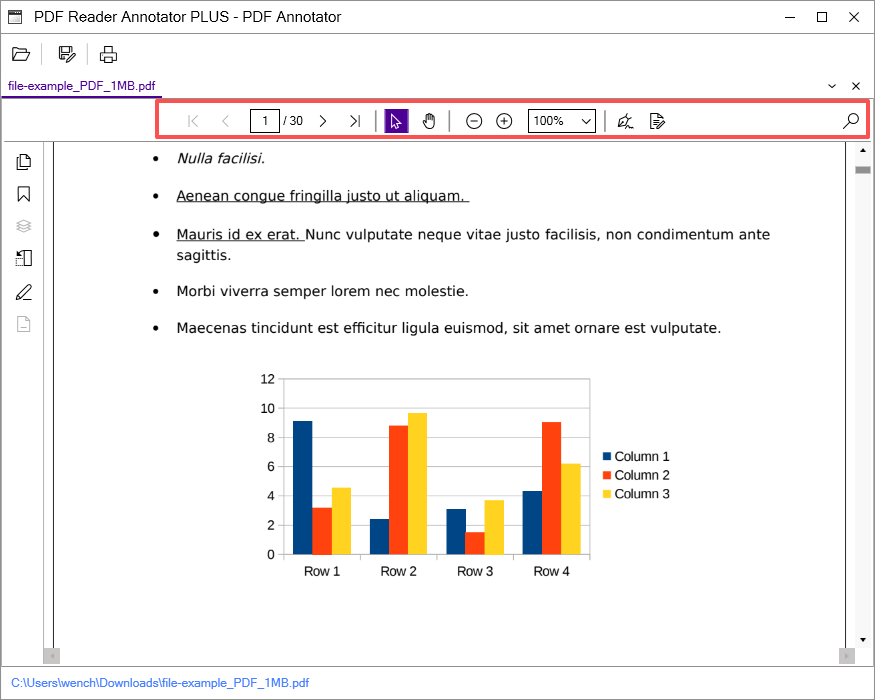
The available actions (from left to right) include:

  • Pagination controls
  • Text selection tool
  • Pan tool
  • Zoom controls
  • Sign PDF
  • Annotation toolbar
  • Find text in the file

How to Use the PDF Page Tool?

PDF Reader Annotator PLUS includes a very flexible PDF Page Tool that allows you to split PDFs, reorder pages, rotate pages, remove pages, duplicate pages, and protect/unprotect PDFs.

Sponsored Links

To access the PDF Page Tool, simply click the “PDF Page Tool” button on the Main UI.

In the PDF Page tool, click the “Add Files” button to select and open PDF files. Once the files are opened, you can apply actions to the entire PDF file or select specific pages to perform actions on them.

The actions you can apply to selected pages include:

  • Split – Splits the original PDF into two files: one containing only the selected pages and the other containing the remaining pages.
  • Duplicate – Creates a new file by copying the selected pages.
  • Rotate – Rotates the selected pages.
  • Remove – Removes the selected pages from the original file.
  • Reorder – You can drag any page up and drop it to the new position.

Note: Don’t forget to save the files after you change them.

Actions you can apply to the entire PDF file include:

  • Protect /Unprotect – Secures the PDF file by setting or removing a password.
  • Duplicate – Create a duplicate copy of the original file.
  • Print – Prints the PDF file.

How to Use the PDF Annotator?

PDF Reader Annotator PLUS includes a PDF Annotator that allows you to annotate PDF files. To get started, click the “… All tools” button on the Home page, then click the “Annotate PDF” button.

Sponsored Links

Screenshot:

Once you select a PDF to annotate, the PDF annotator will open, displaying the annotation toolbar at top.

The annotation toolbar includes these annotation tools (from left to right):

  • Highlight/ Underline/ Strikethrough/ Squiggly
  • Add text box
  • Draw freeform
  • Eraser (Click to erase part of the ink annotation)
  • Line and Shapes (Line, Rectangle, Circle, Arrow, Polygon, Polyline, Cloud, and Text Callout)
  • Add stamps
  • Add sticky note
  • Color Picker
  • Text properties

Note: Don’t forget to save the changes after making annotations.

How to Fill out PDF Forms?

To fill out PDF Forms, simply click “Fill Form” button on the Home page.

Once you select a PDF, the PDF annotator will open it, allowing you to enter form data.

Note: Don’t forget to save the changes after entering form data.

How to Convert PDF to Other Formats?

PDF Reader Annotator PLUS offers eight tools for converting PDFs to other formats: PDF to Word, PDF to Excel, PDF to PNG, PDF to JPEG, PDF to XML files, PDF to TXT files, PDF to RTF, and PDF to Webpages. These tools can be accessed from All Tools page.

Sponsored Links

Screenshot:

To convert PDF to another format, please follow the steps below.

Step 1, Click the corresponding button on the home page.

Step 2, Select the PDF files that you want to convert. (Note: You can select more than one PDF files for these tools.)

Step 3, Adjust the conversion settings if needed.

Step 4, Click the “Convert” button.

Step 5, Once the conversion is complete, click the “Finish” button.

How to Convert Other Formats to PDF?

PDF Reader Annotator PLUS offers seven tools for converting other formats to PDF: Word to PDF, Excel to PDF, PPT to PDF, Image to PDF, Text to PDF, URL to PDF, and HTML to PDF. These tools can be accessed from All Tools page.

To convert another format to PDF, please follow the steps below.

Step 1, Click the corresponding button on the home page.

Step 2, Select the files that you want to convert or enter URLs. (Note: You can select more than one files for these tools.)

Step 3, Adjust the conversion settings if needed.

Step 4, Click the “Convert” button.

Step 5, Once the conversion is complete, click the “Finish” button.

How to Merge PDFs?

Step 1, Click the “… All Tools” button on the home page then click the “Merge PDF” button.

Sponsored Links

Step 2, Select the PDF files that you want to merge and click the “Open” button.

Step 3, Click the “Merge” button.

Step 4, Name the merged file and click the “Save” button.

How to Split a PDF?

Step 1, Click the “… All Tools” button on the home page then click the “Split PDF” button.

Step 2, Select the PDF file that you want to split and click the “Open” button.

Step 3, Choose a split method, and click the “Split” button.

Step 4, Once the split is complete, you can open the output directory to find the new files.

How to Delete Pages from a PDF?

Step 1, Click the “… All Tools” button on the home page then click the “Delete Pages” button.

Step 2, Select the PDF file and click the “Open” button.

Step 3, Select the page(s) that you want to delete and click the “Delete” button.

Step 4, Don’t forget to save the modified PDF file.

How to Insert Pages to a PDF file?

Step 1, Click the “… All Tools” button on the home page then click the “Insert Pages” button.

Step 2, Select the PDF file and click the “Open” button.

Step 3, Click the “Insert Pages” button and select one option from the drop-down list.

Step 4, Don’t forget to save the modified PDF file.

How to Extract Pages from a PDF?

Step 1, Click the “… All Tools” button on the home page then click the “Extract Pages” button.

Step 2, Select the PDF file that you want to extract from and click the “Open” button.

Step 3, Enter Pages range, and click the “Extract” button.

Step 4, Once the extract is complete, you can open the output directory to find the new file.

How to Rotate Pages in a PDF?

Step 1, Click the “… All Tools” button on the home page then click the “Rotate Pages” button.

Step 2, Select the PDF file and click the “Open” button.

Step 3, Select the page(s) that you want to rotate and click the rotate button.

Step 4, Don’t forget to save the modified PDF file.

How to Add Headers and Footers to a PDF file?

Step 1, Click the “… All Tools” button on the home page then click the “Header & Footer” button.

Step 2, Select the PDF file and click the “Open” button.

Step 3, Configure the Header Text and/or Footer Text as shown below.

Step 4, Click the “Save as PDF” button to save the modified file.

How to Add Bates Numbers to a PDF file?

Step 1, Click the “… All Tools” button on the home page then click the “Bates Numbers” button.

Step 2, Select the PDF file and click the “Open” button.

Step 3, Configure the Header Text and/or Footer Text as shown below.

Step 4, Click the “Save as PDF” button to save the modified file.

How to Compress PDFs?

Step 1, Click the “… All Tools” button on the home page then click the “Compress PDF” button.

Sponsored Links

Step 2, Select the PDF files that you want to compress and click the “Open” button.

Step 3, Adjust the compress options as needed.

Step 4, Click the “Compress” button.

How to Add a Signature to a PDF File?

Step 1, Click the “… All Tools” button on the home page then click the “Add Signature” button.

Step 2, Select the PDF file and click the “Open” button.

Step 3, Now draw your signature in the designated area, and click the “Apply” button.

Step 4, Adjust the size and position of your signature in the PDF file, and save the modified file.

How to Add Watermarks to a PDF File?

Step 1, Click the “… All Tools” button on the home page then click the “Add Watermark” button.

Step 2, Select the PDF file and click the “Open” button.

Step 3, Enter the watermark content and adjust watermark options if needed.

Step 4, Click the “Save as PDF” button to save the modified file.

How to Encrypt PDFs?

Step 1, Click the “… All Tools” button on the home page then click the “Encrypt PDFs” button.

Step 2, Select the PDF files that you want to encrypt and click the “Open” button.

Step 3, Enter the password. Optionally, you can enable “Restrict printing and copying” and provide an owner password.

Step 4, Click the “Encrypt” button.

Step 5, When the encryption is complete, click the “Finish” button.

How to Redact a PDF File?

Step 1, Click the “… All Tools” button on the home page then click the “Redact PDF” button.

Step 2, Select the PDF file and click the “Open” button.

Step 3, Click the “Mark for Redaction” button and select the text.

Step 4, Click the “Apply” button.

Step 5, When the Redaction is complete, don’t forget to save the modified file.

E-mail Support

If you have any further questions or feed-backs about the app, please feel free to reach out to us by email. We are here to listen and help.