DroidSync Online Tutorial

This tutorial uses slideshow-style navigation. Scroll your mouse wheel down and up to go to the next and previous section, or click a section in the right-hand bar to jump straight to it.

Take complete control of your Android phone from your PC with DroidSync. Connect via USB or Wi-Fi to view photos, play media, manage contacts, export SMS and call logs, sync calendar events, and install or uninstall apps seamlessly.

Sponsored Links

In this tutorial, we cover the following topics: How to connect your Android device? How to view and download photos? How to play and download music? How to play and download videos? How to export and import contacts? How to export SMS messages? How to export your call log? How to view calendar events and add new ones? How to upload, download and delete files? How to install and uninstall apps?
Common Feature: Search & Filter

Many features in this app include a built-in search and filter function.

  • 1. Type your text into the search box.
  • 2. Results will automatically filter in real time as you type.
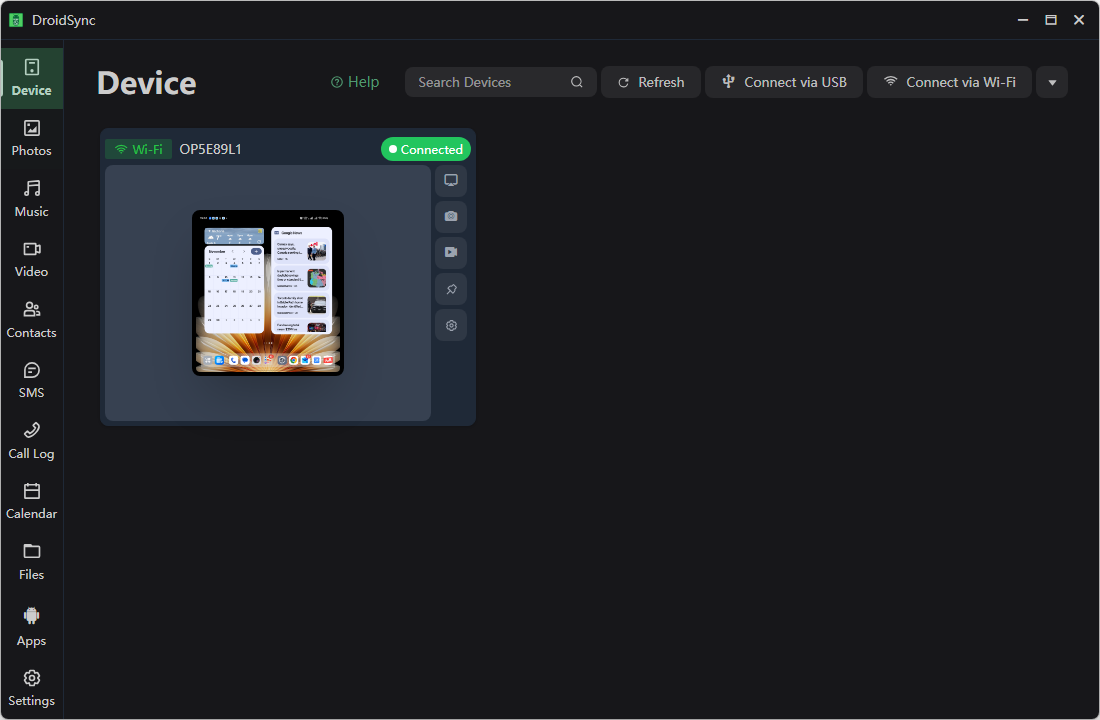
How to Connect Your Android Device via USB or Wi-Fi?

Prerequisites: Enable Developer Options

Before connecting, enable Developer Options on your Android device:

Sponsored Links
  • 1. Open Settings > tap About phone (or About device).
    • Samsung devices: Tap Software information first.
  • 2. Tap Build number 7 times continuously.
  • 3. Enter your PIN, pattern, or password if prompted.
  • 4. Go to Developer Options:
    • Pixel / Standard Android: Settings > System > Developer options.
    • Samsung: Settings > Developer options.

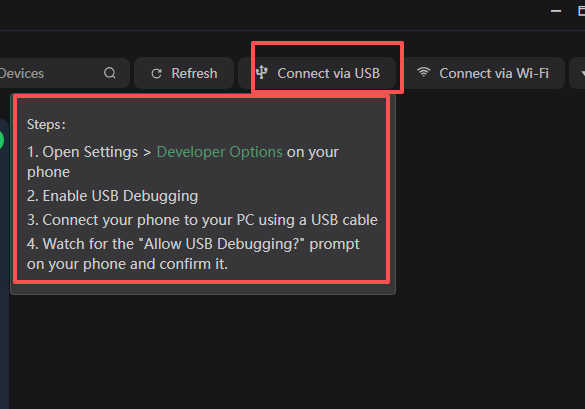
Option 1: Connect via USB

  • 1. Phone: Go to Settings > Developer options.
  • 2. Phone: Scroll to Debugging and toggle on USB debugging (tap OK to confirm).
  • 3. Connect your phone to your PC using a USB cable and unlock your phone.
  • 4. Phone: On the “Allow USB debugging?” phone prompt, check Always allow from this computer and tap Allow.

Your device is now connected.

Option 2: Connect via Wi-Fi

Prerequisite: Connect both your phone and PC to the same Wi-Fi network.

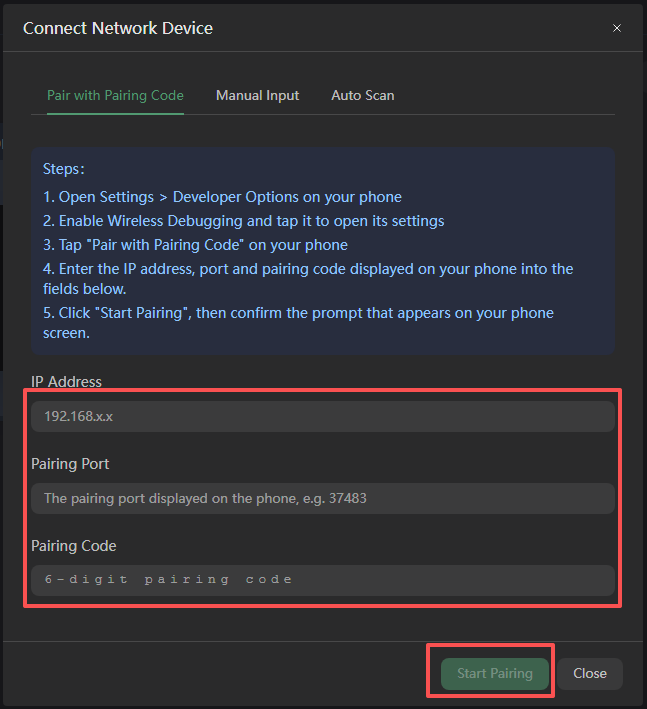
Step 1: Pair the Device

  • 1. PC: Click Connect Via Wi-Fi.
  • 2. Phone: Go to Settings > Developer options > Wireless debugging.
  • 3. Phone: Turn on Wireless debugging (tap Allow if prompted).
  • 4. Phone: Tap Pair device with pairing code. Keep this screen open to view the pairing code, IP address, and port.
  • 5. PC: Enter the pairing details displayed on your phone and click Start Pairing.

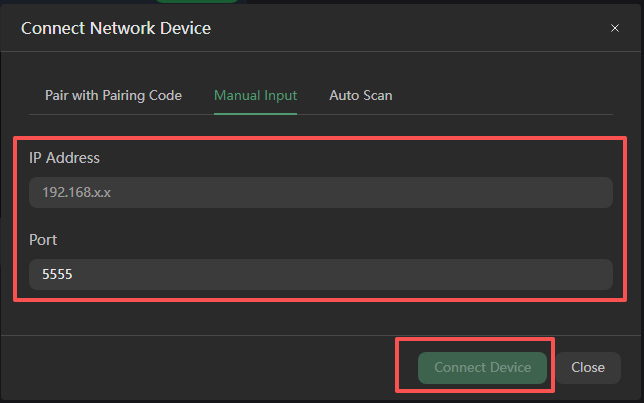
Step 2: Connect

  • 1. Phone: Return to the main Wireless debugging screen. Note the IP address & Port listed (the port differs from the pairing port).
  • 2. PC: Switch to the Manual Input tab.
  • 3. PC: Enter the IP address and port, then click Connect Device.

Your device is now connected.

How to Manage Photos?

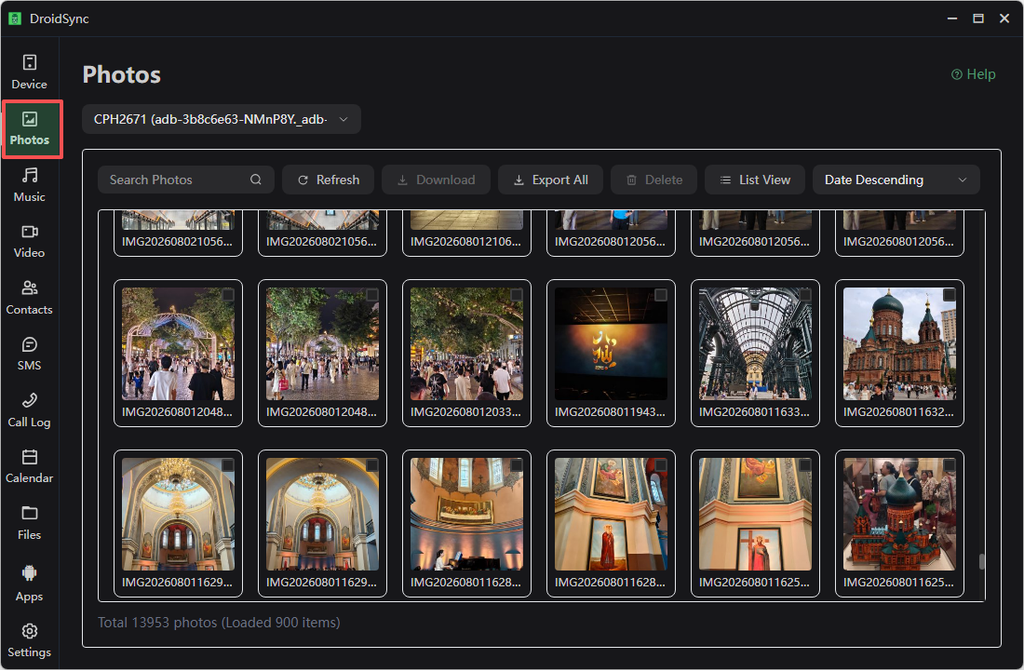
You can use the app to view, download, delete and export photos stored on your phone.

Sponsored Links

How to View Photos?

  • 1. Click “Photos” on the left bar to open your photo gallery.
  • 2. Wait for the thumbnails to load.
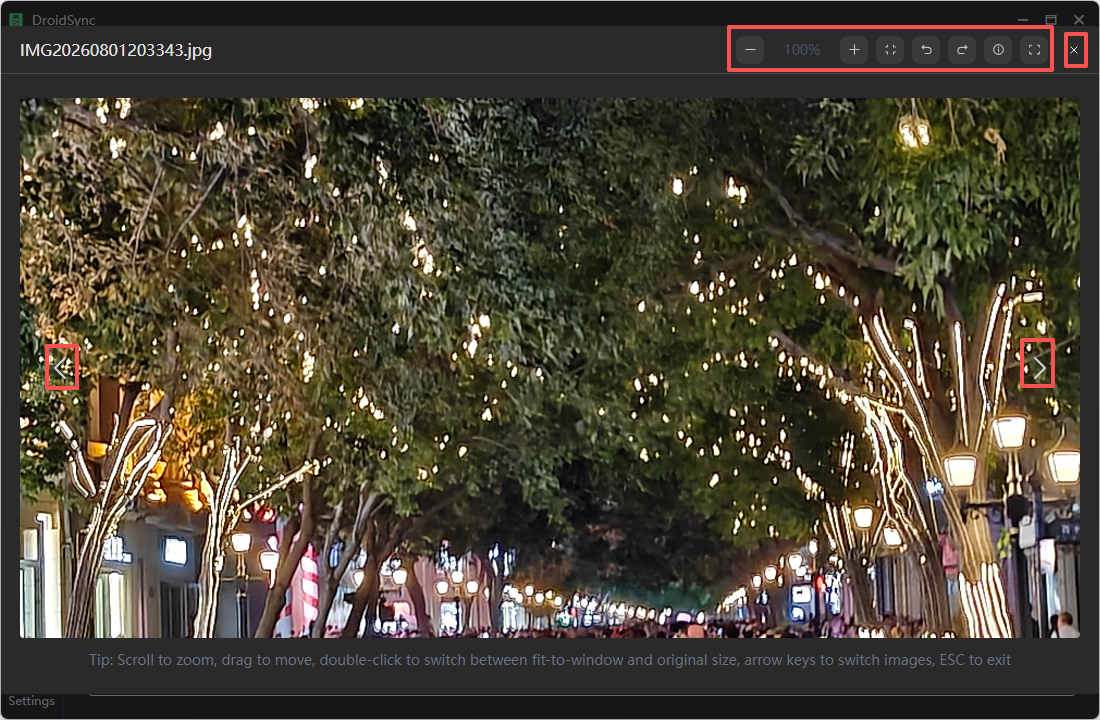
  • 3. Double-click any photo to open it in the photo viewer.
  • 4. Viewer Controls:
    4.1 Adjust View: Zoom in/out, fit to screen, view orginal size, rotate left/right, view properties, or toggle full screen.
    4.2 Navigate: Click the left arrow or right arrow to view the previous or next photo, or click the X at the top right corner to close the viewer.

How to Download Photos?

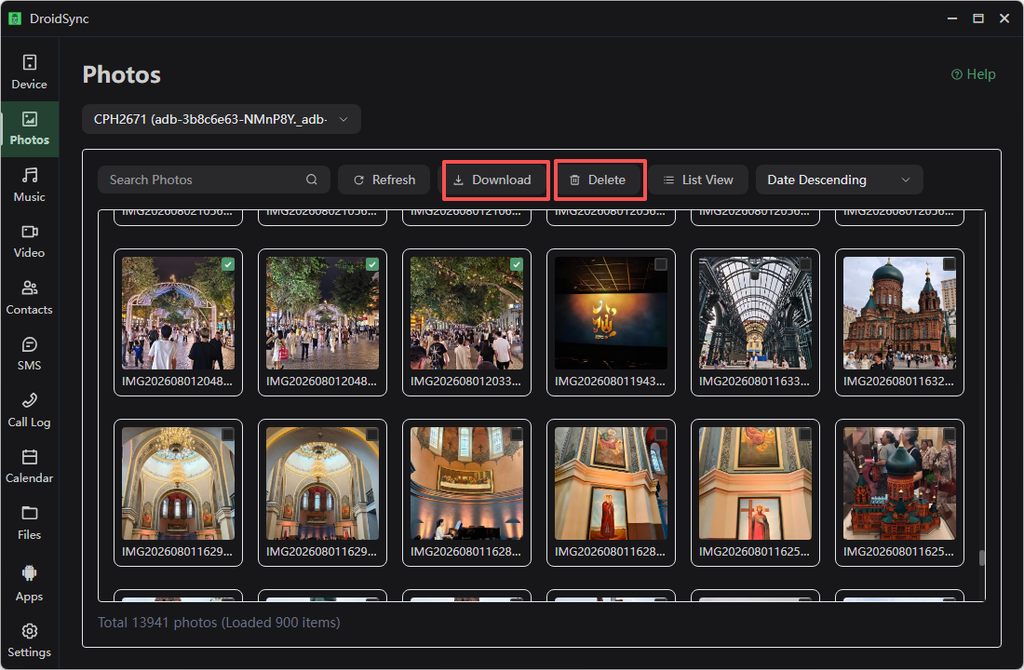
  • 1. In the photo gallery, select the photos you want to download using the checkbox in the top-right corner of each image.
  • 2. Click the “Download” button.
  • 3. Select a destination folder and the downloading will start.
  • 4. When complete, the app will prompt “Downloaded successfully”.

How to Delete Photos?

  • 1. In the photo gallery, select the photos you want to delete using the checkbox in the top-right corner of each image.
  • 2. Click the “Delete” button, then click the “OK” button in the confirmation window, the deleting will start.
  • 3. When complete, the app will prompt “Deleted successfully”.

How to Export All Photos?

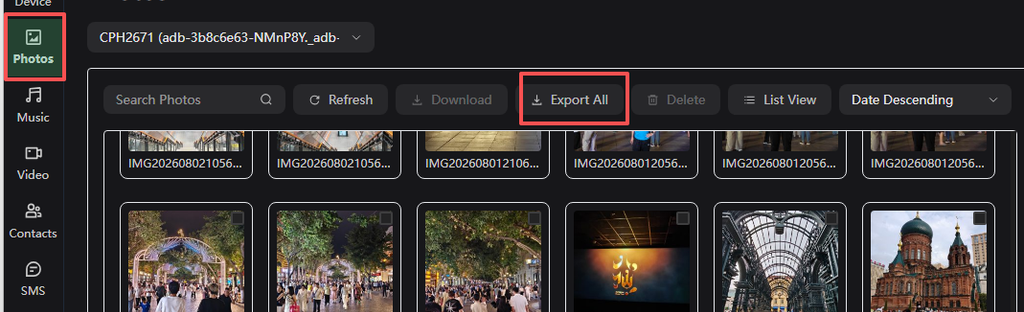
  • 1. In the photo gallery, click the “Export All” button.
  • 2. Select a destination folder then click the “Select Folder button to start the export.

How to Manage Music?

You can use the app to play, download and delete music stored on your phone.

Sponsored Links

How to Play Music?

  • 1. Click “Music” on the left bar to open music management.
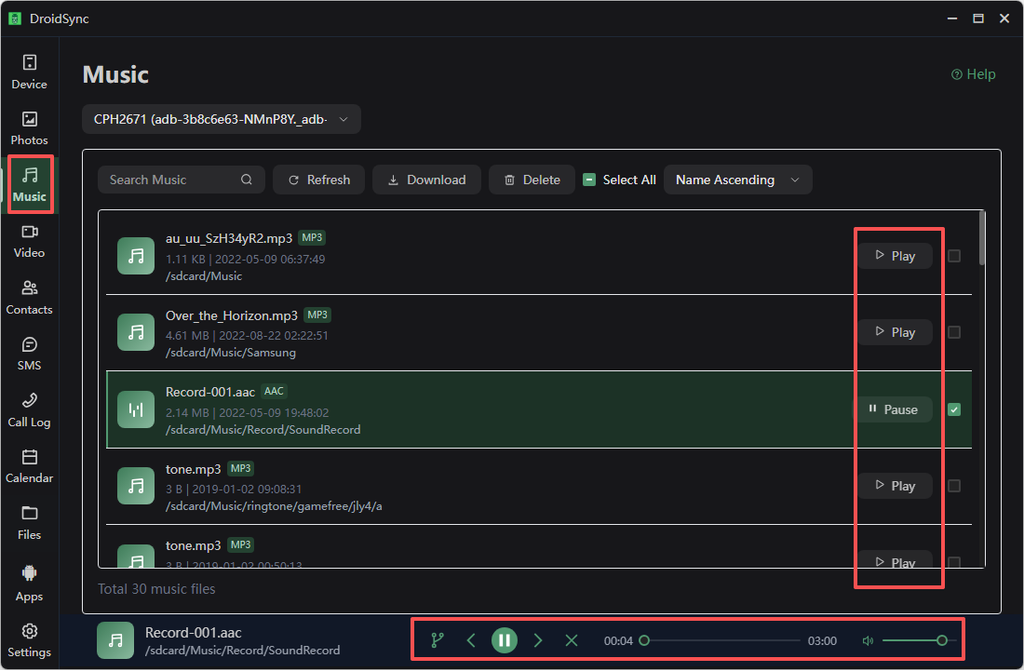
  • 2. Click the “Play” button on the far right of any song to play it.
  • 3. Use the player bar at the bottom to manage playback:
  • 3.1 Play Mode: Toggle between Shuffle, Play Once, Sequential, and Repeat One.
  • 3.2 Controls: Skip to Previous/Next song, Play/Pause, or Close the player bar.
  • 3.3 Adjustments: Seek using the progress bar or adjust volume with the volume slider.

How to Download Music?

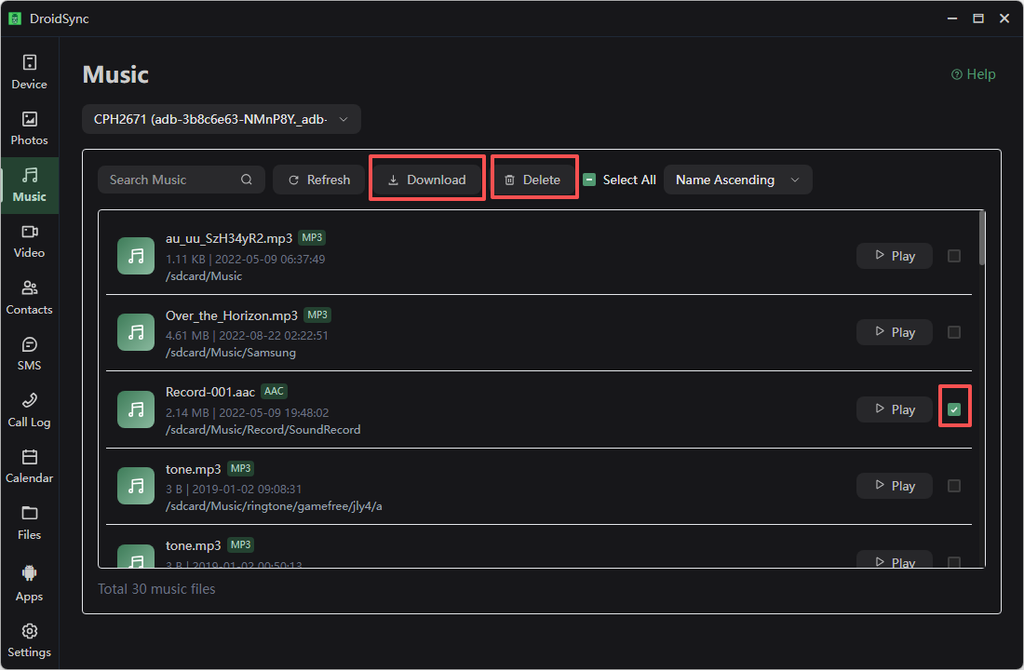
  • 1. In music management, select the songs you want to download using the checkbox on the far right of each track.
  • 2. Click the “Download” button.

How to Delete Music?

  • 1. In the music management, select the songs you want to delete using the checkbox on the far right of each track.
  • 2. Click the “Delete” button.

How to Manage Videos?

You can use the app to play, download and delete videos stored on your phone.

Sponsored Links

How to Play a Video?

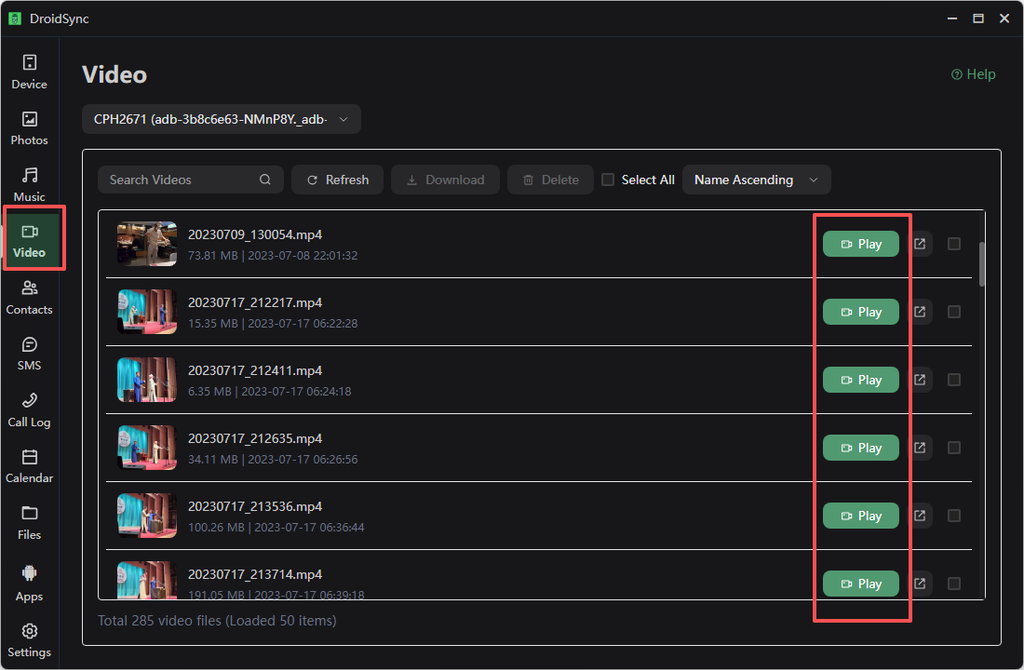
  • 1. Click “Video” on the left bar to open video management.
  • 2. Click the “Play” button on the far right of any video to play it using the built-in video player.
    2.1 To play the video using another player software, click the “External Player” icon on the far right of any video.
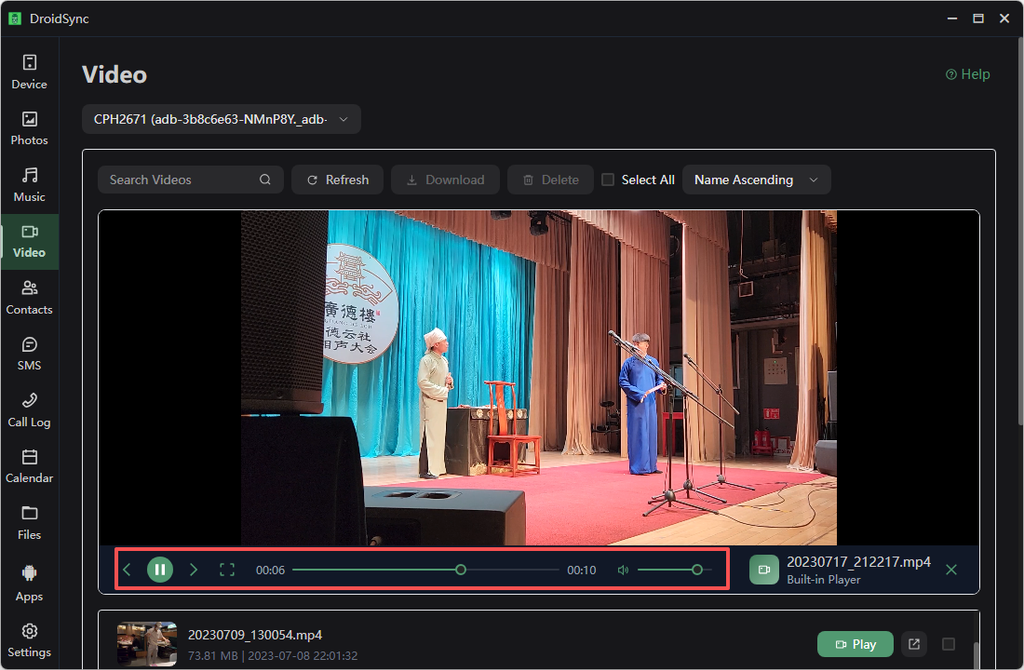
  • 3. Use the player bar in the built-in player to manage playback:
    3.1 Contols: Skip to previous/Next video, Play/Pause, Toggle Full Screen or Close the player.
    3.2 Adjustments: Seek using the progress bar or adjust volumn with the volume slider.

How to Download Videos?

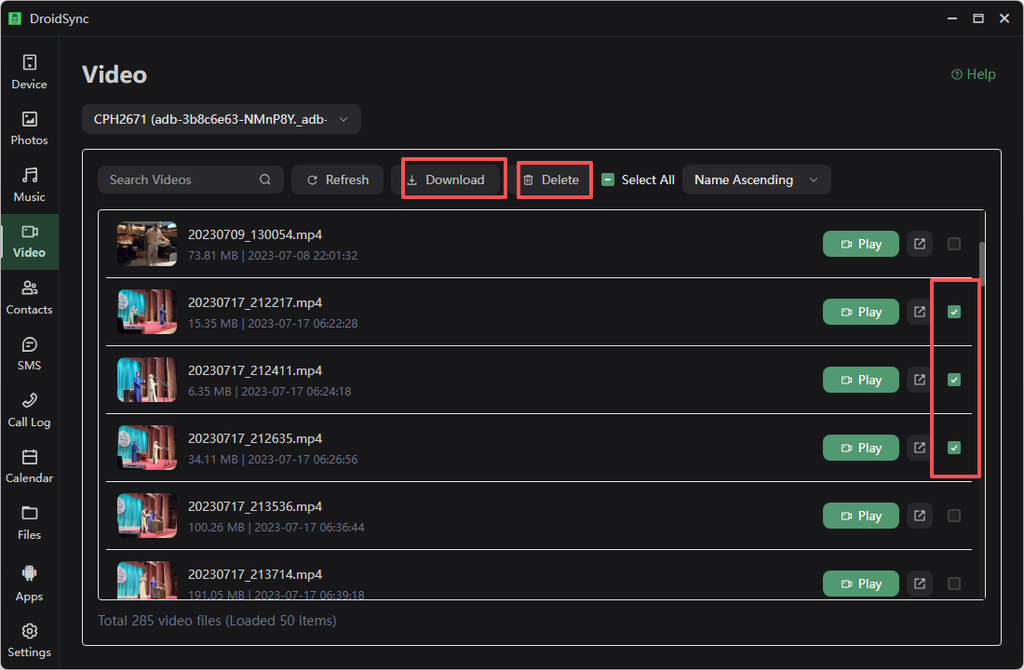
  • 1. In video management, select the videos you want to download using the checkbox on the far right of each video.
  • 2. Click the “Download” button.

How to Delete Videos?

  • 1. In video management, select the videos you want to delete using the checkbox on the far right of each video.
  • 2. Click the “Delete” button.

How to Manage Contacts?

You can use the app to add, edit, delete, export and import contacts stored on your phone.

Sponsored Links

How to Add a New Contact?

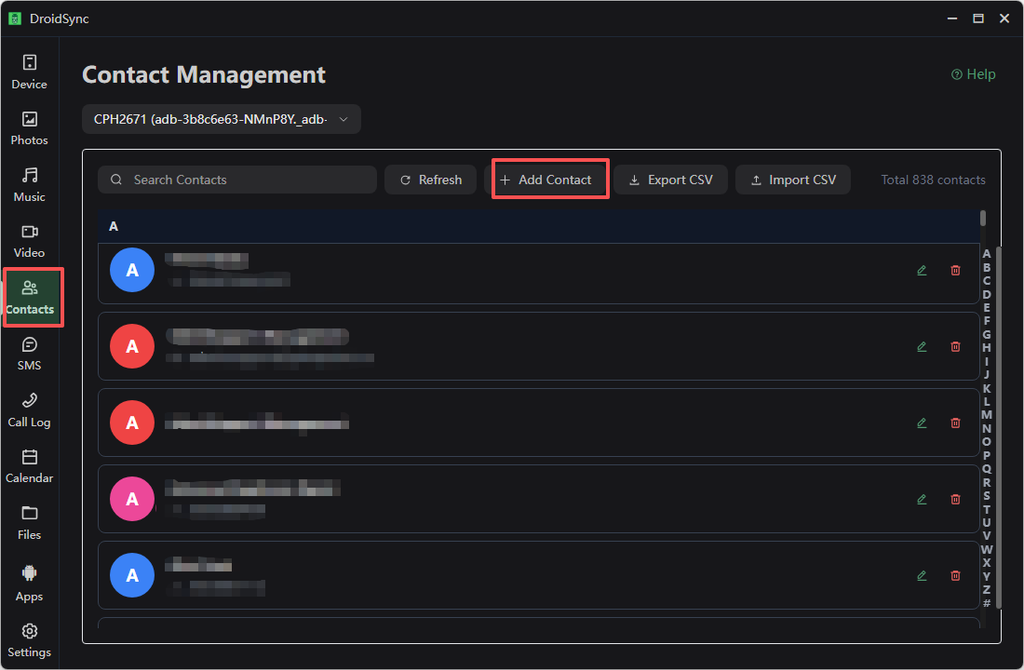
  • 1. Click “Contacts” on the left bar to open contact management.
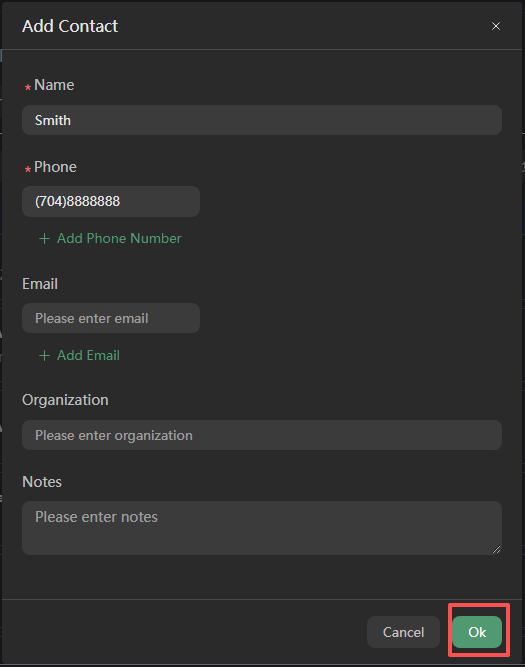
  • 2. Click the “Add Contact” button.
  • 3. Fill in name, phone number and other relevant fields, then click the “OK” button.

How to Delete a Contact?

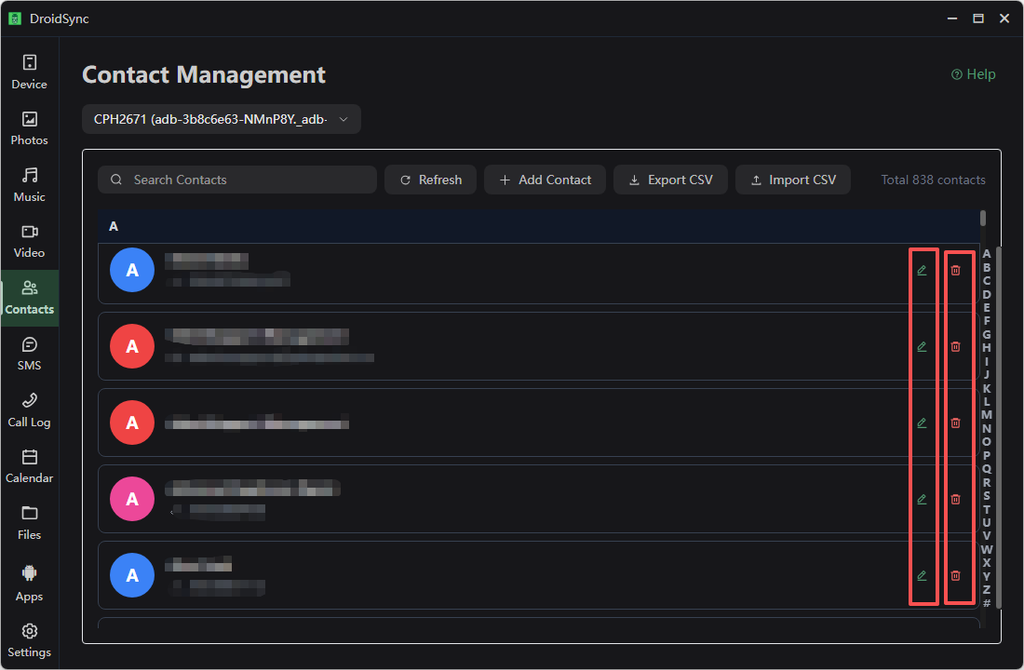
  • 1. In contact management, click the Delete icon on the far right of any contact.

How to Edit a Contact?

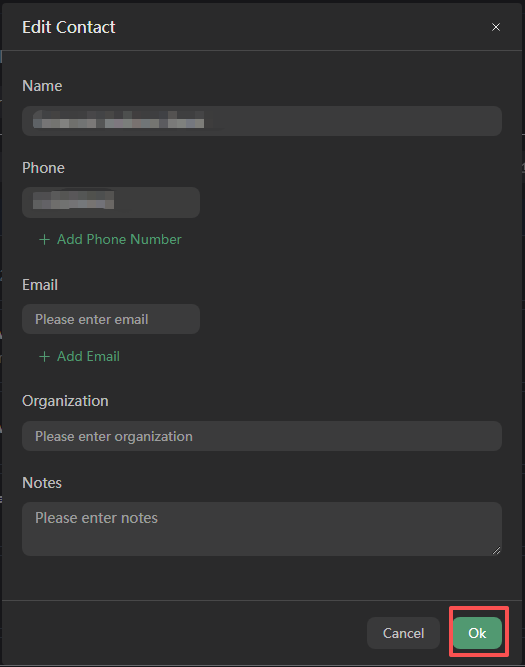
  • 1. In contact management, click the Edit icon on the far right of any contact.
  • 2. Modify the details, then click the “OK” button.

How to Export All Contacts?

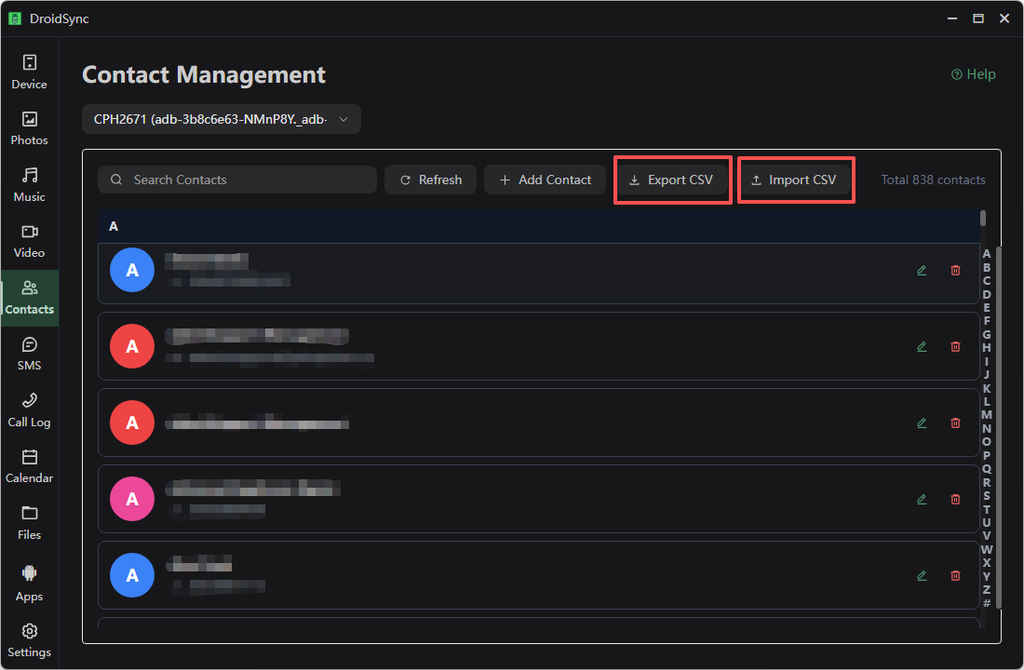
  • 1. In contact management, click the “Export CSV” button.
  • 2. Choose a destination folder and click the “Select Folder” button.

How to Import a CSV File?

  • 1. In contact management, click the “Import CSV” button.
  • 2. Select the .csv file and click the “Open” button.
    • 2.1 CSV Requirements: The file must be comma-delimited and contain the following column headers:
      • name (required)
      • phone (optional)
      • email (optional)
      • organization (optional)
      • note (optional)

How to Manage SMS?

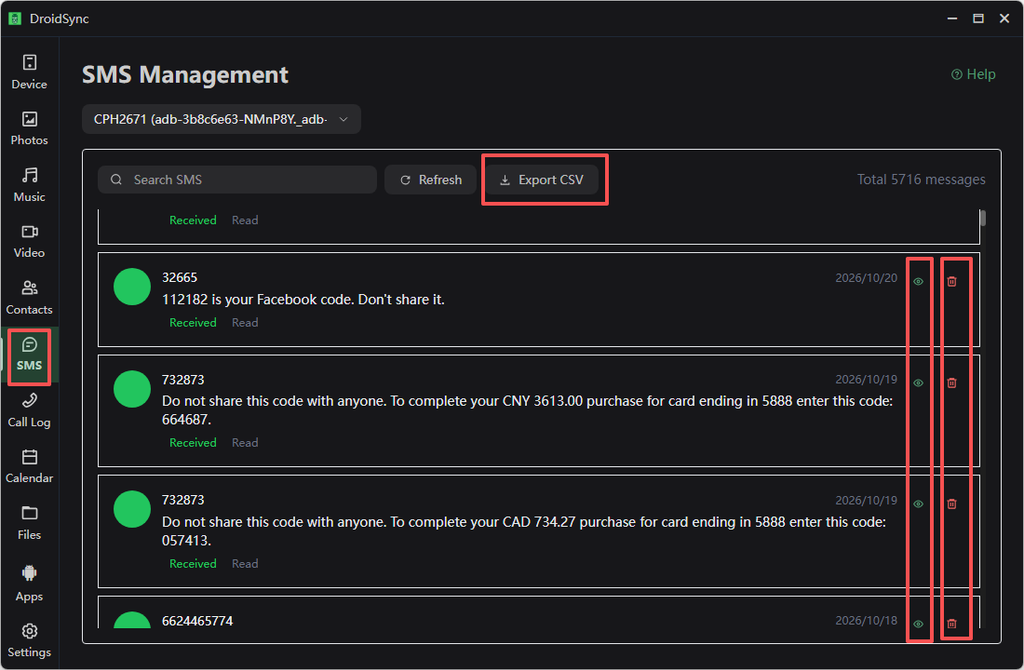
You can use the app to read, delete and export SMS messages stored on your phone.

Sponsored Links

How to Read an SMS?

  • 1. Click “SMS” on the left bar to open SMS management.
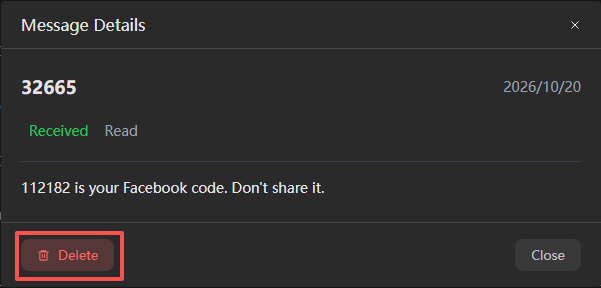
  • 2. Click any SMS (or the View icon on the far right) to open the message details window.

How to Delete an SMS?

  • 1. From the list: In SMS management, click the Delete icon on the far right of any message.
  • 2. From details: Open a SMS in message details window and click the “Delete” button.

How to Export SMS?

  • In SMS management, click the “Export CSV” button.
  • Choose a destination folder, then click the “Select Folder” button.

How to Manage Call Log?

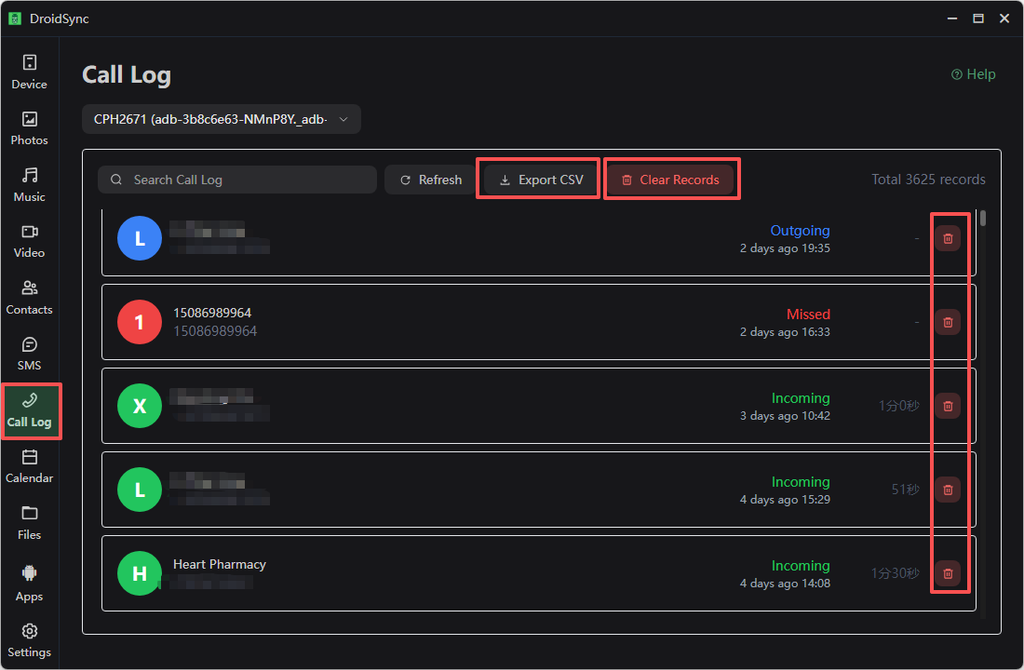
You can use the app to view, delete, clear and export call logs stored on your phone.

Sponsored Links

How to view call logs?

  • 1. Click “Call Log” on the left bar to open call log management.
  • 2. Your full call history will appear.

How to Delete a Call Log?

  • 1. In call log management, click the Delete icon on the far right of any log entry.

How to Export Call Logs?

  • 1. In call log management, click the “Export CSV” button.
  • 2. Select a destination folder, then click the “Select Folder” button.

How to Clear All Call Logs?

  • 1. In call log management, click the “Cear Records” button.

How to Manage Calendar Events?

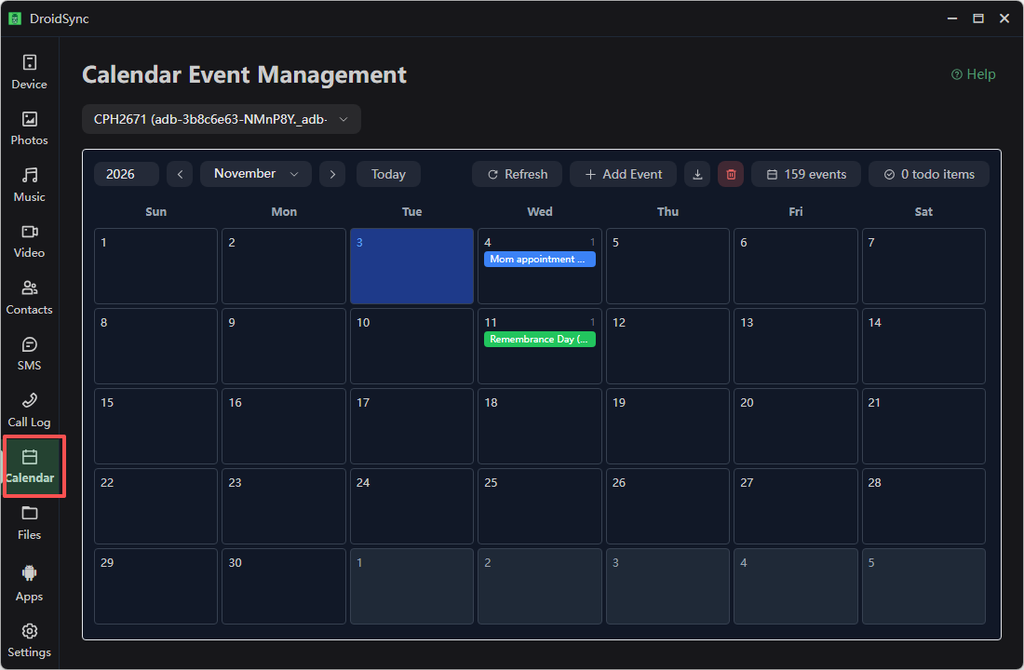
You can use the app to view, add, edit, delete, export and clear calendar events stored on your phone.

Sponsored Links

How to View Calendar Events?

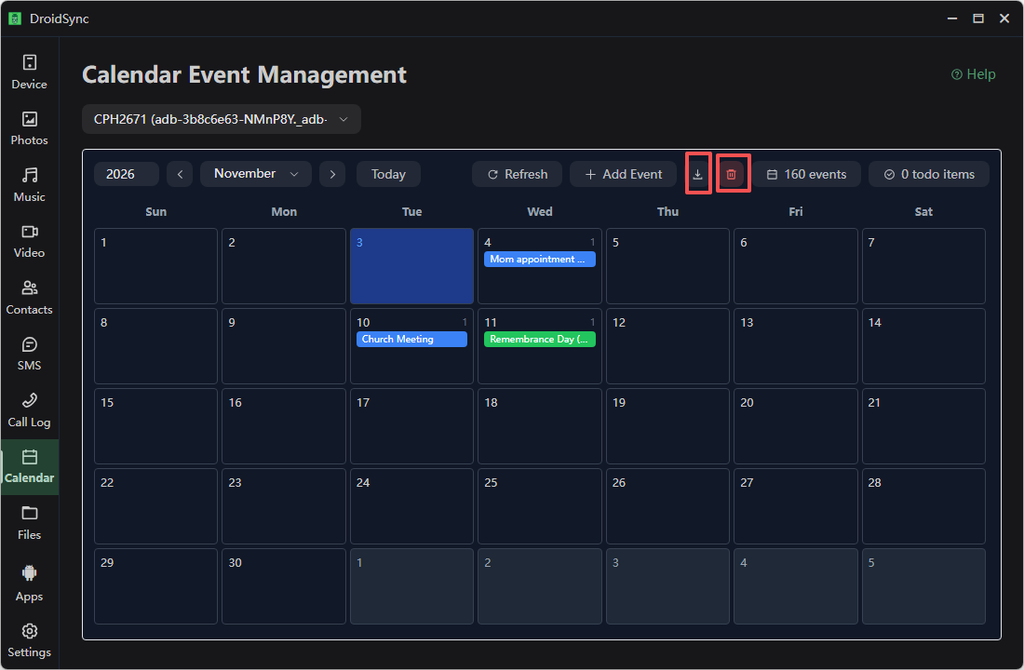
  • 1. Click “Calendar” on the left bar to open calendar management.
  • 2. All your calendar events will appear.

How to Add an Event?

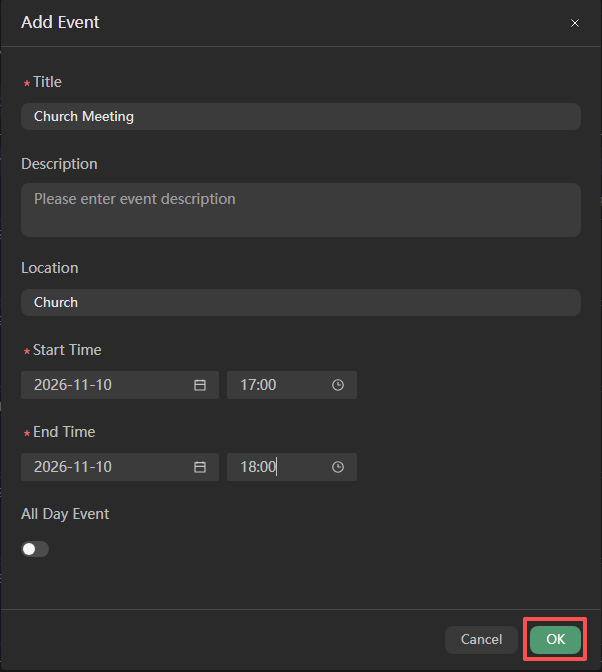
  • 1. In calendar management, click the “Add Event” button.
  • 2. Enter the title, start time, end time and other relevant details, then click the “OK” button.

How to Delete an Event?

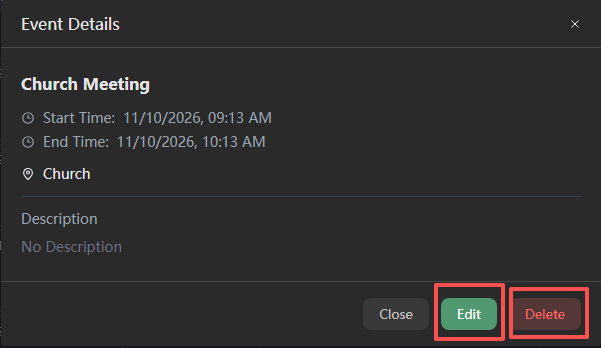
  • 1. In calendar management, click an event to open the Event Details window.
  • 2. Click the “Delete” button.

How to Edit an Event?

  • 1. In calendar management, click an event to open the Event Details window.
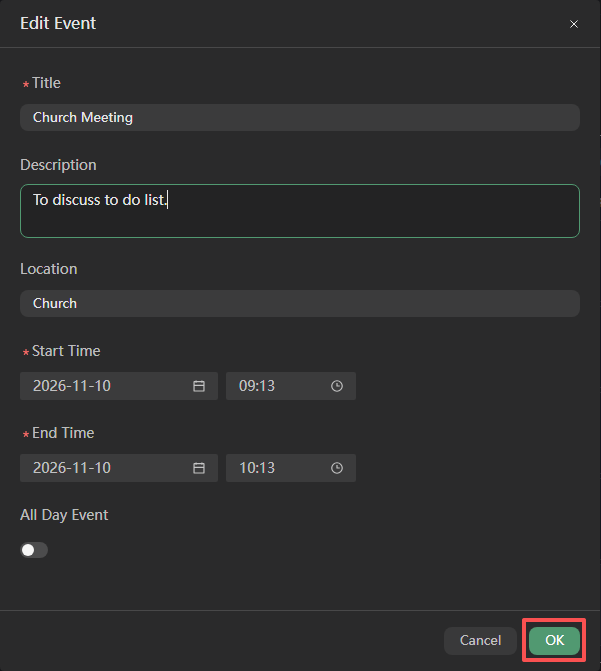
  • 2. Click the “Edit” button.
  • 3. Update the details, then click the “OK” button.

How to Export All Events?

  • 1. In calendar management, click the Export/Download icon to export all events.

How to Clear All Events?

  • 1. In calendar management, click the Clear icon to delete all events.

How to Manage Files?

You can use the app to navigate folders, upload, download, delete files, and create new directories on your phone.

Sponsored Links

How to Navigate Folders?

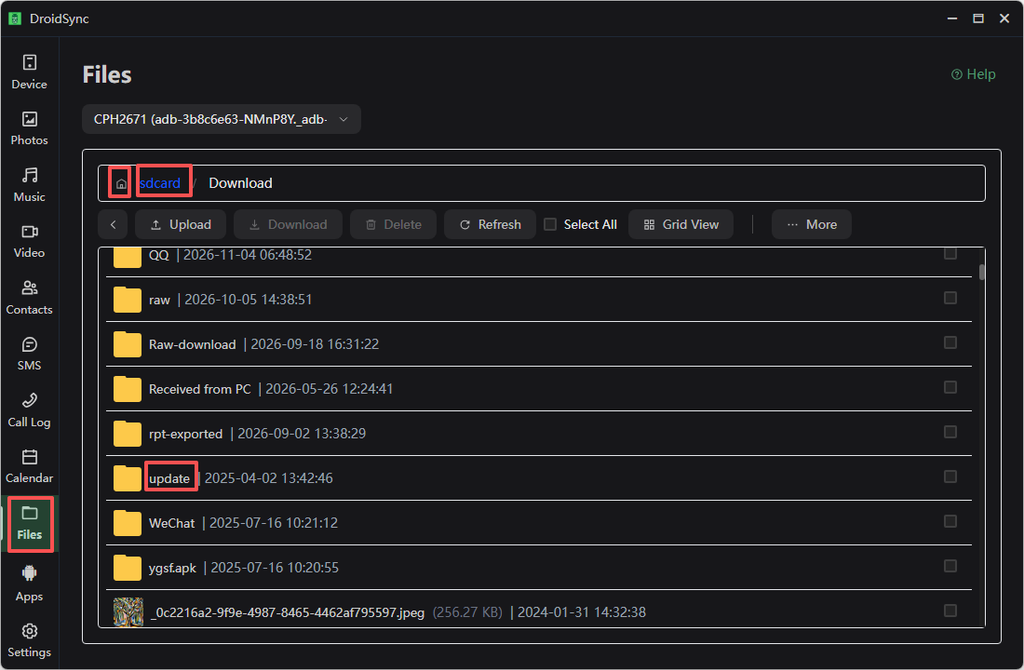
  • 1. Click “Files” on the left bar to open the file manager.
  • 2. By default, the root directory of your phone will display its files and subfolders..
  • 3. Navigation options:
    3.1 Click any subfolder to open it.
    3.2 Click the “<” button to return to the parent folder
    3.3 Click any folder name in the address bar path to jump directly to that location.

How to Upload Files?

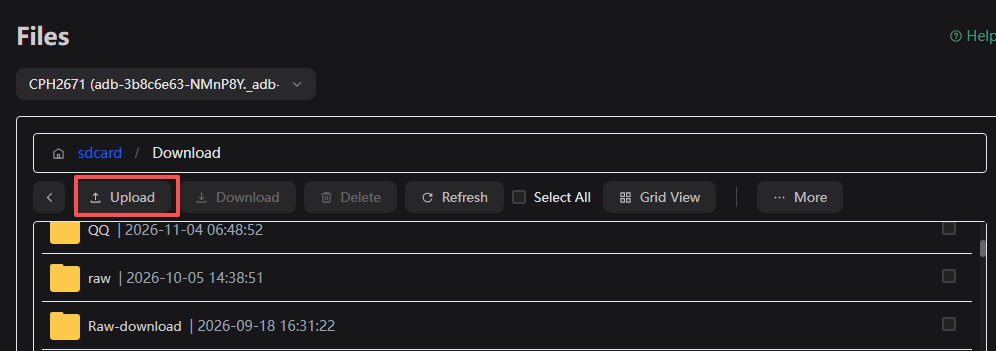
  • 1. Navigate to the targe folder.
  • 2. Click the “Upload” button.
  • 3. Select the files that you want to upload, then click the “Open” button.
    Note: If the upload fails, ensure you have write permissions for the selected folder.

How to Create a New Folder?

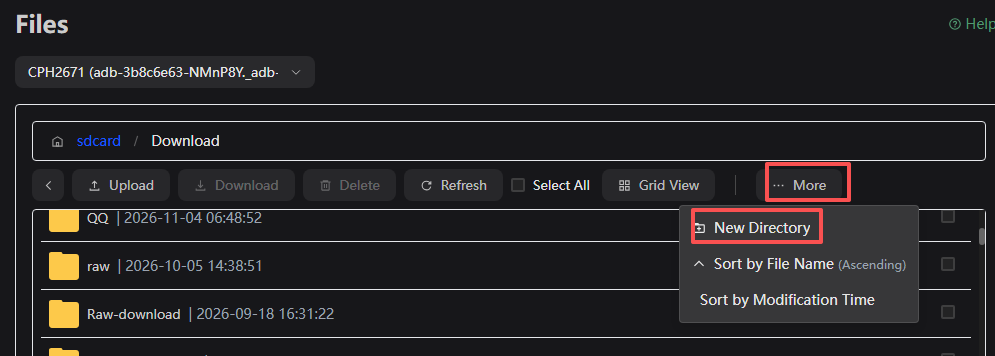
  • 1. Navigate to the desired parent folder.
  • 2. Click the “More” button then the “Create Directory” button.
  • 3. Enter a directory name then click the “OK” button.

How to Download Files and Folders?

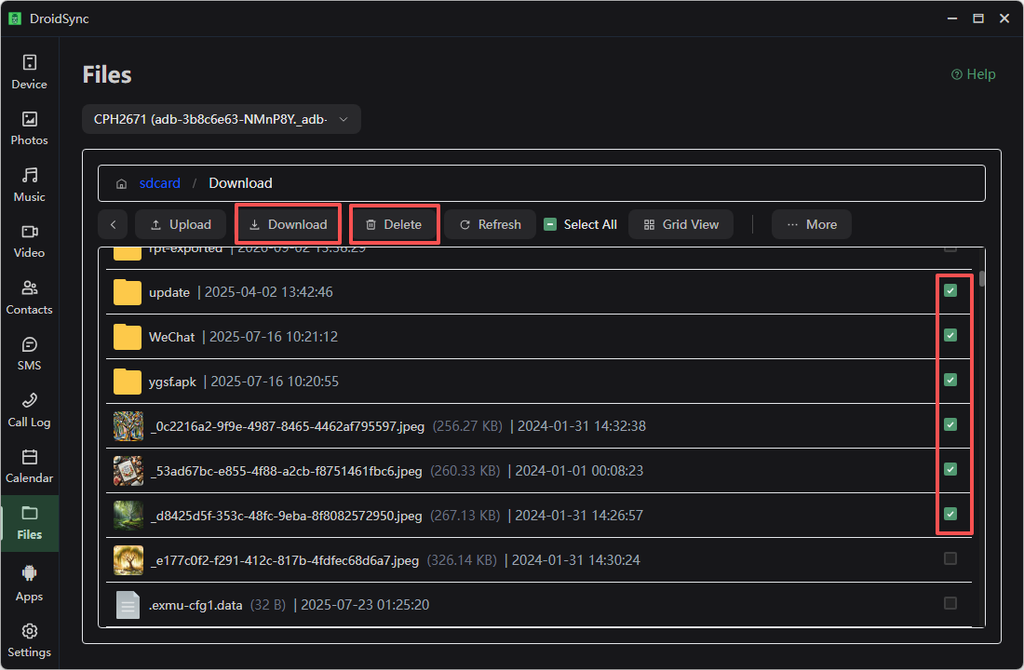
  • 1. Navigate to the folder containing your desired items.
  • 2. Select the folders and files that you want to download using the checkboxes on the far right.
  • 3. Click the “Download” button.
  • 4. Select a destination folder then click the “Select Folder” button.

How to Delete Files and Folders?

  • 1. Navigate to the parent folder.
  • 2. Select the folders and files that you want to delete using the checkbox on the far right.
  • 3. Click the “Delete” button then click the “OK” button.

How to Manage Apps?

You can use the app to view, install and uninstall apps on your phone.

Sponsored Links

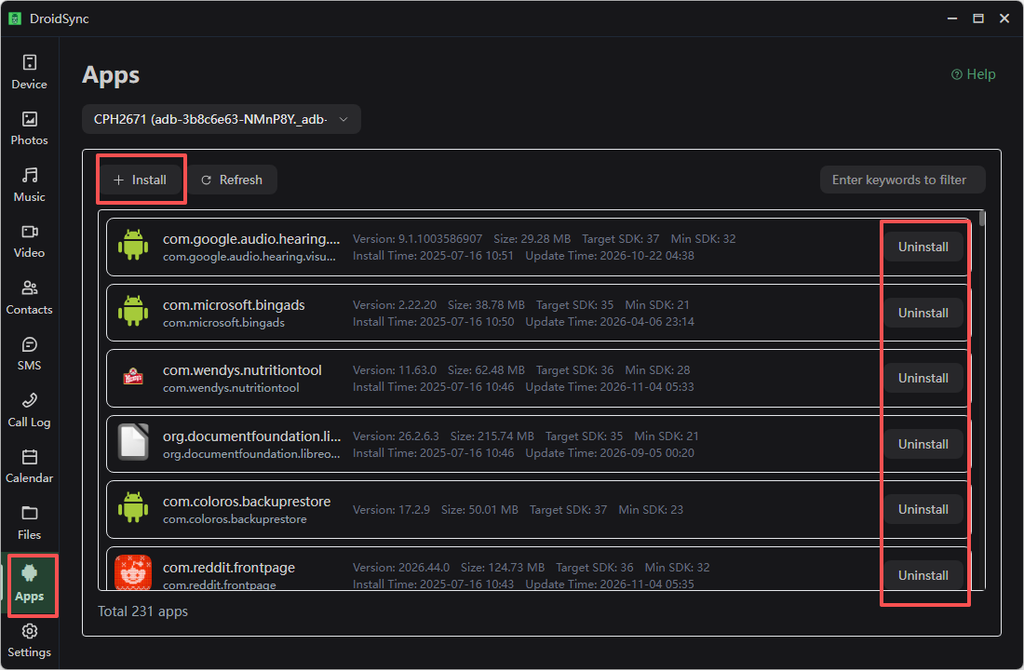
How to Install an APK?

  • 1. Click “Apps” on the left bar to open the app manager.
  • 2. Click the “Install“ button.
  • 3. Select a APK file then the “Open” button.
  • 4. The app installation should start now.

How to Uninstall an App?

  • 1. In the app manager, click the “Uninstall” button on the far right of the app.

Theme Settings

The app supports two themes: Light and Dark.

Sponsored Links

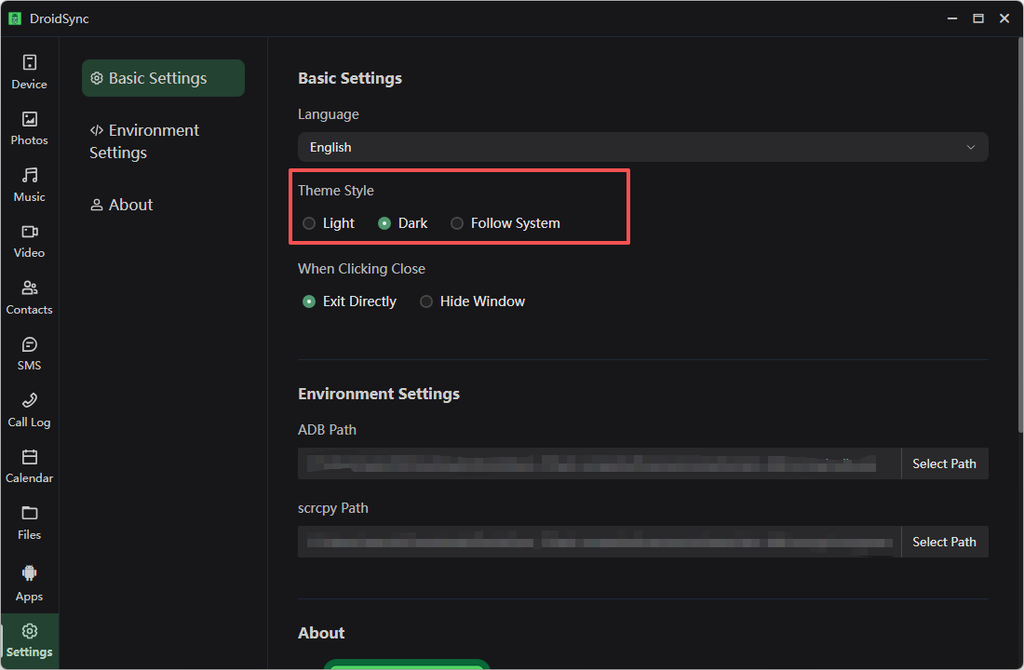
How to Change the Theme?

  • 1. Go to Settings > Theme Style.
  • 2. Select Light or Dark.

E-mail Support

If you have any further questions or feedback about the app, please feel free to reach out to us by email. We are here to listen and help.