Better Media and DVD Player Online Tutorial

Better Media and DVD Player is the new product name (previously Better Player). 

Sponsored Links

In this simple tutorial, we cover the following topics: how to play DVD & Discs, supported media file formats, how to take screenshots/snapshots, most frequently used settings, audio and video out of sync problem, how to convert video and etc.

Play DVD, Blu-ray or Other Types of Discs
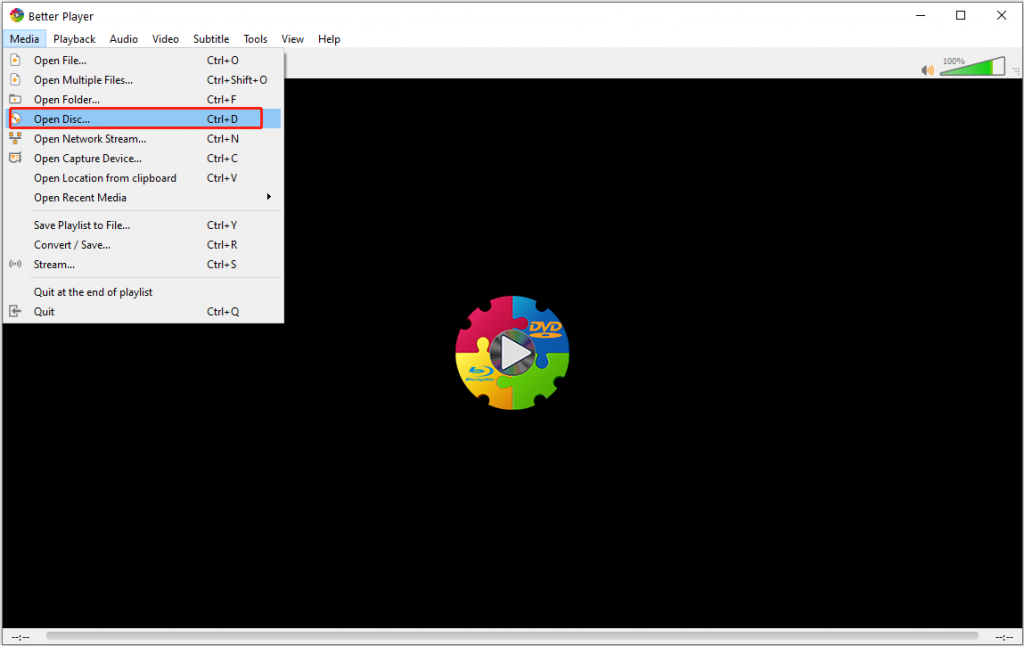
Note: when you insert your DVD or Blu-ray disc, this app WILL NOT automatically start to play. Instead, you need to follow the steps below to play them.
Step 1: Open the “Media” menu.
Step 2: Select the “Open Disc…”menu item
Step 3: in the “Open Media” window, select “DVD” or “Blu-ray” or other disc type that you want to play
Step 4: select the correct Disc device from the dropdown list
Step 5: click the “Play” button
Supported Media File Formats

Video Files: .3g2, .3gp, .3gp2, .3gpp, .amv, .asf, .avi, .bik, .bin, .crf, .divx, .drc, .dv, .dvr-ms, .evo, .f4v, .flv, .gvi, .gxf, .iso, .m1v, .m2v, .m2t, .m2ts, .m4v, .mkv, .mov, .mp2, .mp2v, .mp4, .mp4v, .mpe, .mpeg, .mpeg1, .mpeg2, .mpeg4, .mpg, .ts, .tts, .txd, .vob, .vro, .webm, .wm, .wmv, .wtv, .xesc

Sponsored Links

Audio Files: .3ga, .669, .a52, .aac, .ac3, .adt, .adts, .aif, .aifc, .aiff, .amb, .amr, .aob, .ape, .au, .awb, .caf, .dts, .flac, .it, .kar, .m4a, .m4b, .m4p, .m5p, .mid, .mka, .mlp, .mod, .mpa, .mp1, .mp2, .mp3, .mpc, .mpga, .mus, .oga, .ogg, .oma, .opu, .wav, .wma, .wv, .xa, .xm


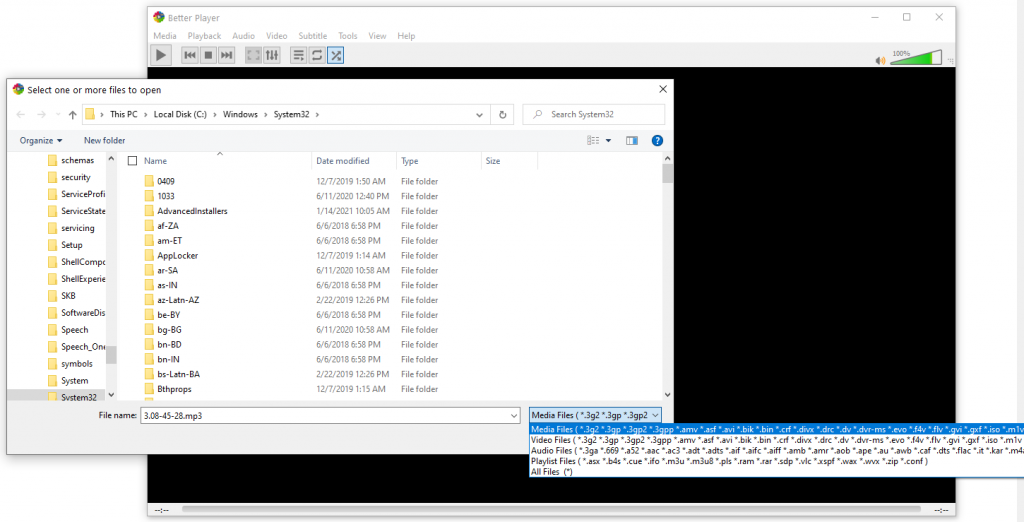
Note: if you are not sure whether your file is supported, just click menu “Media” -> “Open File”, then select “All File” in the drop-down list at the right bottom corner and choose your file to play and give it a try.

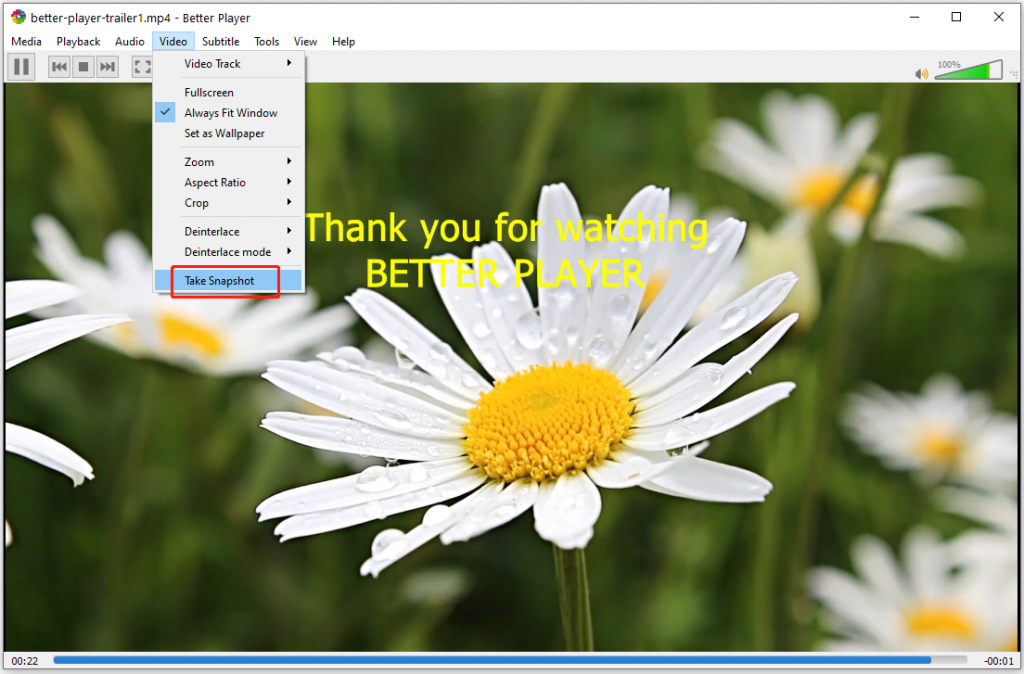
How to Take Snapshots?

There are two ways to take snapshots.
Method 1: open the “Video” menu, and select the “Take Snapshot” menu item.
Method 2: press the hotkey SHIFT+S.

Sponsored Links

Screenshot:

Snapshots Location, Format and Name

The default snapshot location is “%HOMEPATH%\Pictures\”.
The default snapshot format is png.
You can always change these default values in the “Preferences” menu item in the “Tools” menu, subsection “Video”.

Settings

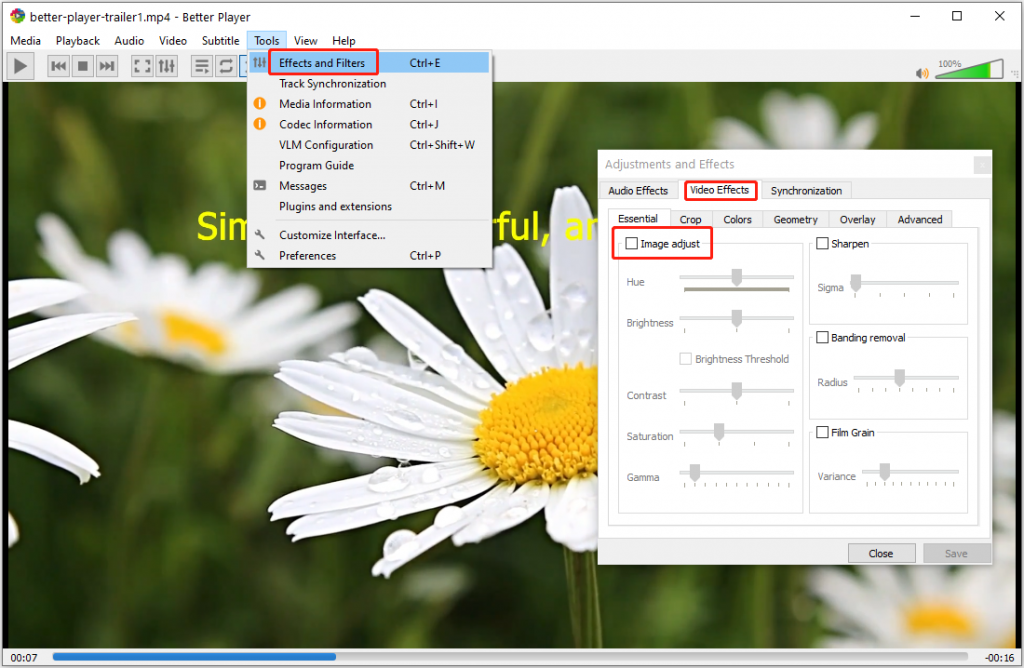
You can adjust video settings like the Brightness, the Contrast, the Saturation, the Hue, the Gamma and more. Here are the detailed steps.
Step 1, open the “Tools” menu
Step 2, select the “Effects and Filters” sub menu
Step 3, under “Adjustments and Effects”, navigate to the “Video Effects” tab
Step 4, make sure you are on the “Essential” tab under it
Step 5, check the checkbox “Image adjust”
Step 6, click and drag the sliders to change the brightness, contrast and other options.

Sponsored Links

Screenshot:

Video and Audio Out of Sync?

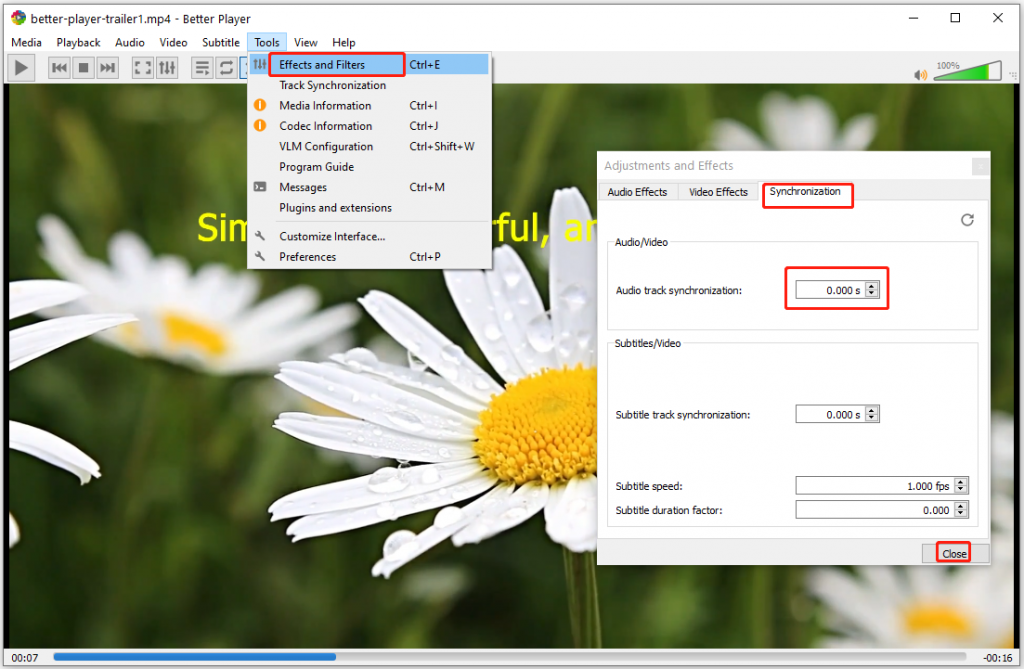
Sometimes, while playing video files, you hear the sound before the actual time or you hear spoken words only after the lips move. This means that the audio is not in sync and you will have to fix the audio delay. Here are the steps to fix it.
Step 1, open the “Tools” menu
Step 2, open the “Effect and Filters” sub menu
Step 3, click on the “Synchronization” tab
Step 4, under “Audio/Video”, enter a numerical value and test it
Step 5, press the “Close” button once you are satisfied with it

Sponsored Links

Screenshot:

How to Convert Video?

Other than playing video, the app can also convert video to other formats.

Sponsored Links

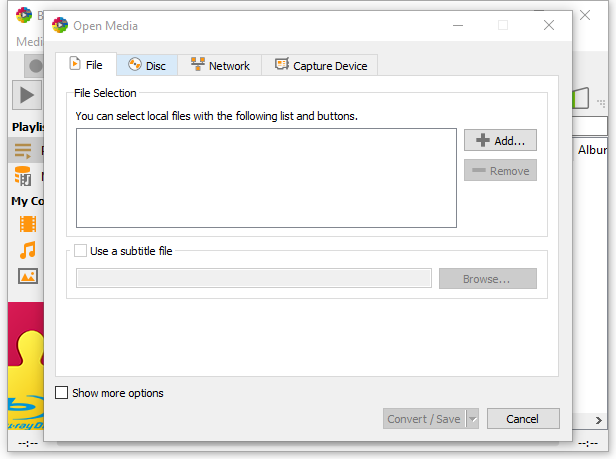
Step 1, in the menu bar click Media > Convert / Save

Step 2, click the Add button and browse to the file you want to convert
Step 3, click the Convert / Save button
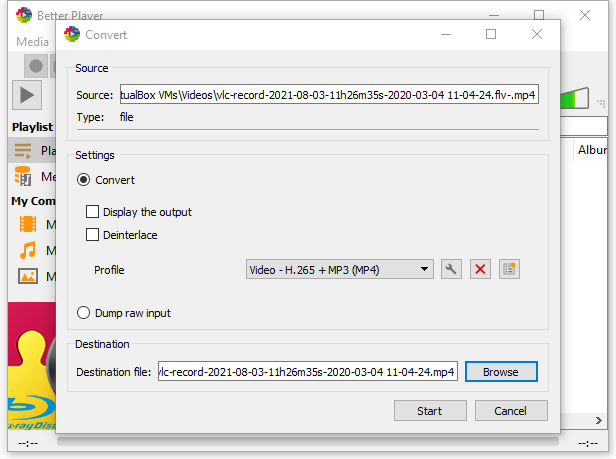
Step 4, under Destination click the Browse button and choose a location to save the file, and name the file.

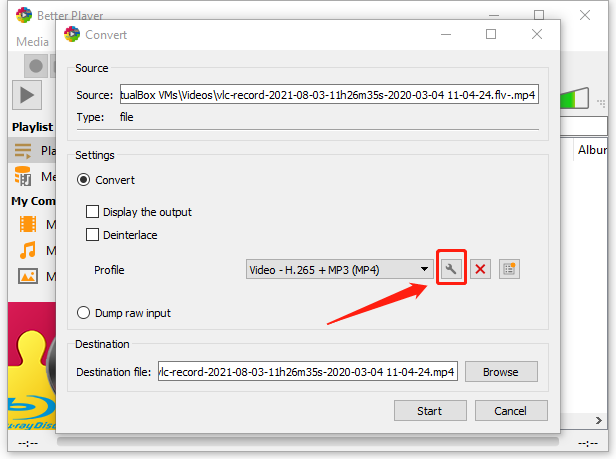
Step 5, under Profile choose Video -H.264 + MP3 (MP4)
Step 6, click the edit profile button

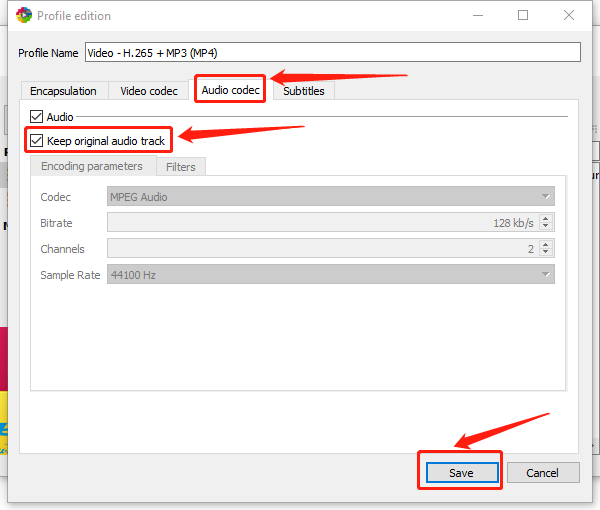
Step 7, click the Audio Codec tab
Step 8, click Keep original audio track, click Save


Step 9, click the Start button
Step 10, the app should now convert the file
Step 11, once converted try playing the file to ensure video and audio display correctly.

E-mail Support

If you have any further questions or feed-backs about the app, please feel free to reach us by email. We are here to listen and help.

Sponsored Links