Better Audio Editor Online Tutorial

Better Audio Editor is a multi-track audio editor and recorder software. It enables you to play and edit audio files, record your voice and music, combine multiple sound tracks, apply sound effects, finally export your work as MP3 files, and more.

Sponsored Links

In this simple quick-start guide, we use five steps to show you how to use the app.
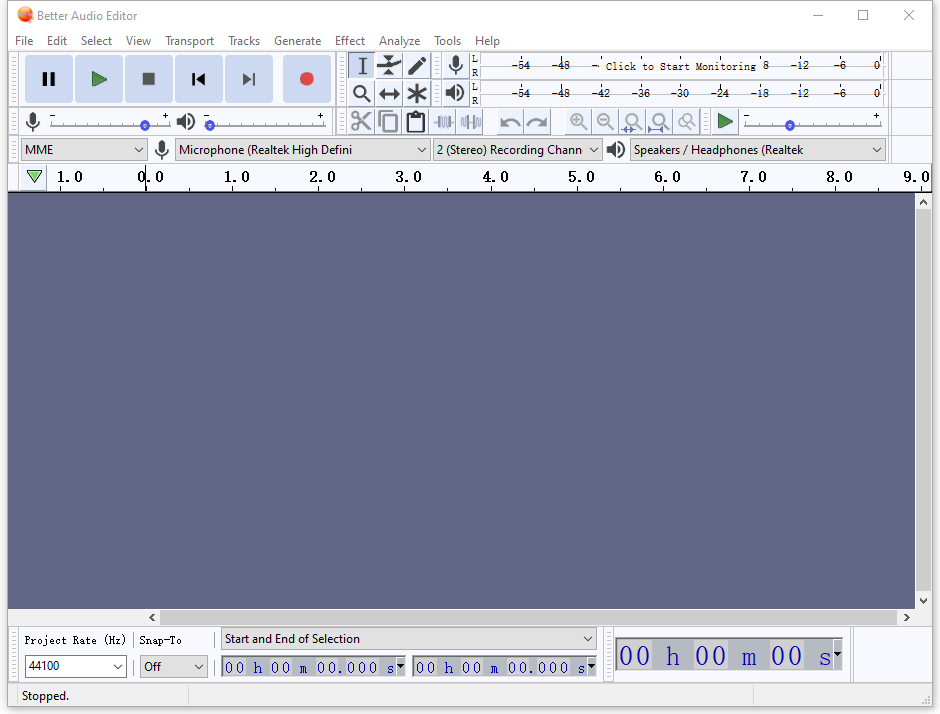
The five steps are:

Import and play an audio file
Record your voice, guitar, standard turntable or tape deck
Edit sounds, including applying effects
Save your edit project
Export to an MP3 or other audio file
Note: Better Audio Editor is a product by XiaoyaLab. At XiaoyaLab, we focus on these areas: pc optimization and cleaning, video processing and converting, audio processing and converting, video  editing, image process and converting, etc.
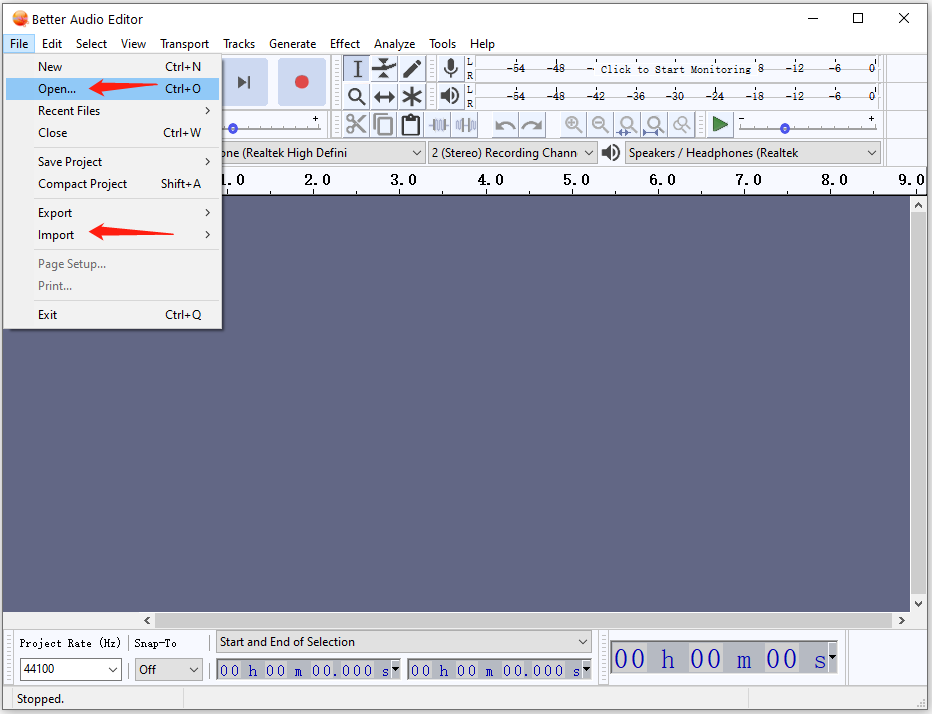
Step 1: how to import/open an audio file?

Normally the first step to use the app is to open an audio file.
Option 1: Drag the files into the current app window.
Option 2: Choose menu item “File” -> ”Import” -> ”Audio…”
Option 3: Choose menu item “File”->”Open”

Sponsored Links

Screenshot:

How to play an audio file?

After you have imported the audio file, you can:
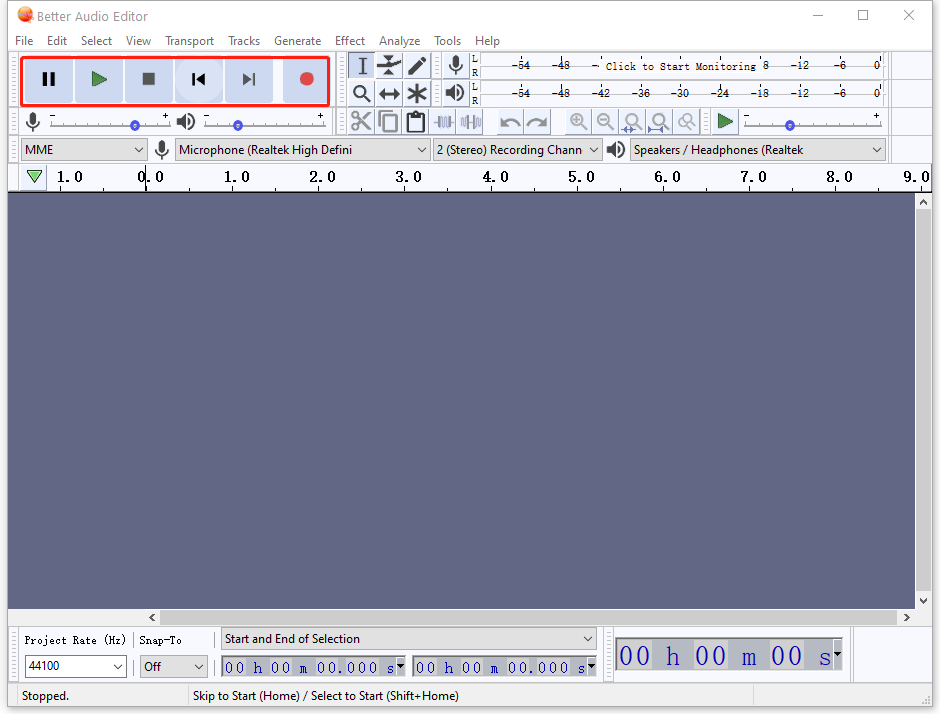
Play: press the Play button (the green triangle).
Pause: press the Pause button (the double vertical lines)
Stop: press the Stop button (the black square)
The Space key in your keyboard can be used to either play or stop

Step 2: how to record your voice, guitar, standard turntable or tape deck?

1, Set the Recording Device in the Devices sections of Preferences or in Device Toolbar.
2, In the Recording Meter click “Start Monitoring”.

Sponsored Links

3, Singing or playing the loudest part of the music you are recording, adjust the recording level using the left-hand slider on Mixer Toolbar.
4, Press the Record button (the red dot) to record for real.
5, When you are done, stop the recording using the Stop button (the black square).

Step 3: how to edit sounds, including applying effects?

First, you need to select audio to edit it.

Method 1: the easiest way to select a region of audio is to click the left mouse button anywhere inside of an audio track, then drag until the other edge of your select is made, then release the mouse.
Method 2: you can select the whole of an individual track by clicking the “Select” button in the Track Control Panel to the left of a track.
Method 3: you can select the whole project by “Select” -> “All” or use the shortcut CTRL

Sponsored Links

Second, edit the selected audio

The most common editing actions such as Cut, Copy, Paste and Delete can be found under menu “Edit”. They also have buttons in Edit Toolbar.

How to apply effects?

The most common effects include boost the bass, change pitch or tempo, remove noise in various ways and etc.

With a region of audio selected, click the effect you require from the menu “Effect”, then make some parameter settings in the dialog box that you want and finally press the button “OK” to apply it. Note that some effects have no parameters and they are applied immediately after you click on them.

Step 4: save your edit project

In order to return later to your unfinished edit work with Better Audio Editor, you need to save an .aup project file (an Audacity project file).

Sponsored Links

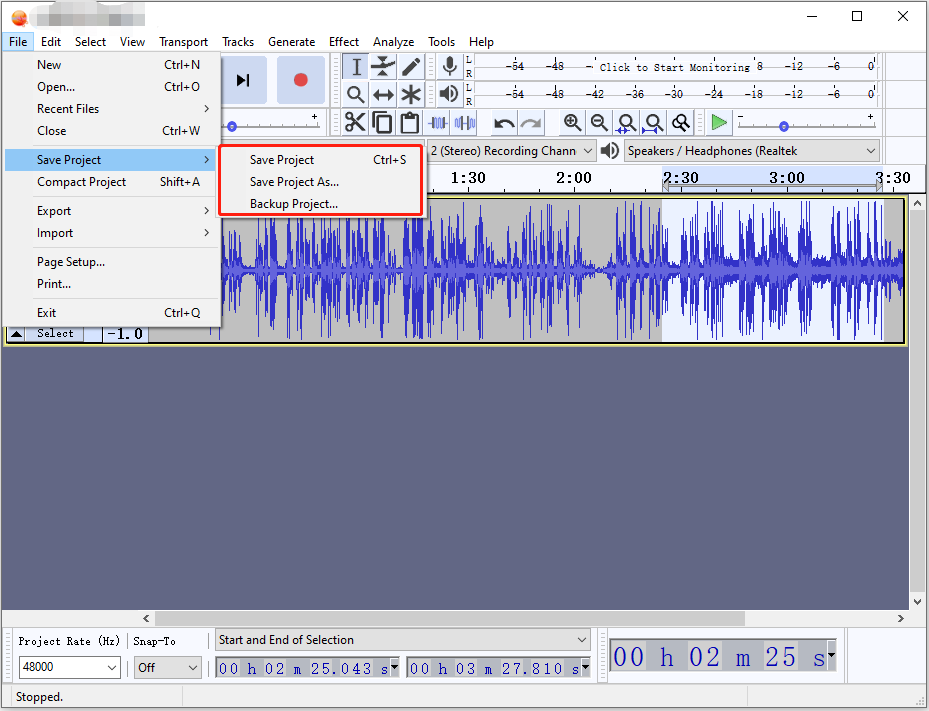
Simply click the menu “File” -> “Save Project” -> “Save Project” to save it. At the back end, it saves an .aup project file and a _data folder containing the actual audio.
Also, when you need to do any modifications to your existing work, just re-open the project file by “File” -> ”Open” and select it to open.

Step 5: export your work to an MP3 file or other audio formats

When you are done with the edit and satisfied with your work, you need to export it to an MP3 file or other audio file format so that it can be played in other media player software.

Sponsored Links

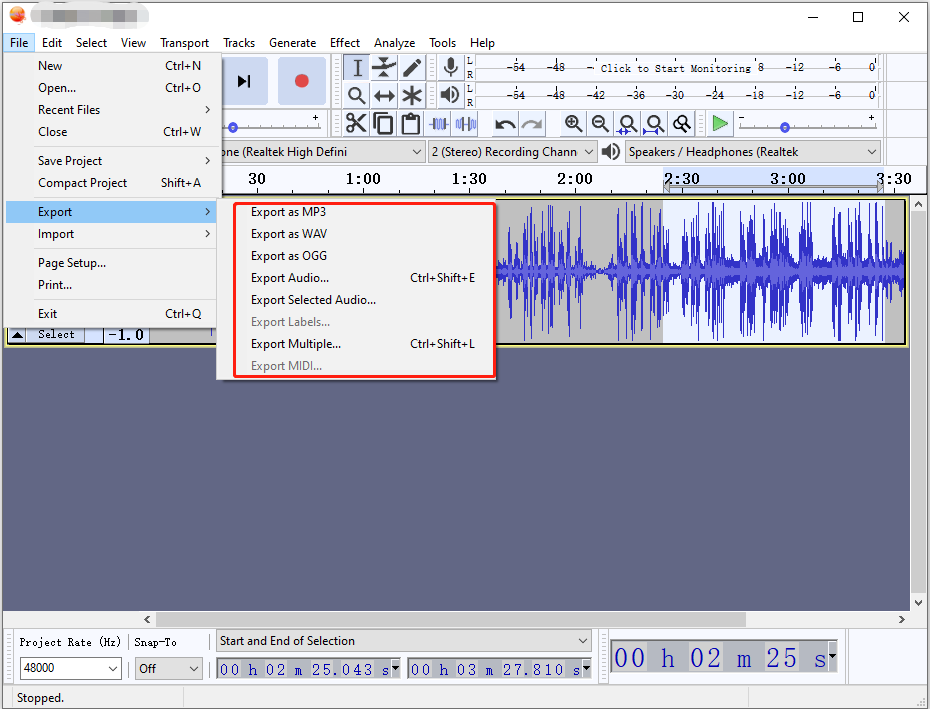
To export, select the menu “File” -> “Export” -> “Export Audio…”, then choose the file format you want to export to in the “Save as type” dropdown list, and finally click the button “Save”.

E-mail Support

If you have any further questions or feed-backs about the app, please feel free to reach us by email. We are here to listen and help.

Sponsored Links