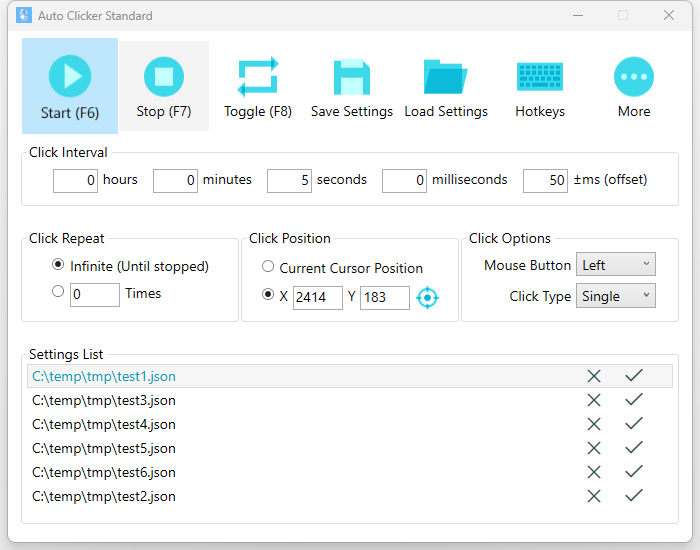
Auto Clicker Standard can automate mouse clicking, simulating human interactions with a computer. Additionally, this app offers a Settings List feature, allowing you to switch between different settings quickly. Auto Clicker Standard can be used in gaming, data entry and testing, productivity tools, e-commerce and more.
Sponsored Links
In this tutorial, we cover the following topics: What are the uses of an auto clicker? How do you use an auto clicker? How do you use the settings list? How do you save the settings? How do you load a settings file? How do you change the hotkeys?
Main Features
Automate mouse clicking.
Quickly switch between different settings.
Easy and straightforward.
What are the uses of an auto clicker?
An auto clicker tool like Auto Clicker Standard, can be commonly used for tasks that require repetitive clicks, saving time and reducing strain on users. Below are some typical uses:
Sponsored Links
Gaming
Data Entry and Testing
Productivity Tools
E-commerce
How do you use an auto clicker?
In Auto Clicker Standard, it takes 3 steps to use an auto clicker.
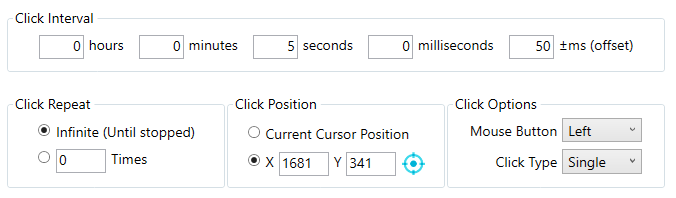
Step 1, configure the mouse behavior, including click position, click options, click repeat behavior and click interval.
Click Position – Choose between using a fixed X,Y coordinate pair or the current cursor position..
Click Options – Mouse Button: Select from Left button, Right button or Middle button.
Click Options – Click Type: Choose between Single click and Double click.
Click Repeat – Select either infinite clicks or a fixed number of clicks.
Click Interval – Set the interval between the clicks.
Click Interval – Offset: Specify a maximum offset value (in milliseconds) for the click. The app will use a random offset value below this number.
Step 2, Click the Start button.
After configuring the auto clicker behavior, you can click the Start button to start the auto clicker.
Step 3, Click the Stop button.
When the task is complete, you can click the Stop button to stop the current running auto clicker.
How do you use the settings list?
In Auto Clicker Standard, you can save your configured auto clicker setting into the Settings List, and quickly load it back afterwards. With Settings List, you can reuse your pre-configured auto clicker settings as many times as you want.
Sponsored Links
Save Settings
When you have configured your auto clicker and want to save it to the Settings List, click the “Save Setting” button. A Save As window will pop up. Choose a directory and give it a meaningful name, such as “Game1-CollectResource”. Then, click the “Save” button, and the setting will be saved to the Settings List.
Load Settings
If you have external setting files from other PCs that you want to use in Auto Clicker Standard, you need to load these files into the Settings List. Simply click the “Load Setting” button, select the setting file, and click “Open”. The setting file will then be added to the Settings List.
How to load settings from the Settings List?
There are two methods to load a settings from the Settings List.
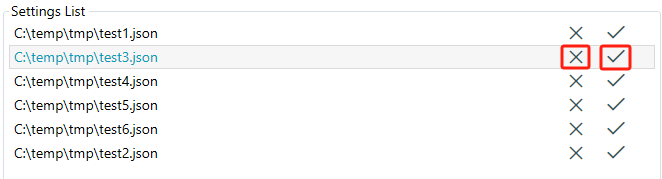
Method 1, in the Settings List, select the settings file and click the check button located at the right end. When the loading is complete, a message box will pop up saying “Loaded successfully”.
Method 2, In the Settings List, double click that settings file. When the loading is complete, a message box will pop up saying “Loaded successfully”.
How to remove a settings file from the Settings List?
To remove a settings file from the Settings List, just select that settings file and click the cross button located at the right end, as shown above.
How do you change the hotkeys?
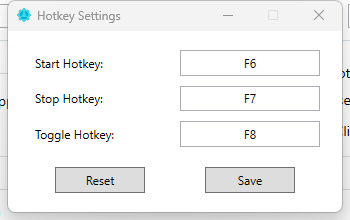
In Auto Clicker Standard, you can use hotkeys to start and stop the auto clicker. The default hotkeys are F6, F7, and F8. If you want to change them, click the “Hotkeys” button. In the Hotkey Settings window, select the hotkey you want to modify, then press the new key on your keyboard. Remember to click “Save” to apply the new hotkey.
Sponsored Links
Screenshot:
E-mail Support
If you have any further questions or feed-backs about the app, please feel free to reach out to us by email. We are here to listen and help.