Audiobook Downloader and Converter Online Tutorial

Do you need to download your audiobooks from Audible.com? Do you need to convert your AAX audiobooks to MP3 or M4B? Audiobook Downloader and Converter can help you do all of this. With our specialized tools, you can enjoy your audiobooks on any device.

Sponsored Links

In this tutorial, we cover the following topics: When to use Audiobook Downloader? How to use Audiobook Downloader? How to create a new profile? How to download and export audiobooks? When to use Audiobook Converter? How to use Audiobook Converter? What to do if you don’t know the activation code?
Main Features

  • Download audiobooks from Audible.com as M4B directly
  • Download audiobooks from Audible.com as AAX.
  • Convert AAX to MP3.
  • Convert AAX to M4B.
  • Separate Audiobook Downloader and Audiobook Converter tools.

What Tools Does Audiobook Downloader and Converter Provide?

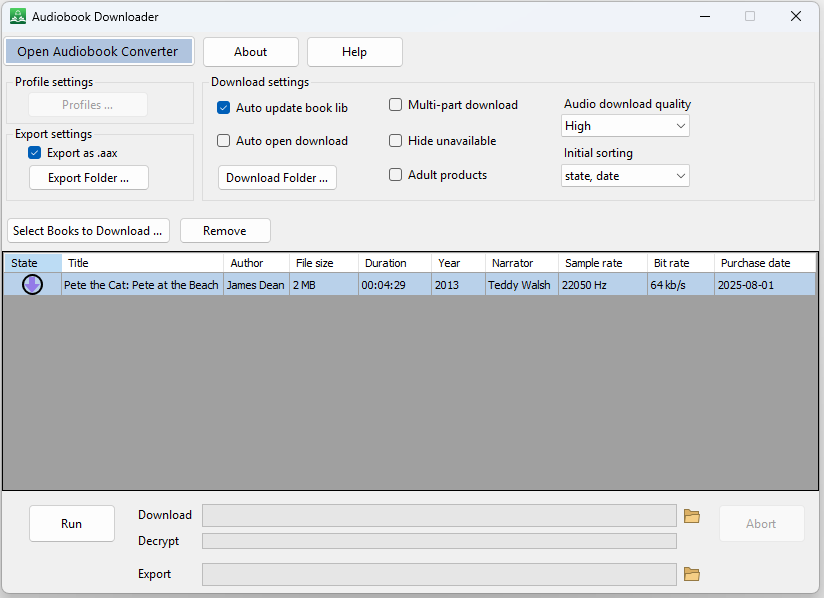
Audiobook Downloader and Converter includes two separate tools: Audiobook Downloader and Audiobook Converter. Within each tool, you can switch to the other by clicking the corresponding buttons: “Open Audiobook Downloader” and “Open Audiobook Converter”.

When to Use Audiobook Downloader?

Use Audiobook Downloader when you:

  • Have an Audible account and want to download your audiobooks as .M4B files.
  • Have an Audible account and want to download your audiobooks as .AAX files.

When to Use Audiobook Converter?

Use Audiobook Converter when you:

  • Have .AAX files and want to convert them to .M4B files.
  • Have .AAX files and want to convert them to .MP3 files.

When to Use Both Audiobook Downloader and Audiobook Converter?

Use both Audiobook Downloader and Audiobook Converter when you have an Audible account and want to download your audiobooks as .MP3 files.
How to Setup and Use Audiobook Downloader?

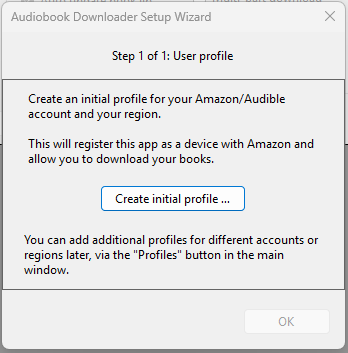
Before you start using Audiobook Downloader, you need to set it up. There are three steps to complete the setup.

Sponsored Links

Step 1, Create the Initial Profile

i) When you run Audiobook Downloader for the first time, the “Audiobook Downloader Setup Wizard” will pop up. Click the button “Create initial profile …”.

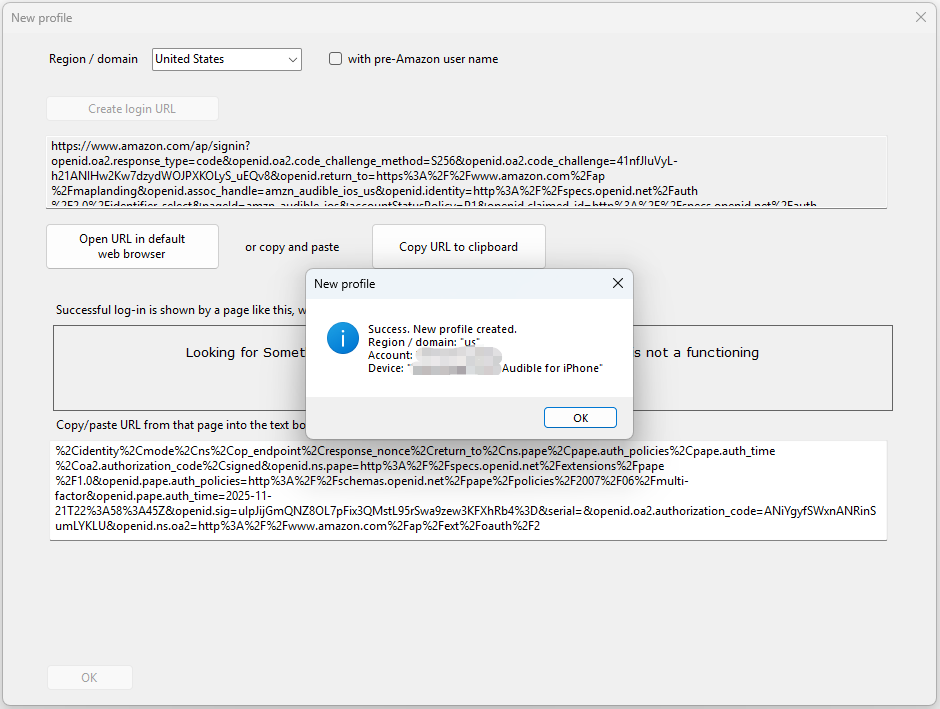
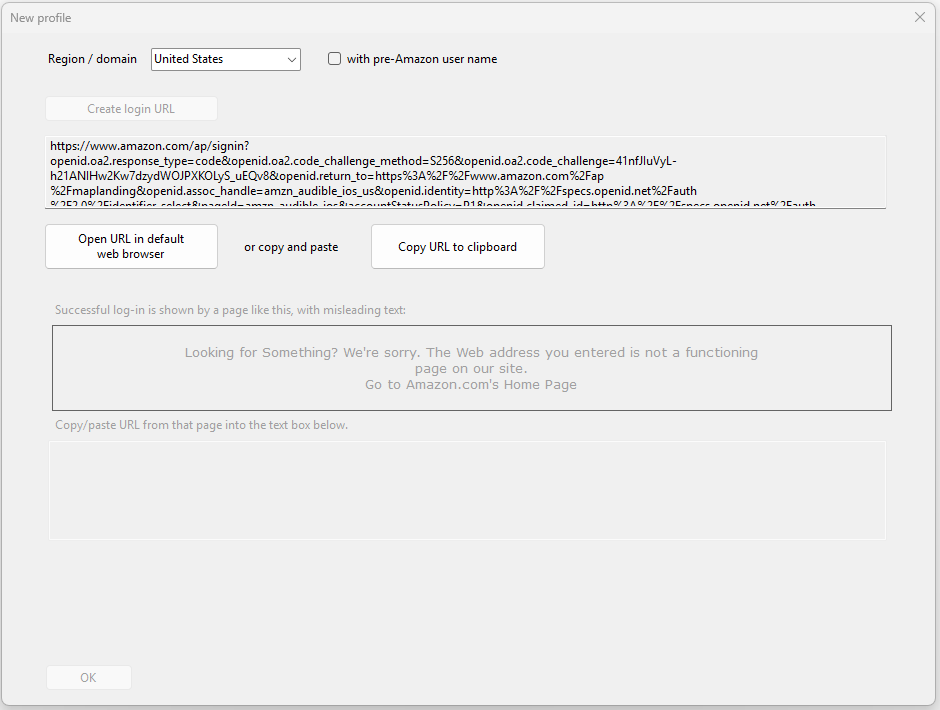
ii) In the “New profile” window, select the Region where your Audible account is located from the dropdown list, then click the button “Create login URL”.

iii) Click the button “Copy URL to clipboard”.

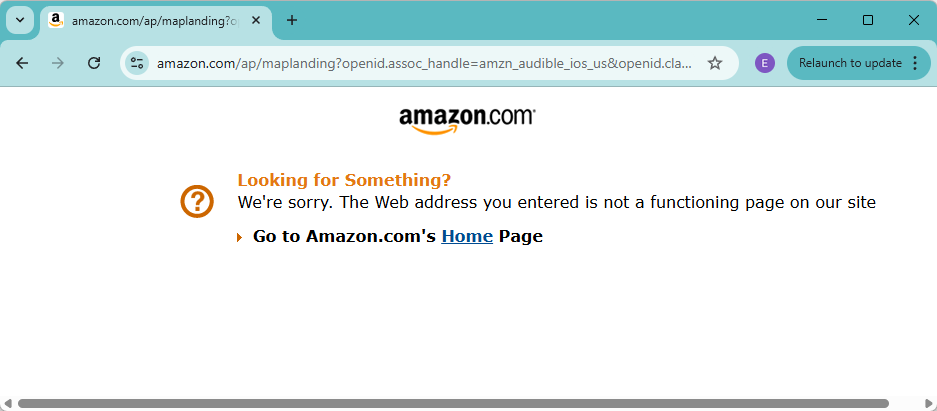
iv) Open your web browser, paste the copied URL into the address bar and press “Enter”. Log in using your Audible account credentials. You will then see a page similar to the example below.

v) Copy the URL of the page, return to the “New profile” window, and paste it into the bottom text box. After a few several seconds, a popup will appear saying “Success: New profile created.”

vi) Click the “Next” button.

Step 2, Setup the Downloader Folder

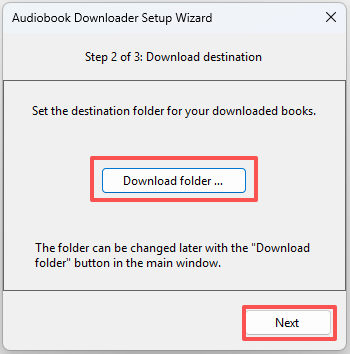
Simply click the “Download Folder” button and choose a folder to use as your download destination. Then click the “Next” button.

Step 3, Setup the Export Folder

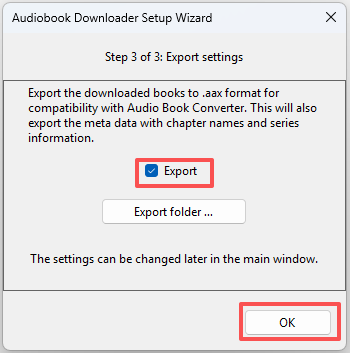
Simply click the “Export” option two times to check it and select a folder to use as your export destination. Then click the “OK” button.

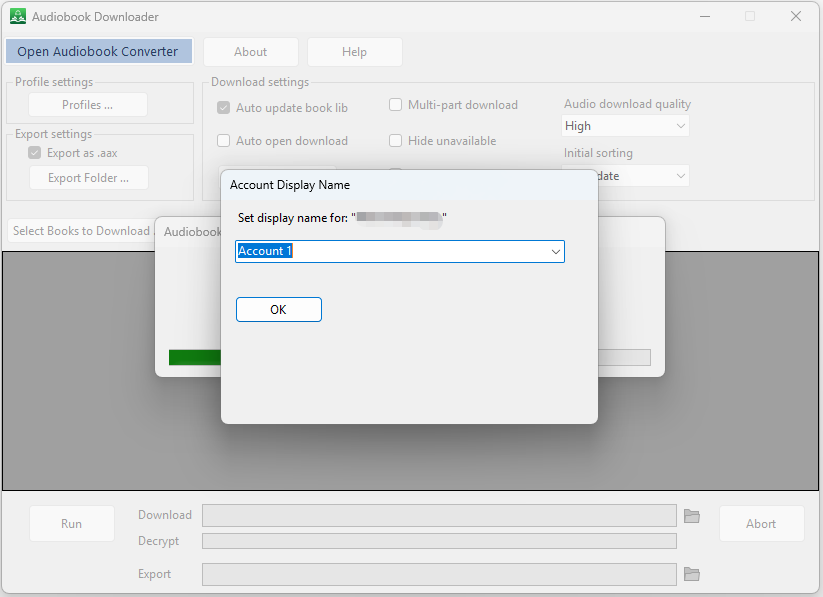
In the “Account Display Name” window, click “OK” to accept the display name.

How to Download Audiobooks?

Once all the setup is complete, you can start downloading audiobooks.

Sponsored Links

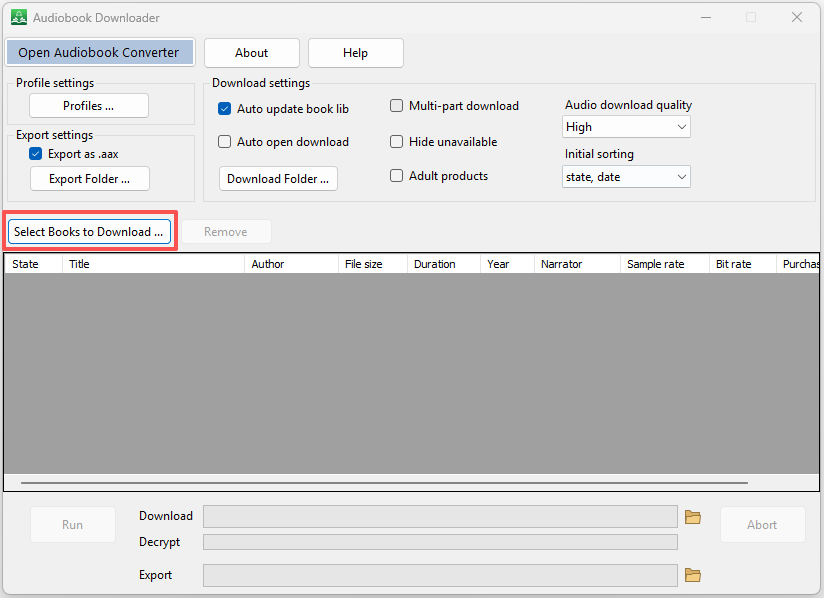
i) Click the “Select Books to Download” button to open your audiobook library.

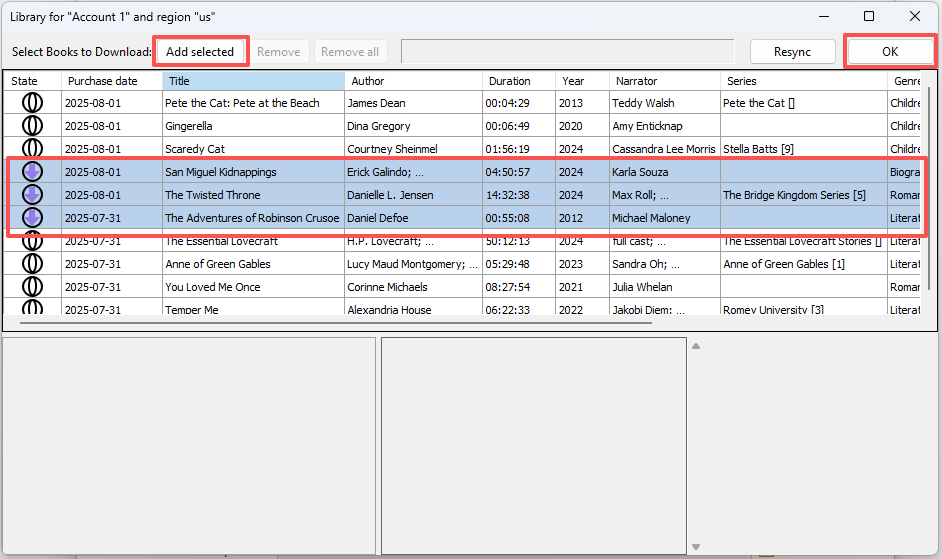
ii) In the Library window, select one or more books that you want to download, then click the “Add selected” button. Click the “OK” button to close the library window.

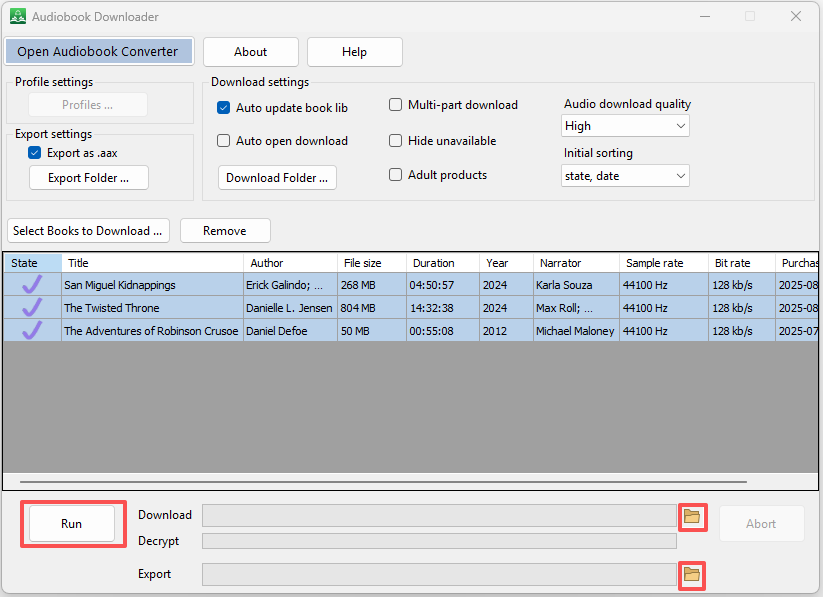
iii) Click the “Run” button to begin downloading and exporting.

iv) When all tasks are complete, click the two small buttons to open the download folder and export folder to view your files.

How to Use Audiobook Converter?

In Audiobook Downloader, click the “Open Audiobook Converter” button to launch the Audiobook Converter tool.

Sponsored Links

Configure the Destination Folder

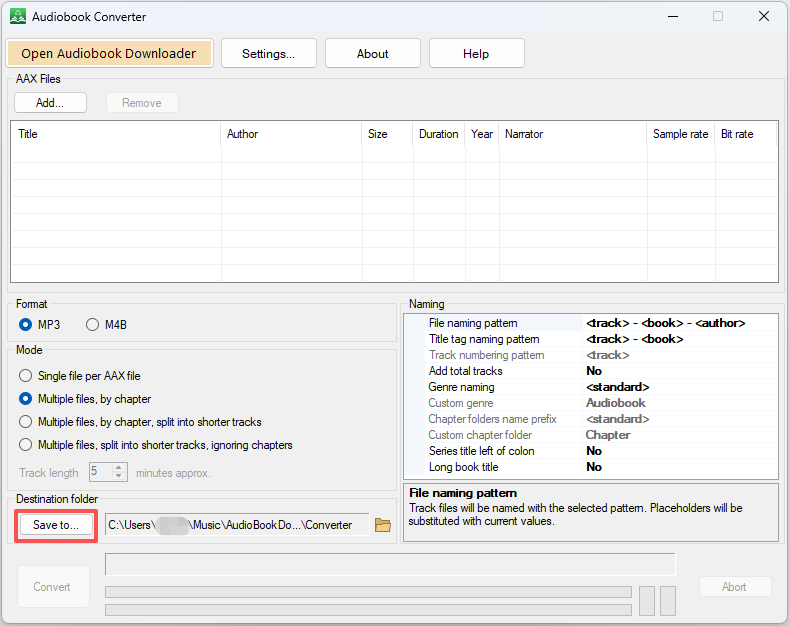
Before using Audiobook Converter, you need to configure the Destination folder. Click the “Save to” button and choose a folder to use as your destination.

Use Audiobook Converter

Once the configuration is complete, you can start converting your .AAX files.

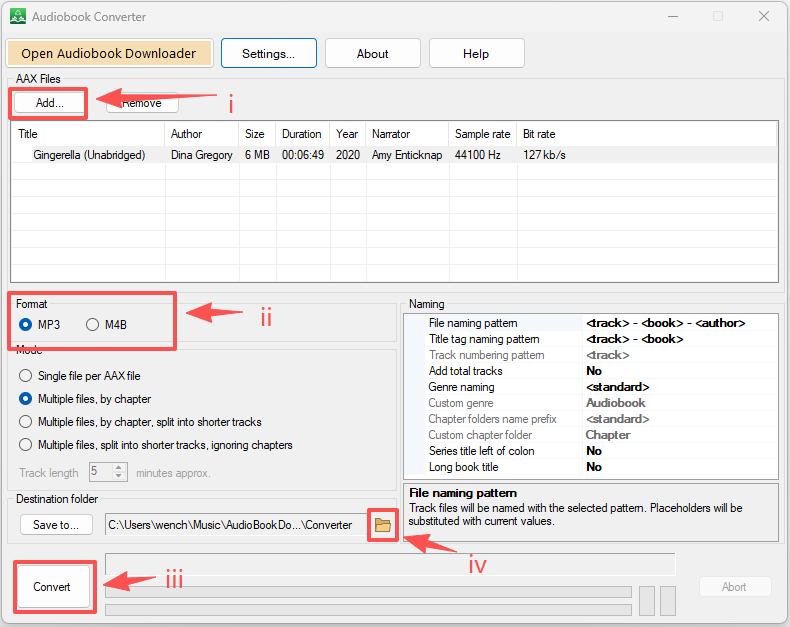
i) Click the “Add” button to add your AAX files.

ii) Choose the destination format: MP3 or M4B.

iii) Click the button “Convert”.

iv) When tasks are complete, you can click the small button (shown below as iv) to open the destination folder and view the converted files.

What to Do if You Encounter an Activation Error?

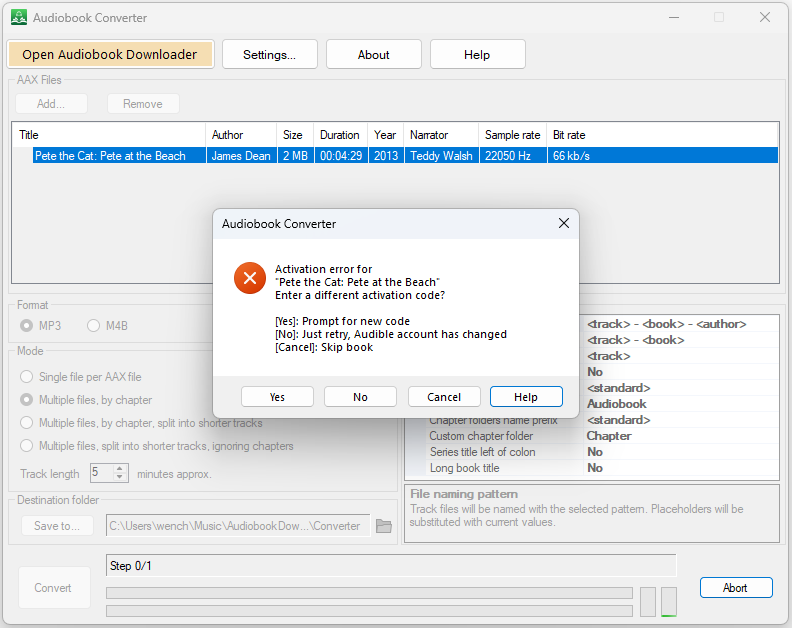
Some AAX files require activation codes for decryption. If you encounter an activation error like the one shown above, please follow these instructions:

Sponsored Links

Step 1, If you know the activation code, click the “Yes” button. The app will prompt you to input your activation code and will use it for decryption.

Step 2, If you don’t know the activation code, please send us an email with the AAX file attached, and we will do our best to help you find the activation code.

E-mail Support

If you have any further questions or feed-backs about the app, please feel free to reach out to us by email. We are here to listen and help.