All eBook Converter Online Tutorial

This tutorial uses slideshow-style navigation. Scroll your mouse wheel down and up to go to the next and previous section, or click a section in the right-hand bar to jump straight to it.

Effortlessly convert your digital library with All eBook Converter. Select and batch-convert multiple EPUB, MOBI, PDF, AZW3, and CBZ files simultaneously. Powered by the official Calibre conversion engine, preserve 100% of your book’s original layout, cover art, and metadata with fast, offline processing.

Sponsored Links

In this tutorial, we cover the following topics: How do I convert an eBook to another format in 3 steps? Can I convert eBooks in a batch? How do I use the eBook viewer? Which eBook formats are supported?
Which eBook Formats Are Supported?

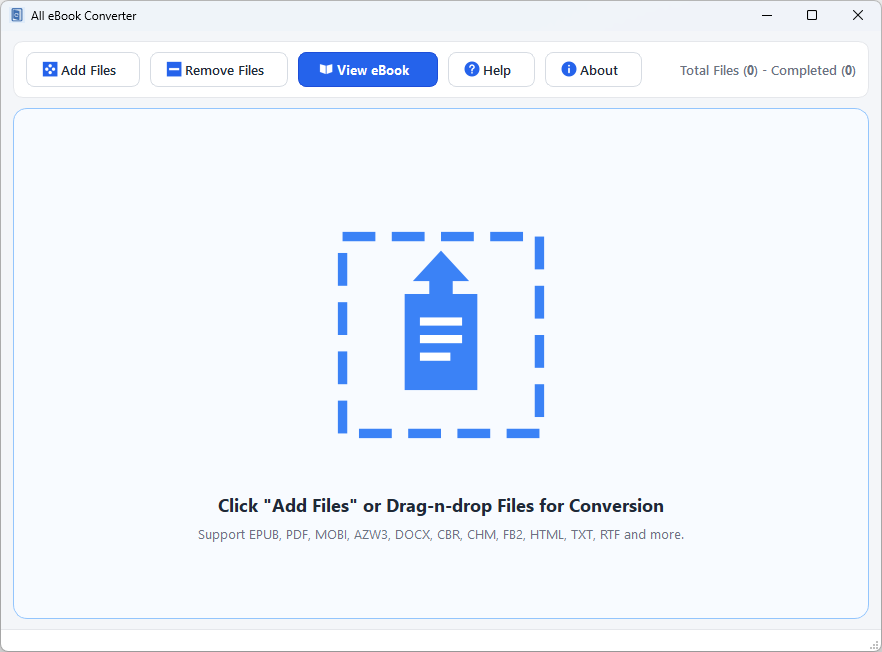
Input Formats: EPUB, MOBI, PDF, AZW, AZW3, DOCX, FB2, RTF, TXT, ZIP, HTMLZ, LIT, LRF, PMLZ, RB, TXTZ, OPF, PRC, PDB, CHM, TPZ, CBZ, CBR, HTML, HTM, XHTML, ODT, DOCM, SNB, TCR, PML, MD

Output Formats: EPUB, MOBI, PDF, AZW3, DOCX, TXT, FB2, RTF, LRF, ZIP, HTMLZ, OEB, LIT, PMLZ, RB, TXTZ
How to Convert an eBook to Another Format in 3 Steps?

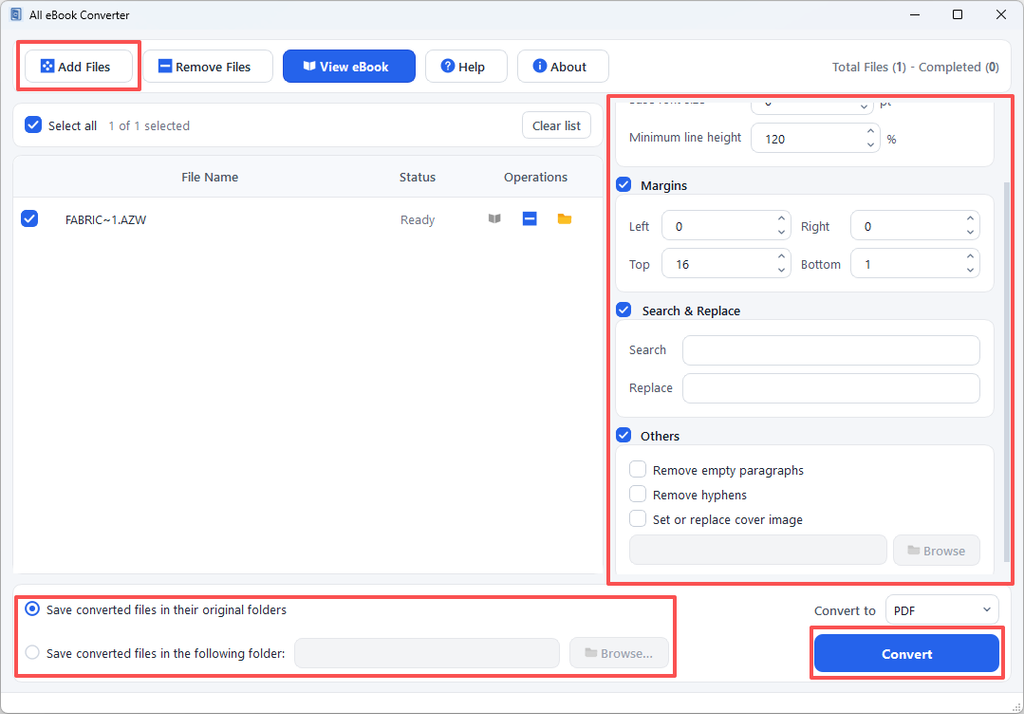
Step 1: Click the Add Files button, select the file(s) you want to convert, and add them to the app.

Sponsored Links

Step 2: Review and adjust the settings in the right panel as needed. Select your output folder at the bottom of the window.

Step 3: Select the files you want to convert, click the Convert button, and wait for the conversion to complete.

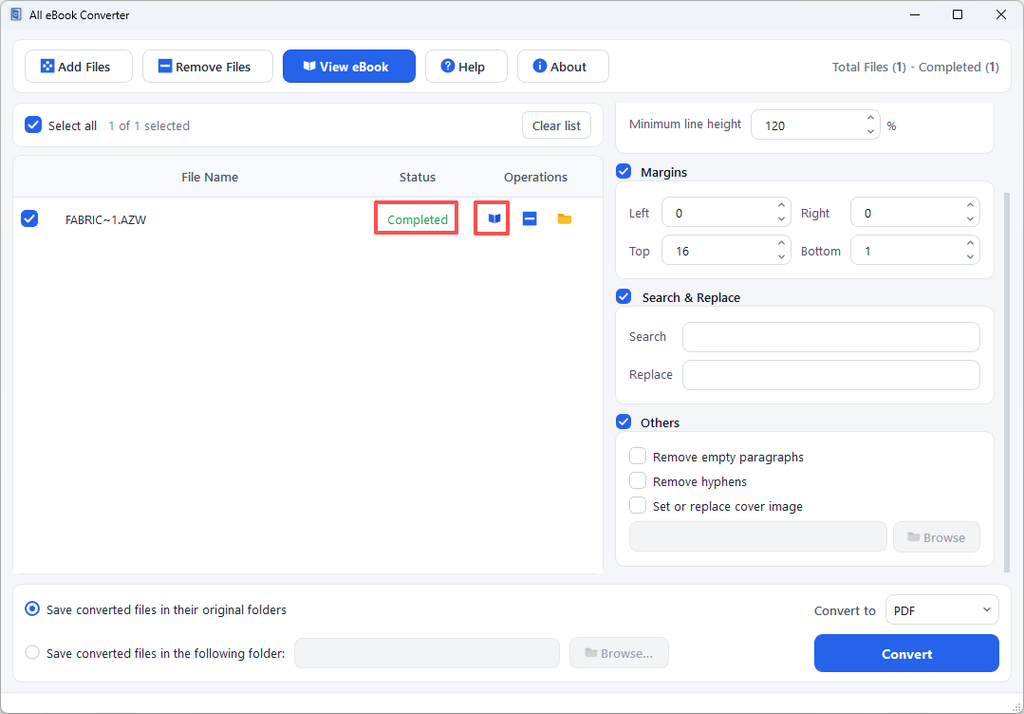
After conversion, click the View icon to open the converted eBook directly in the built-in eBook Viewer.

How to Use the eBook Viewer?

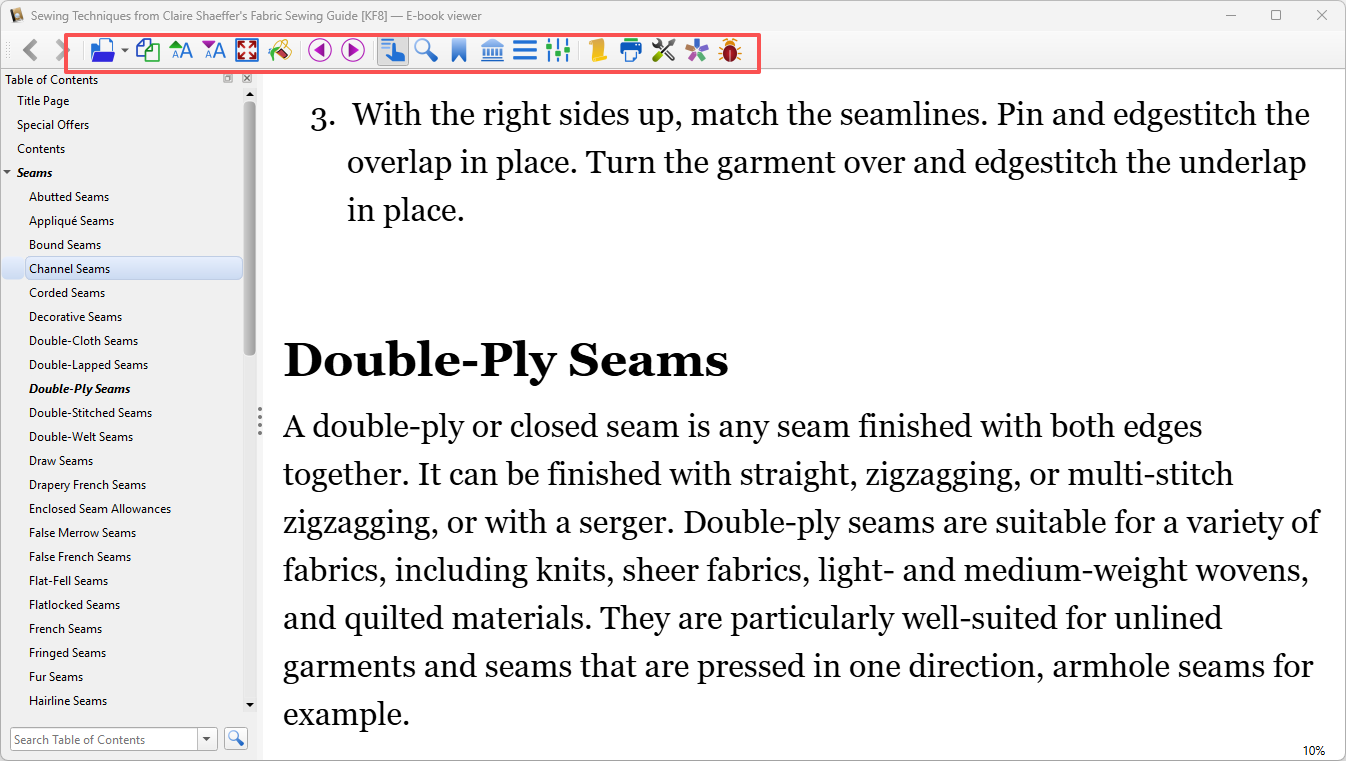
Click the View eBook button to open the integrated eBook Viewer.

Sponsored Links

Here is what each icon in the top toolbar does:

Open: Open an eBook file from your computer.

Copy: Copy selected text to the clipboard.

Increase font size: Make text larger for easier reading.

Decrease font size: Make text smaller to fit more on screen.

Toggle full screen: Switch between windowed mode and distraction-free full screen.

Switch color theme: Cycle between light, dark, and sepia reading modes.

Previous page: Go back to the previous page or screen.

Next page: Advance to the next page or screen.

Table of Contents: Open the chapter outline to navigate quickly.

Search: Search for specific words or phrases inside the book.

Bookmarks: Add, view, or manage your saved reading locations.

Lookup words: Look up dictionary definitions for selected text.

Browse highlights in book: View all highlights and notes added throughout the book.

Show viewer controls: Show or hide toolbar controls for an immersive reading view.

Toggle page mode: Switch between paged layout and continuous vertical scrolling.

Print: Send the document or book pages to a printer.

Preferences: Customize font styles, margins, layout settings, and viewer shortcuts.

Show book metadata: View book details such as author, title, publisher, and tags.

Inspector: Open developer tools to inspect underlying HTML/CSS styling.

Can I Convert eBooks in a Batch?

Yes, absolutely. You can add multiple files to the app at once and select multiple files to convert them all together.

Sponsored Links

E-mail Support

If you have any further questions or feedback about the app, please feel free to reach out to us by email. We are here to listen and help.