Real PDF Online Tutorial

This tutorial is for Real PDF users so that they can know and make use of the app better.

Sponsored Links

In this quick guide, we cover the following topics: supported formats, navigate through a document, how to use presentation mode, fill forms, annotation tools and bookmarks.
Supported formats

Real PDF supports PDF, PS, Tiff, CHM, DjVu, Images, DVI, XPS, ODT, Fiction Book, Comic Book, Plucker, EPub, Fax, and etc.

The supported file extensions include: .bmp, .cb7, .cbt, .cbz, .dib, .djv, .djvu, .dvi, .epsf, .epsi, .epub, .fb2, .g3, .gif, .icb, .ico, .jpe, .jpeg, .jpg, .jpg2, .mng, .mobi, .odt, .okular, .oxps, .pbm, .pcx, .pdf, .pgm, .png, .ppm, .prc, .rgb, .tga, .tif, .tiff, .tpic, .vda, .vst, .wwf, .xbm, .xcf, .xpm, .xps.

How to navigate through a document?

In real PDF, there are several ways to navigate a document.

Sponsored Links

Method 1, use the Up Arrow and Down Arrow keys.

Method 2, use the scrollbar, your mouse wheel or the Page Up and Page Down keys.

Method 3, use automatic scrolling. You can start automatic scrolling with Shift+Down Arrow or Shift+Up Arrow, use these keys to increase and decrease the scrolling speed, temporarily pause the automatic scrolling by pressing the Shift key, and finally stop the auto scrolling by pressing any other key.

Method 4, use the thumbnail view in the navigation panel. If the document has page thumbnails, you can click on a page thumbnail to bring the viewing area to that page.

Method 5, use the table of contents. If the document has a table of contents, you can click the item in the table to bring the viewing area to the page linked to that item.

Method 6, use the Bookmarks view. If the document has bookmarks, you can click them to go to the associated page.

How to use the Presentation mode?

The presentation mode to a special way to view documents. It’s especially for presentation.

Sponsored Links

Enable – the presentation mode can be enabled in View -> Presentation.
Helper bar – in the presentation mode, you can move the mouse cursor to the top of the screen to make the helper bar appear.
Navigate – use the left mouse button, the right mouse button, the mouse wheel and arrow icons or the line edit in the top helper bar to navigate pages.
Play/Pause – use the Play/Pause button in the top helper bar to do the corresponding actions.
Draw on the current page – click on one of the color buttons and you can then start drawing on the current page. The drawings are automatically cleared when leaving the presentation mode.
Exit – you can use the Esc key or click the Quit icon in the top helper bar to quit the presentation mode.

How to Fill Forms?

If the PDF document is interactive one, you can directly fill in the form and save the PDF document.

Sponsored Links

If it is a noninteractive PDF document, you have to use the special annotation tool Typewriter to fill the text at the corresponding positions. Here are the steps to do it.

Step 1, enable the annotation toolbar by clicking Tools -> Annotations if the toolbar is not already open.
Step 2, click and select the Typewrite icon in the annotation toolbar. It’s the I icon.
Step 3, use your mouse pointer to click the corresponding place to start to type in the content.
Step 4, after all the content get filled in, save the document.

How to Use Annotation Tools?

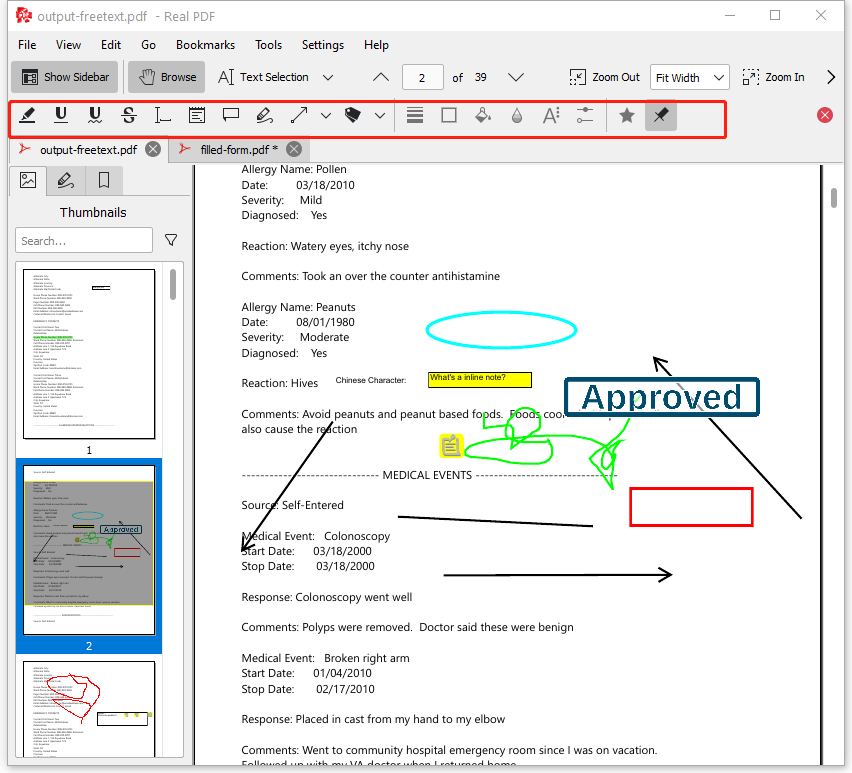
There are two kind of annotation tools: text annotations like Highlighter and Underlining for files with text e.g. PDF, and, graphic annotations like Pop-up Note, Inline Note, Freehand Line, Straight Line, Polygon, Stamp, Ellipse and Typewriter for all formats supported by Real PDF.

Sponsored Links

Screenshot:

Add annotations – with the annotation toolbar shown, press one of its buttons and click the document to start constructing that annotation.

Edit annotations – to edit an annotation, click on it with the right mouse button and select Properties. A dialog will appear to allow you edit the settings specific to that annotation type.

Remove annotations – to remove an annotation, click on it with right mouse button, and select Delete.

How to Use Bookmarks?

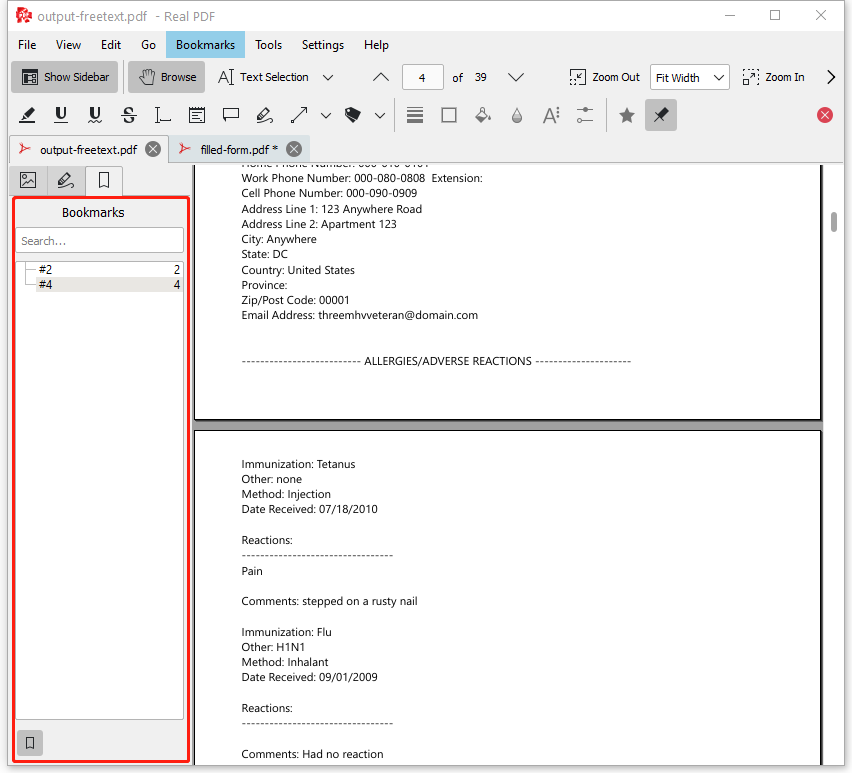
Real PDF saves the position on the page in bookmark and allows to define more than one bookmark per page.

Sponsored Links

Screenshot:

To manage bookmarks, you need to use Bookmarks view from the Navigation Panel, Bookmarks menu or context menu of the document view.

To open the Bookmarks view, first use Settings -> Show Navigation Panel to open the Navigation Panel if it’s not shown. Then click the Bookmarks item on the Navigation Panel.

E-mail Support

If you have any further questions or feed-backs about the app, please feel free to reach us by email. We are here to listen and help.

Sponsored Links