Winmail.dat Viewer Online Tutorial

This tutorial uses slideshow-style navigation. Scroll your mouse wheel down and up to go to the next and previous section, or click a section in the right-hand bar to jump straight to it.

Easily open, read, and extract files from mysterious “winmail.dat” email attachments. Preview the email message body for free, and upgrade to Premium to instantly download and save your blocked files, pictures, and documents!

Sponsored Links

In this tutorial, we cover the following topics: What is a winmail.dat file? How to open and view its contents? How to extract and save attachments to your device?
Main Features

  • Instant Opening: Just drag and drop or browse to open any winmail.dat or ATT00001.dat file.
  • Full Message Preview: Read the original formatted email body text natively within the app.
  • Attachment Extraction: Access all files, photos, PDFs, or spreadsheets trapped inside the winmail.dat file.
  • Secure & Local: Your files are processed entirely offline on your computer. Your emails and documents are never uploaded to the cloud or third-party servers.

What is a winmail.dat File?

A winmail.dat file (sometimes appearing as ATT00001.dat) is a proprietary format created by Microsoft Outlook and Microsoft Exchange Server.

Sponsored Links

It happens when someone sends an email using Outlook’s “Rich Text Format” (RTF) instead of standard HTML or Plain Text.

When Outlook sends a Rich Text email, it wraps all of the special formatting (like bold text, custom fonts, colors, and embedded tables) along with any actual attached files (like PDFs, Word docs, or images) into a single container file called winmail.dat.

  • If the recipient also uses Outlook, their email client knows exactly how to decode this container. The email looks normal, and any attached files appear correctly.
  • If the recipient uses a different email client (like Windows Mail, Gmail, Apple Mail, Thunderbird, or an Android/iOS mail app), those programs do not understand Microsoft’s proprietary encoding. Instead of showing the formatted email, they just display a regular plain text message and attach the unreadable winmail.dat file.

How to Open and View its Contents?

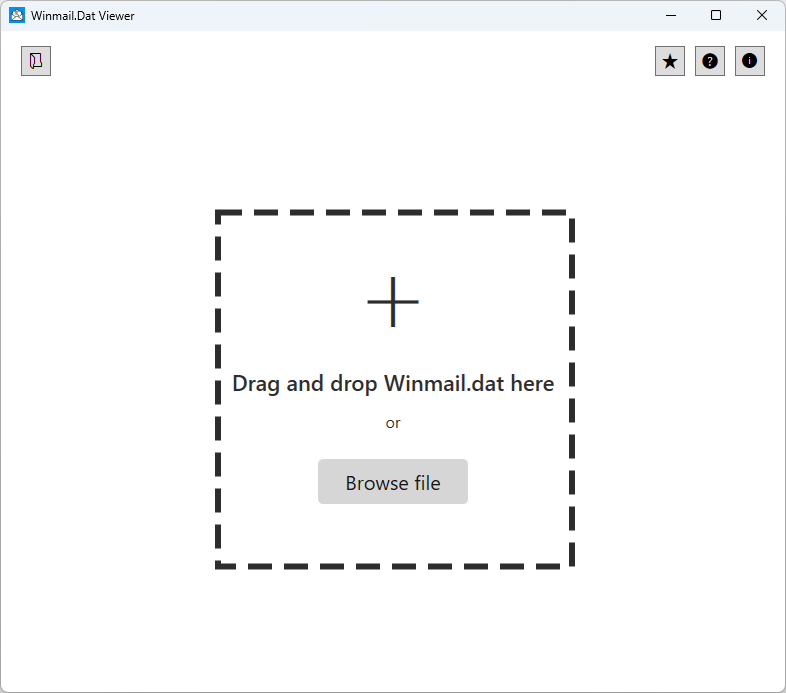
Open your file in Winmail.dat Viewer using one of three simple methods:

1, Click Open File in the top-left corner.

2, Drag and drop the file into the app interface.

3, Click Browse file to locate it on your machine.

How to Extract and Save attachments to your device?

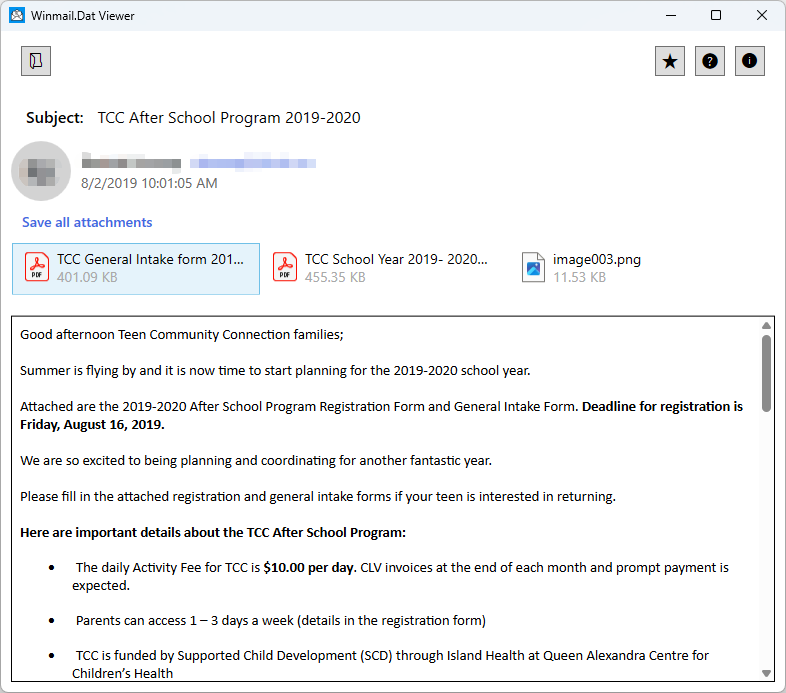
To save all attachments at once, open the winmail.dat file in the app and click Save all attachments. Choose your preferred folder, then click OK to export them.

Sponsored Links

Alternatively, you can click on any individual attachment to open it directly in your default viewer.

E-mail Support

If you have any further questions or feed-backs about the app, please feel free to reach out to us by email. We are here to listen and help.