Some Voice Changer Online Tutorial

Unlock a world of creative possibilities with Some Voice Changer, the app that lets you reshape sound in a snap. Whether you’re looking to add a touch of fun or a dash of professionalism, this app has you covered.

Sponsored Links


In this tutorial, we cover the following topics: How to use Some Voice Changer? What sound effects are supported? What should I do if the sound effect doesn’t meet my requirements? What audio formats are supported?
Main Features

  • Voice Transformation Made Easy
  • Diverse Sound Effects
  • User-Friendly Interface
  • Instant Preview

Supported Audio Formats

Audio formats: WAV (Waveform Audio), MP3 (MPEG Layer 3), OGG, and FLAC.

Supported Sound Effects

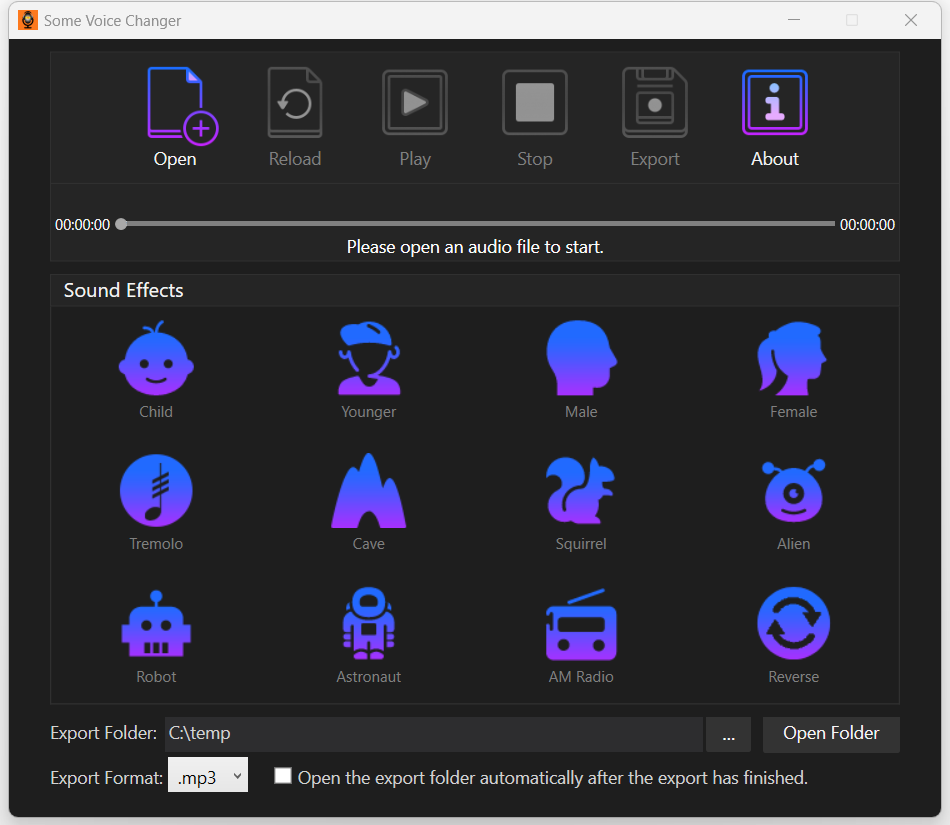
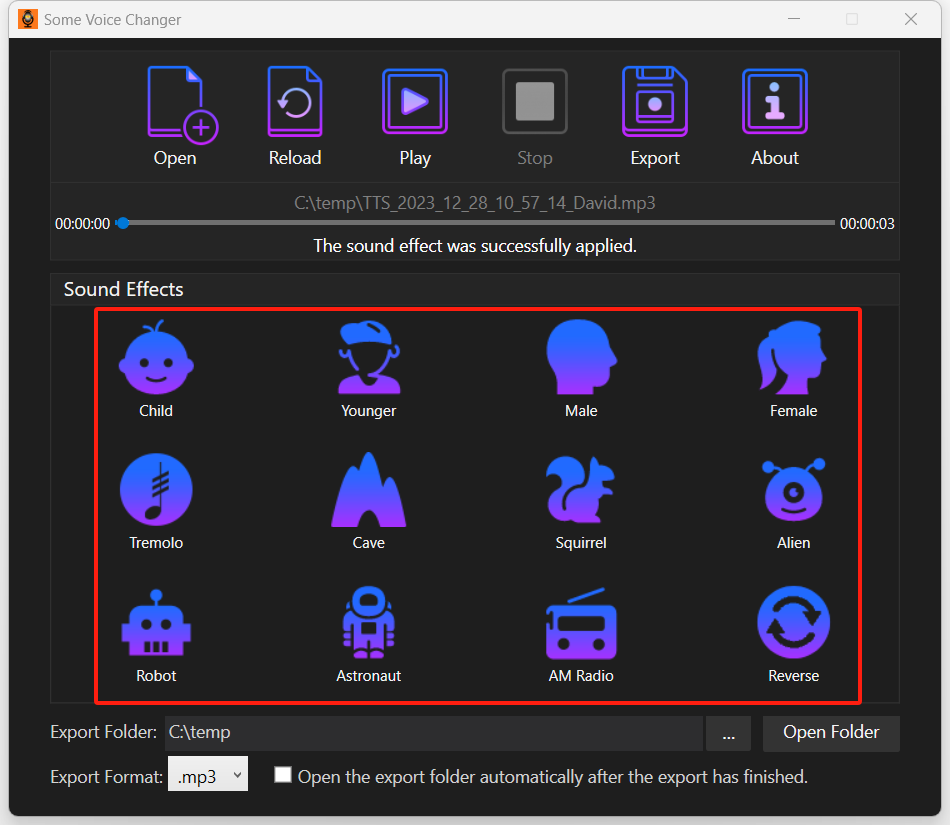
Supported sound effects include: Child, Younger, Male, Femail, Tremolo, Cave, Squirrel, Alien, Robot, Astronaut, AM Radio and Reverse.
How to Use Some Voice Changer?

It takes four steps to transform your voice using Some Voice Changer.
Step 1, Open your audio file.
Step 2, Apply a sound effect.
Step 3, Preview the modified voice and apply other sound effects (or reload your audio file) until you are satisfied.
Step 4, Export the modified audio file.

Sponsored Links

Step 1, Open an Audio File

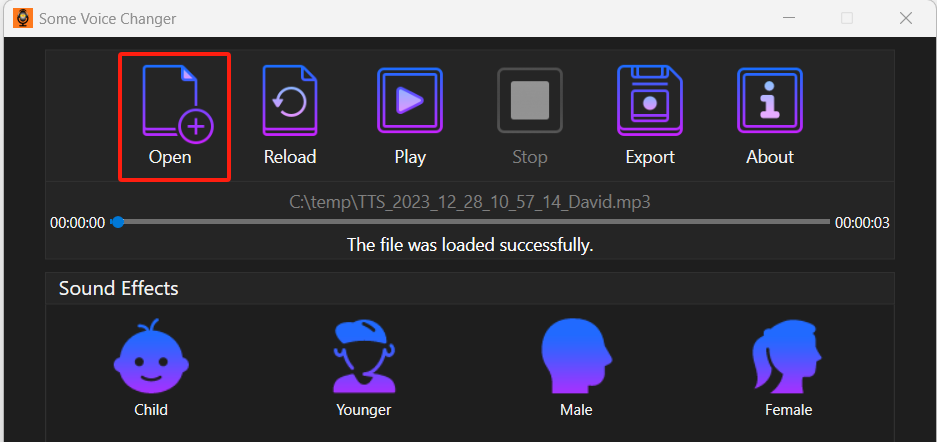
In order to change the voice of an audio file, you need to open (load) it in the app first.

Simply click the “Open” button to choose an audio file to open.

Step 2, Apply a Sound Effect

With the audio file loaded, you can apply a sound effect to the audio file by clicking the corresponding button.

Step 3 , Preview the Voice and Apply More Sound Effects

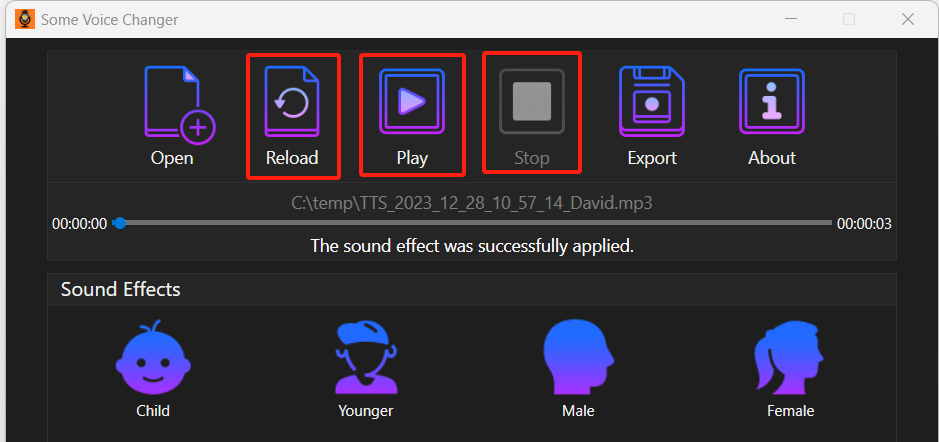
To preview the voice, you need to click the “Play” button to play the audio file.

Sponsored Links

If you are not satisfied with the result, you may want to apply other sound effects to the audio file. You can also apply the same sound effect multiple times to an Audio file.

If you want to start over from the beginning, you can click the “Reload” button to reload the audio file.

Step 4, Export the Modified Audio File

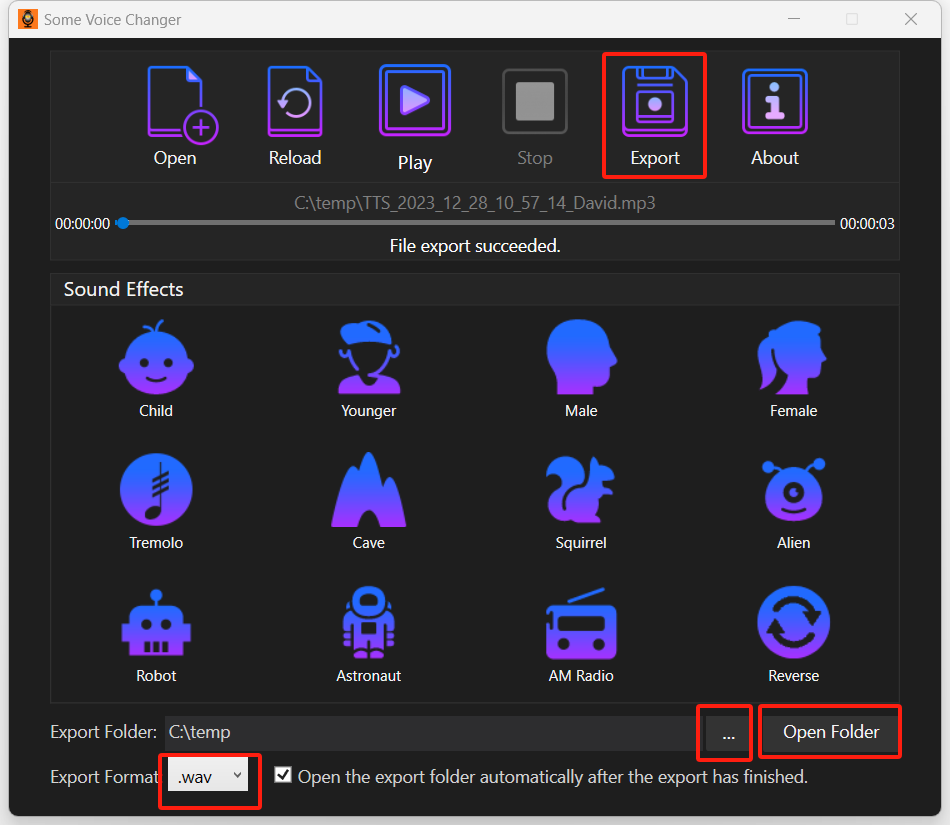
When you are satisfied with the modified voice, don’t forget to export it to a new audio file. To do so, you need to click the “Export” button. To located the exported files, click the “Open Folder“ button located at the right bottom corner of the app.

You can change the export format by selecting a new one from the Export Format drop-down list located at the bottom part of the app.

You can change the export folder by clicking the three dot button located at the bottom part of the app and choosing a new one.

What should I do if the sound effect doesn’t meet my requirements?

Although we have tried our best to tune the sound effect suitable for most scenarios, you may still find the modified voice doesn’t meet your expectations. If that happens, please send us an email with your expectations and we will try our best to help you.

E-mail Support

If you have any further questions or feed-backs about the app, please feel free to reach out to us by email. We are here to listen and help.