JPG to PDF Made Easy Online Tutorial

This online tutorial is for JPG to PDF Made Easy users so that they can make use of the app better.

Sponsored Links

In this online tutorial, we cover the following topics: what image formats are supported, 3 Steps to convert images to PDF, how to add images to the list to convert, how to rotate images in the list before converting, how to adjust PDF page settings, how to set PDF document metadata, how to start converting, where can I find the output file.
What Formats are Supported

JPG to PDF Made Easy supports the most popular image file formats: .jpg, .jpeg, .png and .bmp.

How to Convert Images to PDF?

JPG to PDF Made Easy can easily convert multiple images files to one PDF document. Please follow the steps below to complete the converting.

Sponsored Links

3 Steps to Convert Image Files to PDF

  • Add source images to the tool and rotate them if you want to.
  • Check and adjust PDF page settings, PDF document metadata, output folder and etc. 
  • Start converting by clicking the button “Convert”.

Step 1 – Add Multiple image Files to Convert

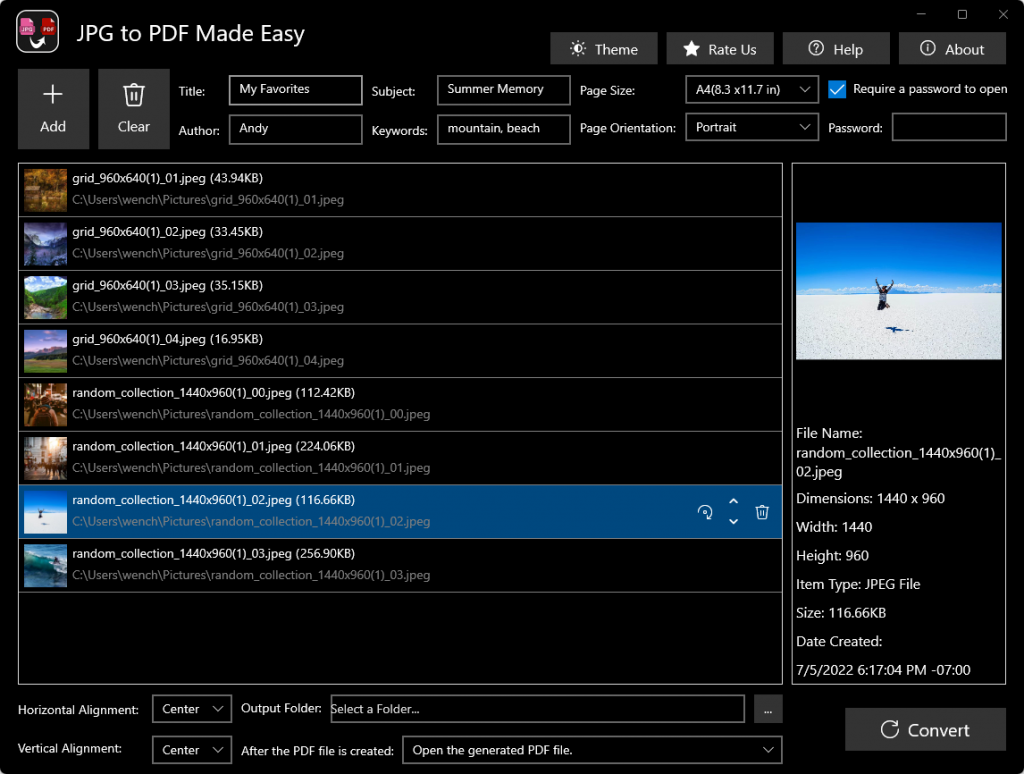
To add images to the list,  click the button “Add” in the toolbar, select the files that you want to convert, and then click the button “Open”.

How to Remove Files?

To remove all the files in the list at once, click the button “Clear” in the toolbar, as shown above. 

To remove a file from the list, you need to select it by clicking it and then click the button “Remove it” at the far right end of the row.

How to Adjust File Orders in the List?

To move up or move down a file in the list, you need to select it by clicking it and then click the up arrow or down arrow at the right end of the row.

How to Rotate an Image in the list?

If you need to rotate an image before converting, you need to select it by clicking it and then click the button “Rotate” at the right end of the row. After rotating, you will see the image is rotated in the Preview Panel. You can click the button multiple times to rotate it multiple times.

Step 2 – Check and adjust PDF page settings, PDF document metadata, output folder and etc. 

There are multiple settings that you can adjust and set up for the PDF document. They can be grouped as three categories: PDF page settings, PDF document metadata, and converting settings.

Sponsored Links

Screenshot:

PDF page settings include Page Size and Page Orientation.

PDF document metadata include Title, Subject, Author, Keywords, Require a password and the Password.

Converting settings include Horizontal Alignment, Vertical Alignment, Output Folder and the behavior after the PDF file is created.

You can change them to meet your needs when you do the conversion.

Step 3 – Start Converting

When you have inserted all your source image files and adjusted the settings as you want, you can start the conversion process by clicking the button “Convert”. The files in the list will be converted into a PDF document. Now, you can click the button “Finish” to prepare for the next conversion job.

Sponsored Links

Screenshot:

Note: if you forget to select the Output Folder, you will get a message (as shown below) after clicking the button “Convert”. Just select an output folder, and click the button “Convert” again to start converting.

Where Can I Find the Output File?

Once the conversion process is done, the app will perform the action you configured in the section “After the PDF file is created”.  

If you didn’t change that setting, by default, the app will open the new PDF file for you using the default PDF reader app after the conversion is complete.

What to Do if the Conversion Failed?

If one conversion fails in the app, we kindly ask you to follow the instructions below.

Sponsored Links

First, please close other apps in your PC if there are any, to give this app enough RAM to process the conversion.  Try to do the conversion job again.

Second, if the re-try still fails, please send an email to us with that file sample. We will try our best to help you.

E-mail Support

If you have any further questions or feed-backs about the app, please feel free to reach us by email. We are here to listen and help.