Real HEIC File Viewer Online Tutorial

Real HEIC File Viewer is an image viewer that can open HEIC photos as well as other common image file formats.  It also enables you to convert HEIC images to other formats by using the “Save as” button.

Sponsored Links

In this quick-start guide, we cover the following topics: how to open HEIC files? how to convert HEIC to JPG? how to change app theme? how to browse photos within a folder? how to zoom in, out and rotate an image? what image formats are supported?
Supported image formats

  • HEIF – .heic
  • Common image formats – .3fr, .bmp, .cr2, .gif, .ico, .jpg, .jpeg, .mif, .miff, .nef, .pcx, .png, .psd, .raw, .svg, .tag, .tif, .tiff, .wmf
  • Other image formats

How to Open an image?

There are three ways to open an image file in Real HEIC File Viewer.

Sponsored Links

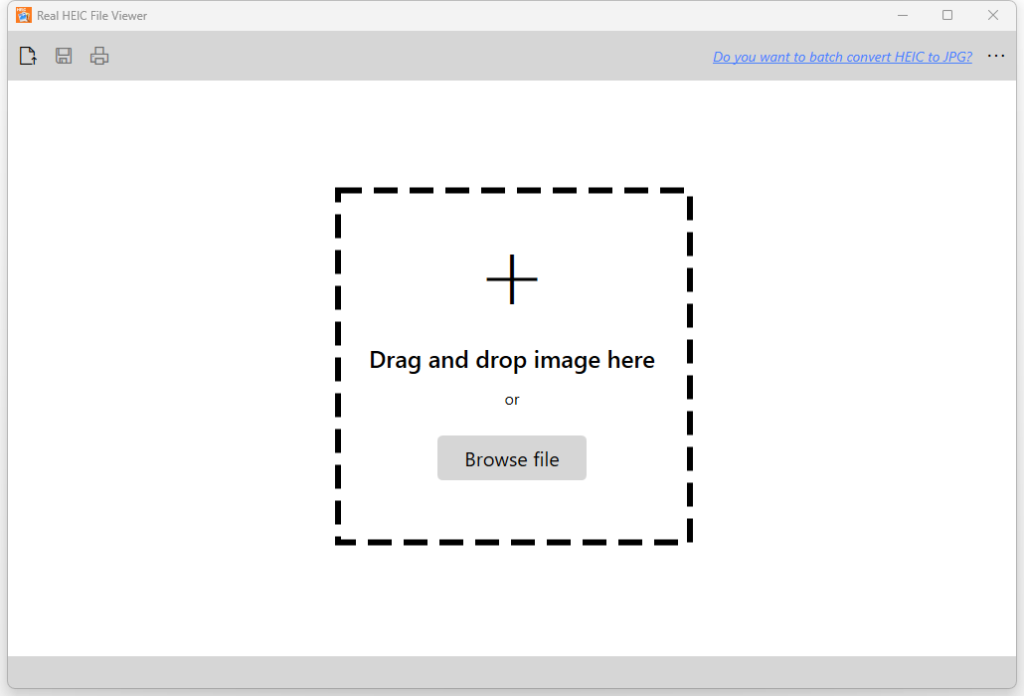
Method 1, drag the file from File Explorer and drop them into the area marked as “Drag and Drop image here” in the app.

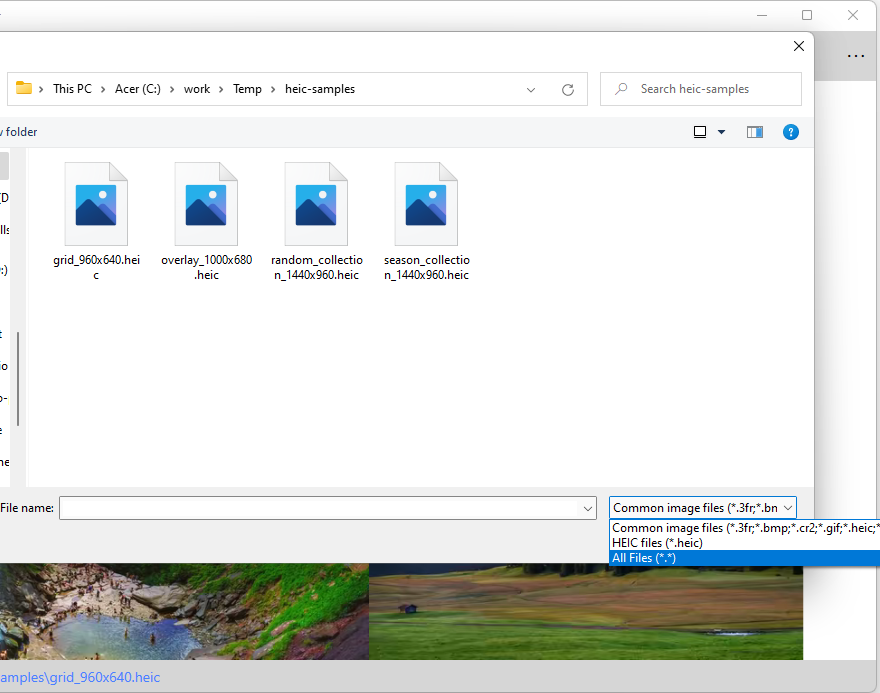
Method 2, click the button “Browse file”, select the file, and then click the button “Open”. If you cannot find the file that you want to open, you may need to change the file type filter to “All Files (*.*)” as shown below.

Method 3, click the button “Open image” in the toolbar.

How to Browse Photos Within a Folder?

There are two methods to browse photos within a folder.

Method 1, use the button “Previous” and “Next”. You need to move the pointer to the right or left side of the current image to be able to see these two buttons.

Method 2, use the keyboard shortcuts. Press the Left Arrow key for the previous photo and the Right Arrow key for the next photo.

How to View Frames in a Multi-frame Image?

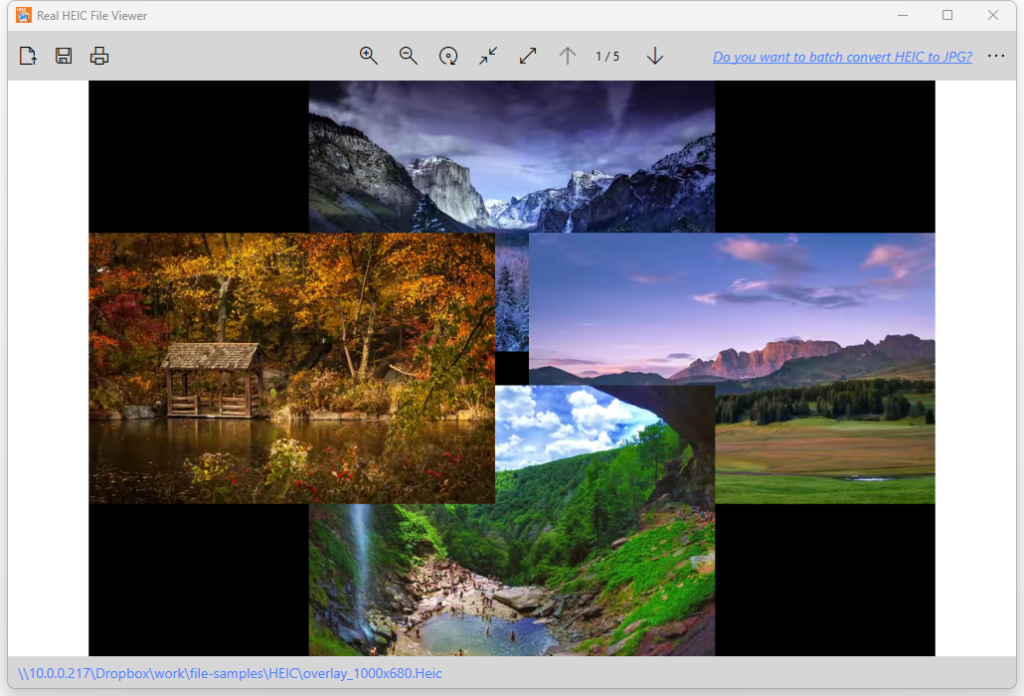
Some image files, such as .HEIC or .TIFF, may contain multiple frames in one file. There are two methods to view these frames.

Method 1, use the button “Previous frame” and “Next frame” in the toolbar.

Method 2, use the keyboard shortcuts. Press the Up Arrow key for the previous frame and the Down Arrow key for the next frame.

How to Convert .HEIC Files?

You can use Real HEIC File Viewer to convert HEIC file to another image format. 

Sponsored Links

1, open the HEIC file

2, click the button “Save as” in the toolbar, and save it as a different image format. The supported output formats include .JPG, .PNG, .BMP and .JPEG.

Batch Convert HEIC to JPG

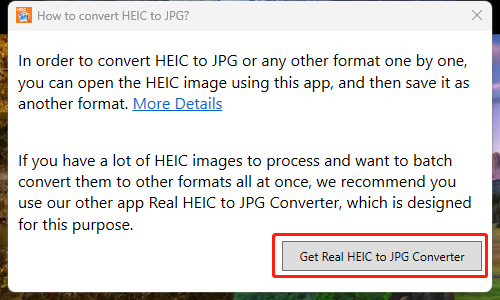
If you need to convert a lot of HEIC files, you need to download and use our special HEIC converter tool. You can access it  by clicking the link “Do you want to batch convert HEIC to JPG?” and clicking the button “Get Real HEIC to JPG Converter”.

How to zoom in, out and rotate an image?

With an image open in the app, you can zoom in, out and rotate it by clicking the buttons in the toolbar. 

Sponsored Links

Screenshot:

How to change the app theme?

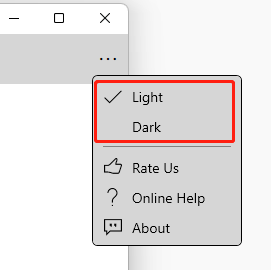
There are two themes (light and dark) available for Real HEIC File Viewer. You can switch themes by clicking the button “…” located at the right top corner, and select a different theme.

E-mail Support

If you have any further questions or feed-backs about the app, please feel free to reach us by email. We are here to listen and help.