Text to Speech Super Reader Online Tutorial

This online tutorial is for Text to Speech Super Reader users. It describes the basic features and usage of the app. If you are an advanced user and require special help, feel free to contact our support by email. 

Sponsored Links

We cover the following topics in this tutorial. 

  • How to use the app as an eBook voice reader?
  • How to make your computer/ phone to say the text you type?
  • How to use the app to learn foreign languages?
  • Voice control
  • How to convert text files to audio?

How to Use the App as an eBook Voice Reader?

It takes three steps to make the app read an eBook for you.

Sponsored Links
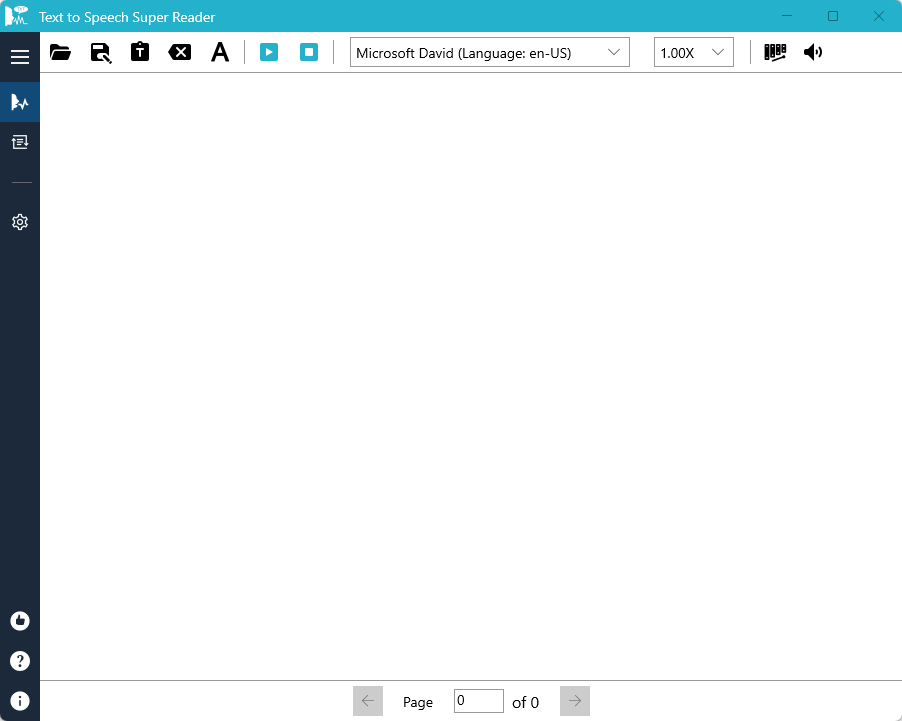
  1. Open the eBook file – click the button “Open file” and select the eBook file to open it. In the current version,  the supported formats include txt, doc, docx, pdf, rtf and srt. We will keep adding more formats.
  2. Adjust the voice settings – you can select different voices, adjust playback speed, pitch and volume.
  3. Play, pause and stop – click the button.

Voices

Text to Speech Super Reader use the voices installed on Windows Operating System. 

In order that the app can read the text correctly, you need to select the correct language and voice (as shown below). Otherwise, the app may omit the words that it doesn’t recognize. 

If you find the language is not in the voice dropdown list, you can select “Install more voices…”. The app will show you instructions how to install new ones.

How to Make your Computer/ Phone to Say the Text You Type?

As simple as the question said it, you can type and make the computer speak for you.

Sponsored Links

Step 1, Type the text you want to say. 

Step 2, Click the button “Play”.

Step 3, Select and erase the content, then repeat Step 1 and 2 until it’s done.

This may help speech impaired people to communicate with others using voice.

How to Use the App to Learn Foreign Languages?

This app can be used to learn foreign languages. It can help improving students’ pronunciation, listening and speaking.

Sponsored Links

Step 1, copy and paste the foreign language text in the text box. It could be a single word, a sentence, a paragraph, or a long article.

Step 2, select the correct language, as shown below.

Step 3, click the button “Play”.

Voice Control

You can adjust the playback speed, pitch and volume by clicking the corresponding buttons.  From right to left the buttons are “Volume”, “Pitch” and “Speed”.

How to Convert Text Files to Audio?

Text to Speech Super Reader provides a batch conversion tool to convert text documents to audio files. To access this tool, you need to click the menu “Convert Files to Audio”.

Sponsored Links

Steps 1, click the button “+” and select text files to be converted. 

Step 2, check and make sure the voice, speed, pitch and volume are correctly adjusted.

Step 3, click the button “Convert” and wait.

Step 4, when the conversion is completed, click the button “Open Folder” to get the output audio files.

Note: it may take a very long time to convert a large text file. We recommend you to Split it to several smaller files and convert. 

E-mail Support

If you have any further questions or feed-backs about the app, please feel free to reach us by email. We are here to listen and help.

Sponsored Links