Real DVD Player Online Tutorial

This tutorial is for Real DVD Player users.
In this small tutorial, we cover the following topics: how to use and setup, DVD navigation menu, Media player action bar, settings, full screen toggle and finally, Discs supported.

Sponsored Links

What can Real DVD Player do and what can NOT

The app support common media file formats, including both video and audio formats.
Other than common media files, the app can play DVD Discs.
This app doesn’t support Blu-ray Discs.
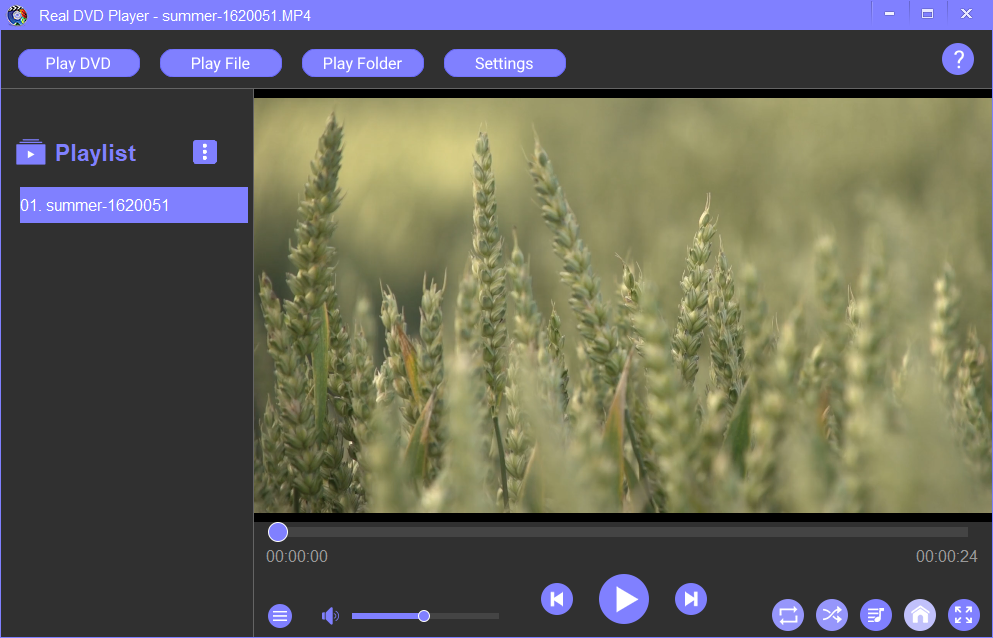
Open File, Open Folder and Open DVD

The menu in Real DVD Player is very visible on the top.
Real DVD Player automatically plays DVD disc in the optical drive when it starts.
The app can play a video file by clicking “Open File” menu item and choosing a video file on your computer. With the “Open Folder” menu item, you can choose a folder and add all supported media files in that folder into the playlist so that you can play them one by one. “Open DVD” will list all the Optical drives in your computer to let you pick one to play.
DVD Navigation Menu

Real DVD Player supports transparently the official DVD Navigation Menu, designed by the authors of the DVD Movie in order to support the DVD Playback.
When a DVD starts playing, the app autoloads the DVD menu and display all the options available.
These options (for example, languages, subtitles, scene selection and buttons) are displayed before starting the actual playback. You can select different options before or during watching the playback.

Sponsored Links

Media Player Action Bar – Options & Buttons

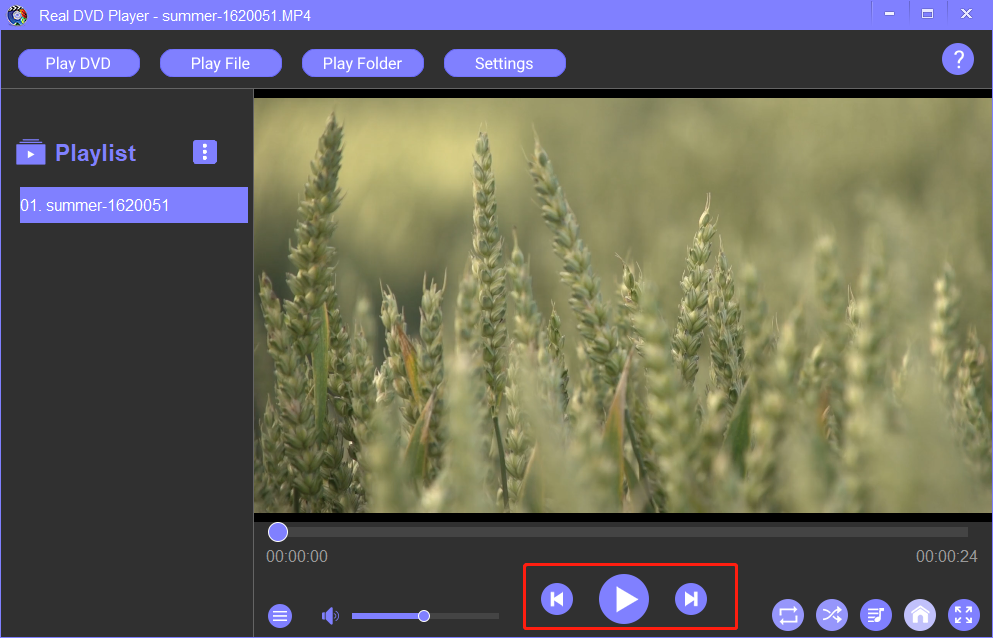
All the player options (Pause, Play, Previous, Next, Adjust Volume/Mute) and the video’s timeline with a slider to seek forward or backward are on the bottom of the Action Bar. There is also a button to allow you choose audio track and display/hide subtitle in the Action Bar.
Please keep in mind that not all the buttons above are functional for all the movies. For example, depending on the DVD discs, only the Audio tracks and Subtitles that the DVD has embedded inside it are displayed in the selection list and can be selected. Also, the Navigation Menu button on the right (the one with the arrow) is functional only on DVD’s where this option is available.

Playlist

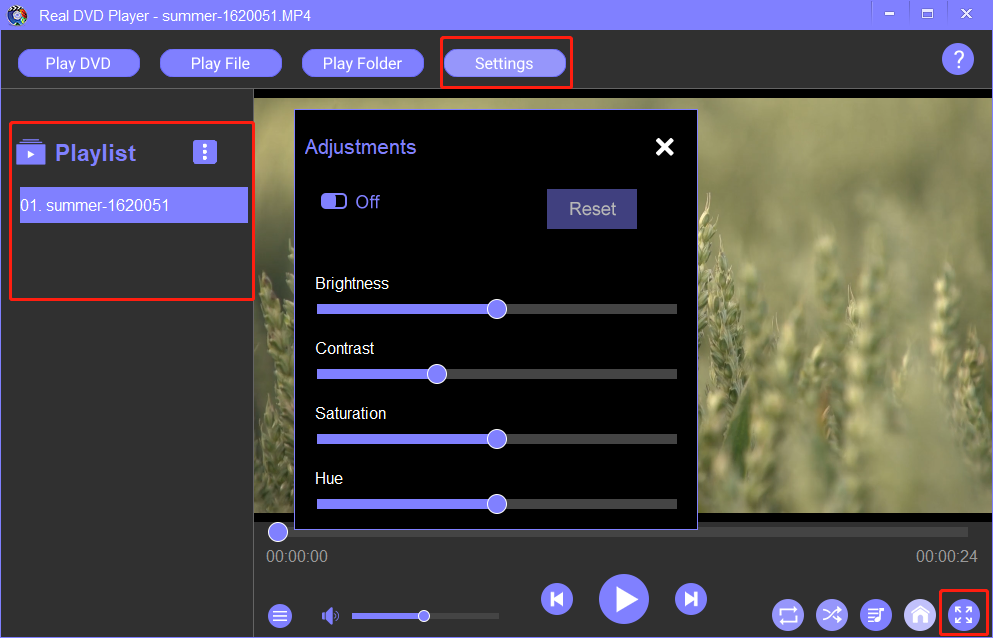
You can add all video files in one folder to the Playlist all at once by “Open Folder”. You can also remove any video file from the Playlist. The Playlist allows you plays multiple video files one by one sequentially.

Sponsored Links

Adjust Settings

You are able to adjust four settings: the Brightness, the Contrast, the Saturation and/or the Hue of the currently played video.

Full Screen

You can click the button at the bottom right corner to switch FullScreen On/Off during video play.

Optical Discs Supported

DVD’s – The DVD’s are widely supported by Real DVD Player. The app should play any movie or media files that are burned inside the DVD without any problems.

Sponsored Links


Media/Data Discs – normally created for personal use with or without an authoring tool, this category of optical discs stores the media files inside them without extra encryption as simple data files. Our app can play them with no problems.

E-mail Support

If you have any further questions or feed-backs about the app, please feel free to reach us by email. We are here to listen and help.

Sponsored Links