RealWiFi Online Tutorial

This tutorial is for RealWiFi users so that they can know and make use of the app better.

Sponsored Links

RealWiFi has a complete set of tools to help you optimize and safeguard your wireless network.

In this quick guide, we cover the following topics:

How to analyze, optimize and safeguard your wireless network?
How to test internet speed?
How to scan and analyze your WiFI?
How to avoid digital traffic jam and interference?
What is dBm and what is a good signal strength?
How to scan and view the connected devices in your network?

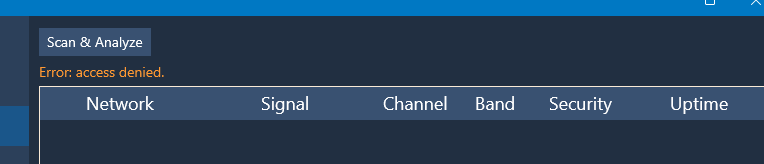
FAQ: I got an “Error: access denied”. How do I fix this problem?

How to Analyze and Optimize your wireless network?

RealWiFi provides two tools for you to analyze and optimize your WIFI: Speed Test tool and WiFi Analyzer. Generally, please follow the following steps to do the analysis and optimization.

Sponsored Links
  1. Run Speed Test tool to get the initial internet download/upload speeds
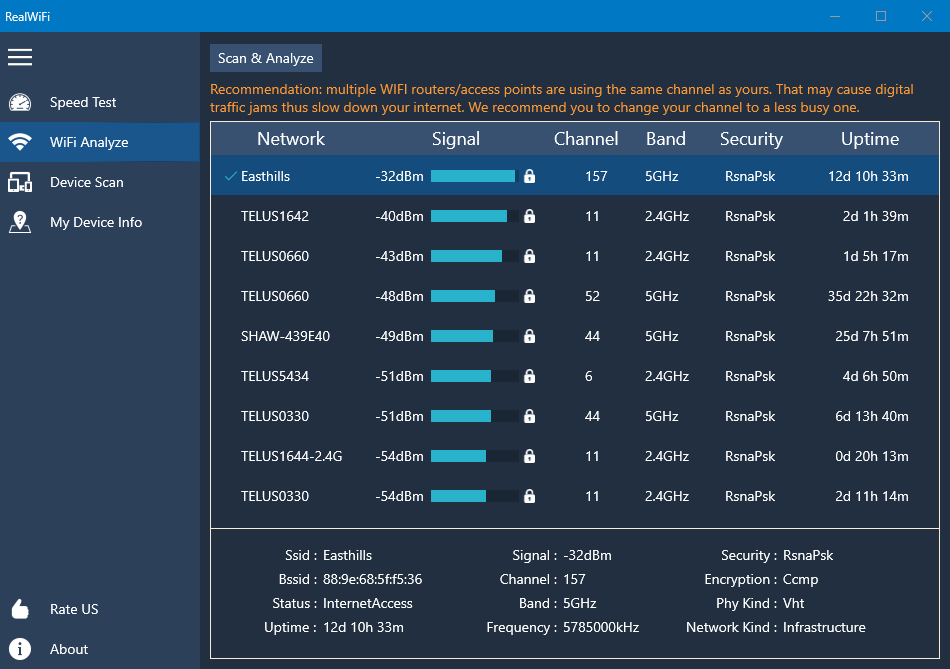
  2. Run WiFi Analyzer to scan all wireless network access points in your environment. If there are interference, the analyzer will recommend you to change your channel to a less busy one.
  3. Make the configuration changes on your router.
  4. Re-run Speed Test tool to test the download/upload speeds to see if there are any improvements.
  5. You may need to repeat step 2 – 4 several times to find the best channel for your router.

How to Safeguard your wireless network?

RealWiFi has the Device Scan tool to help you find unauthorized device so that you can make sure no one is stealing your WiFi. Here are the general steps:

  1. Run Device Scan tool to get the list of connected devices.
  2. Look into each item in the connected device list. If you find some ones that you don’t recognize, it may mean somebody or device outside of you house is using your WiFi.
  3. If you do find some potential unauthorized devices in your network, you can change your WiFi network password to confirm. They shouldn’t be able to connect to your network any more after you change the password.

How to Test Internet Speed?

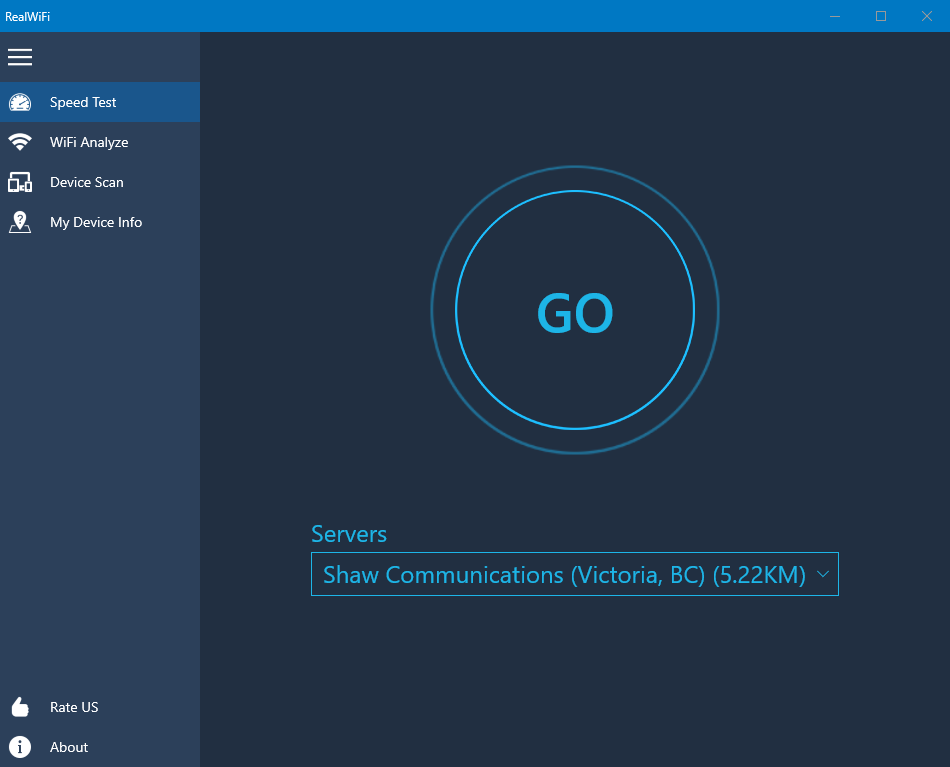
In RealWIFI, the Speed Test tool is very easy to use.

Sponsored Links
  1. Click the button “Go”
  2. Wait for the download speed test and upload speed test to complete.
  3. Read the test result.

What is a good internet speed?

Generally speaking, your internet speed needs to be at least 20 Mbps be to called a good one. If it’s less than 20 Mbps, very likely you will encounter problems watching online videos like Netflix, YouTube and etc.

How to Scan and Analyze your Wi-Fi?

In RealWiFi. the WiFi Analyzer tool is very easy to use.

Sponsored Links
  1. Click “WiFi Analyzer” on the left menu panel to access this tool.
  2. Click the button “Scan & Analyze”.
  3. Wait for the scan to complete.
  4. The tool will automatically provide you recommendations if it find any potential problems. On the other hand, you can always manually analyze the result. The results can be sorted by every column. Click the column header to do the sorting, and click it again to sort the results in the reversed order.

How to Avoid Digital Traffic Jam and Interference?

One main cause of the digital traffic jam is co-channel interference. Co-channel interference is when transmissions occur on the same frequency in the same area. The result is that WiFi is slow or not operable at all. It is a deployment issue that can be resolved with configuration changes. 

  1. In the WiFi Analyzer, sort the scan results by the Channel column and figure out how many networks are using the same channel (frequency) as the connected one.
  2. If the number is larger than 0, and the other network(s) signal strength, which can be found in the Signal column, is stronger than yours, you should consider changing your channel to a less busy one in your router.
  3. After changing the channel and rebooting your router, run WiFi Analyzer again to find whether there are any new interferences. If yes, repeat step 2 and 3 until there is no any interferences.

What is dBm, and what constitutes good signal strength?

dBm or dBmW, stands for decibel-milliwatts. Signal strength is measured in dBm, expressed only in negative values.

Here is what the signal strength values mean:

-30 dBm = Excellent – Max achievable signal strength
-67 dBm = Very Good – Minimum signal strength for most business applications
-70 dBm = Okay – Minimum signal strength required for decent packet delivery
-80 dBm = Poor – Minimum signal strength for basic connectivity; Packet delivery may be unreliable.
-90 dBm = Unusable – Any functionality is highly unlikely.
FAQ: I got an “Error: access denied”. How do I fix this problem?

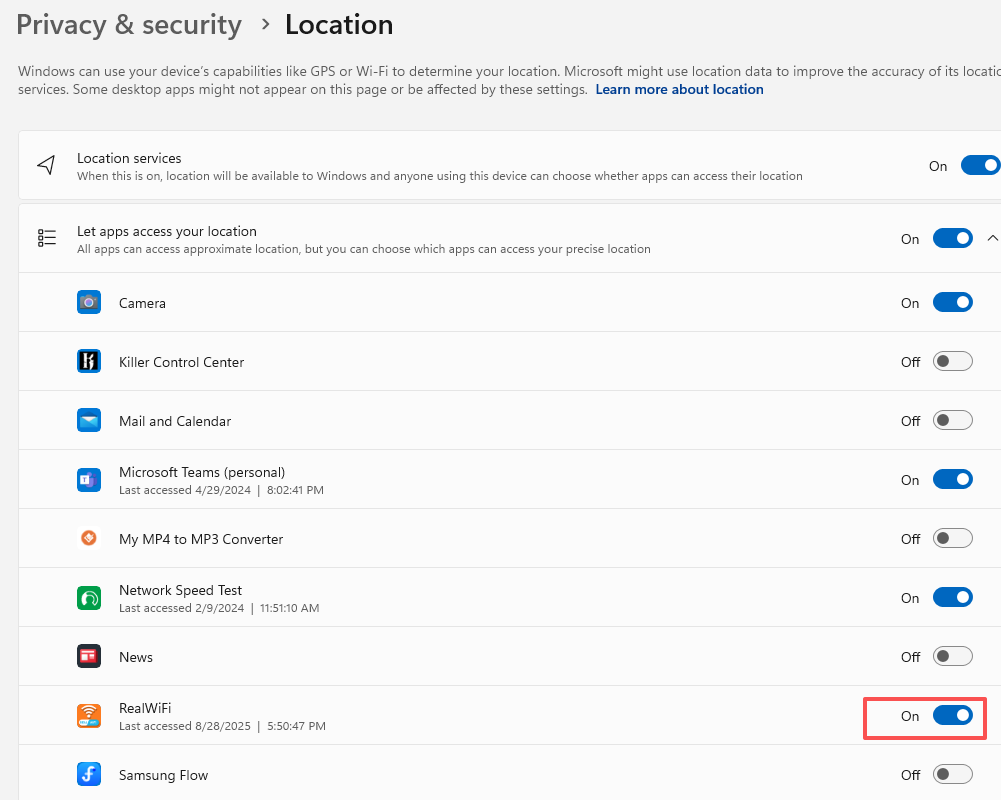
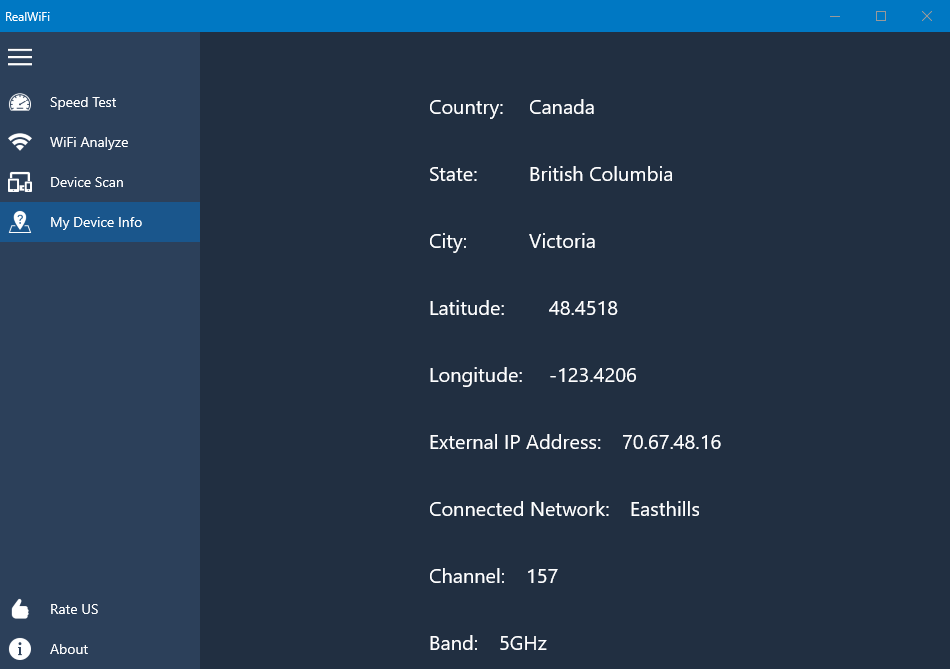
The “Error: Access Denied” occurs because the app doesn’t have permission to use your device’s location. 

Sponsored Links

To fix this issue, please grant the app location access by following these steps:

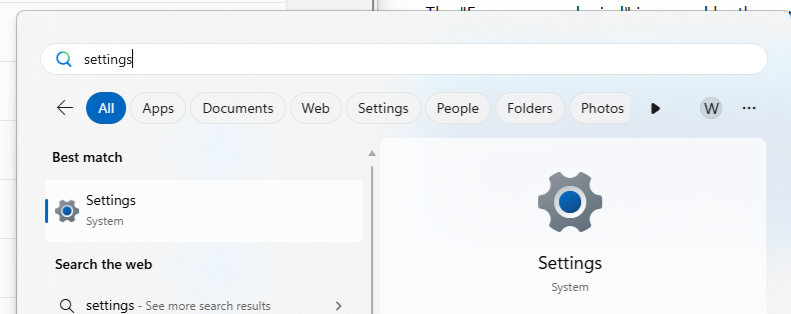
Step 1, Open Settings.

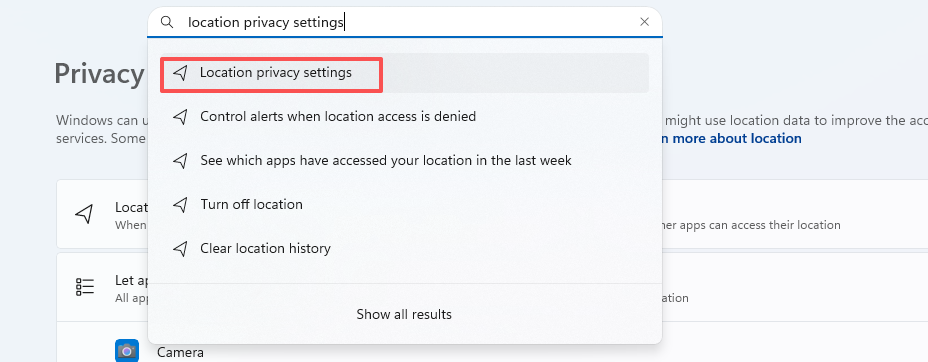
Step 2, In Settings, search for “Location privacy settings” and open it.

Step 3, Under “Let apps access your location”, find RealWiFi and turn the option on.

Step 4, The app should work normally now.

How to Scan, View the Connected Devices & Safeguard your Network?

In RealWIFI, the Device Scan tool is very easy to use. In order to safeguard your wireless network, first make sure your router is strong password protected. Then, follow these steps.

Sponsored Links
  1. Click “Device Scan” on the left menu panel to access this tool.
  2. Click the button “Scan”.
  3. Wait for the scan to complete, it may take up to ten minutes if you have a lot of devices in your network.
  4. The tool will show you all the connected devices. Go through all of them, and try to figure out what each one of them is. The device could be a PC, a mobile or a smart appliance and etc. If you find some device that does not seem to belong to your home, and you want to exclude it from your network, you can do so by going to your router and changing you network password. If you can still find the device after changing your password, do not panic – think again about it. It could be some hidden device you have missed. The possibility of being hacked is low, with which you need to ask for help from professionals.

E-mail Support

If you have any further questions or feed-backs about the app, please feel free to reach us by email. We are here to listen and help.