Real PDF Editor Online Tutorial

This tutorial is for Real PDF Editor users so that they can know and make use of the app better.

Sponsored Links

In this quick guide, we cover the following topics: 5-day full trial vs limited trial vs full version, auto-save, PDF viewer, annotation, fill PDF forms, split PDF, merge PDF, re-order PDF pages, convert PDF to images, and Printing PDF.
Full Trial VSĀ  Limited Trial VS Full Version

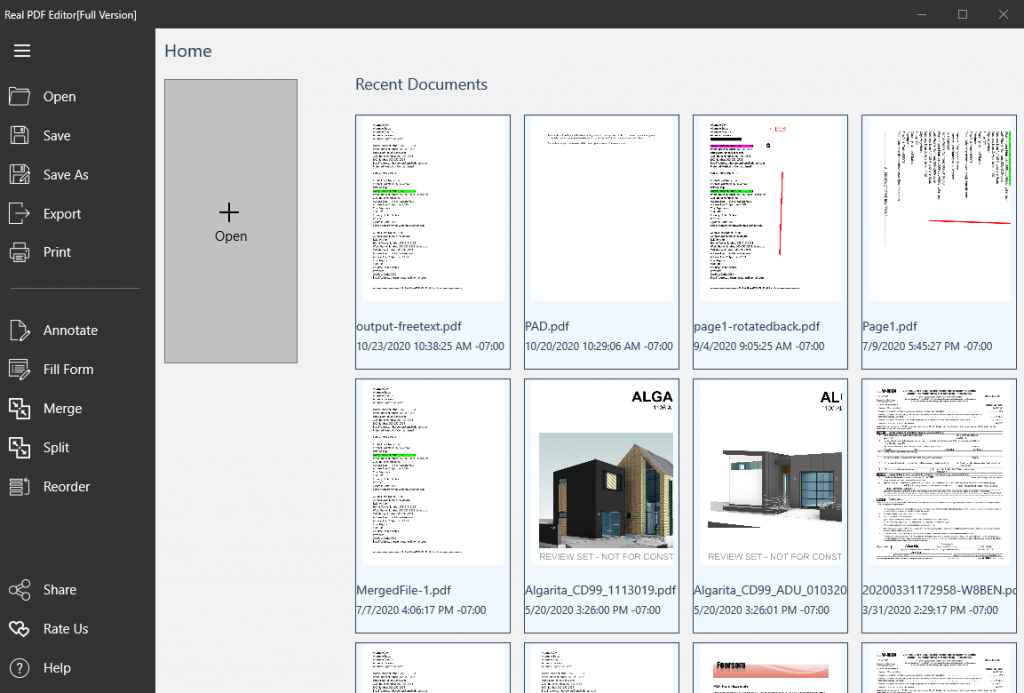
The 5-day free full trial allows you to try all features for 5 days. After that, the app becomes the limited trial version, in which the viewer is free but all other features are locked. At any time you can purchase a license to get the full version and unlock all features.

Note: in limited trial version, although you seem to be able to edit a PDF file, for example annotate a PDF file or fill a PDF form, you cannot save your modifications at the end.

What the Full Version Unlocks?

Annotate PDF Files
Fill PDF forms
Split a PDF file
Merge multiple PDF files
Reorder pages in one PDF file
PDF Viewer

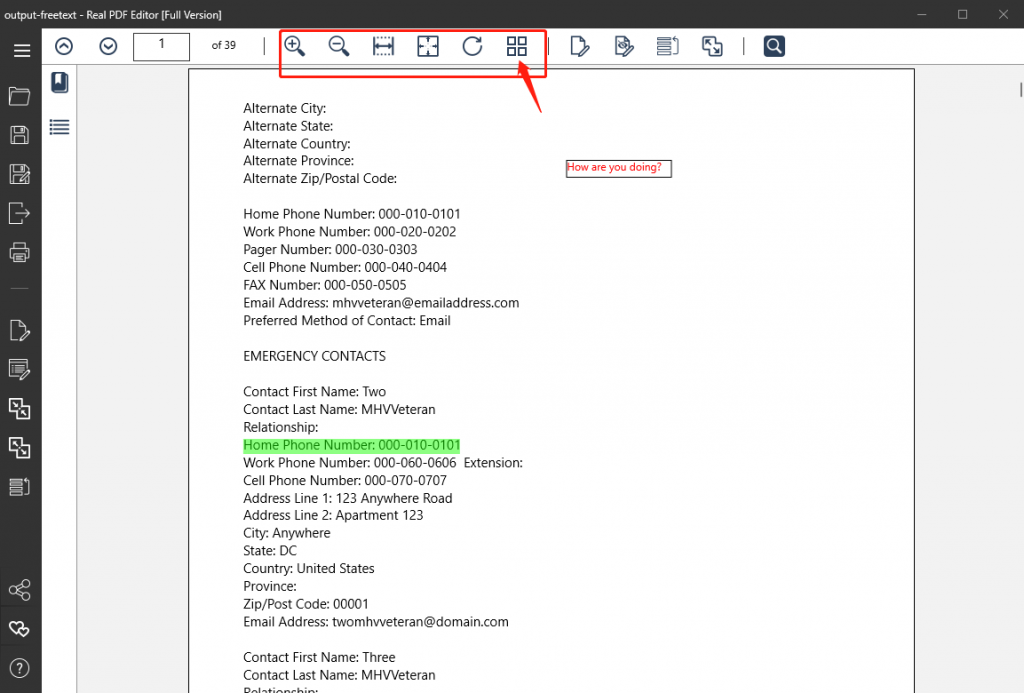
The viewer component in Real PDF Editor is a PDF viewer with a complete feature set including turning pages, zoom in/out, one page view & window width view and rotate.

Sponsored Links

Thumbnail view – there is a thumbnail view in PDF viewer. It makes it easier for you find a page if you know roughly the content of the page that you are looking for.

Fill a PDF Form

If the PDF file is a fillable form, with Real PDF Editor, you can simply open the file and fill the content. It’s just that straight forward. Don’t forget to save it after filling in all content.

Note: not all PDF files are fillable.

PDF Annotation Tools

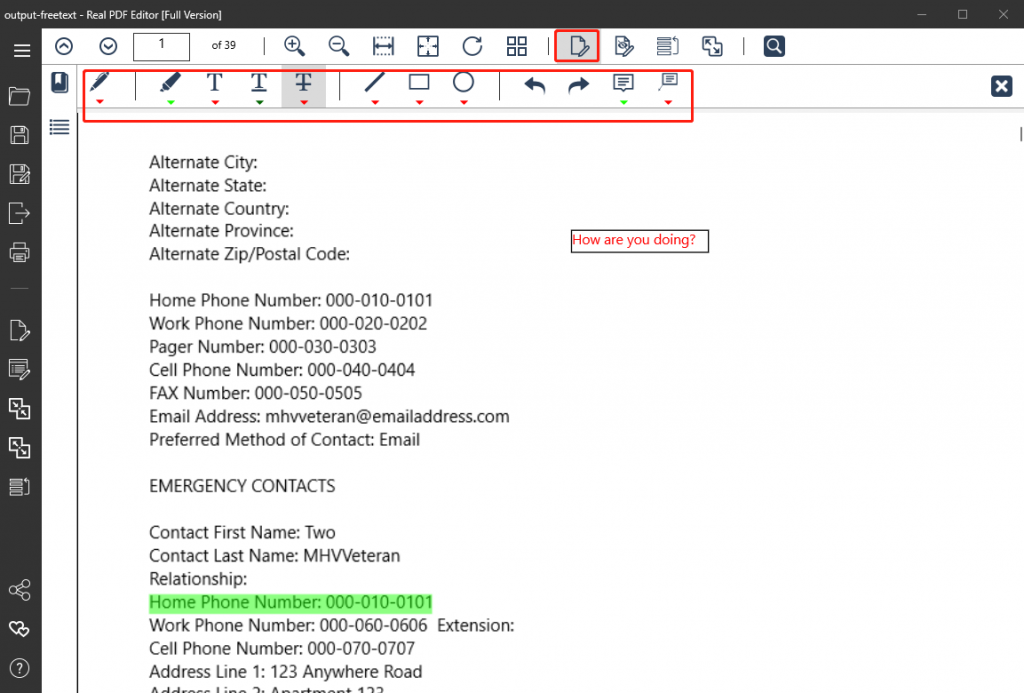
There are two ways to access the Annotation tools. If you have already opened the PDF file, please click the button “Click to show the annotation tools”. If not, you can click the menu item “Annotate” on the left menu panel. It will ask you to pick the PDF file you would like to work on, open it and at the same time, the annotation tools bar is displayed on it.

Sponsored Links

Screenshot:

In the current version, Real PDF annotation tools include draw free form, add free text, highlight text, underline text, strike through text, draw line, draw rectangle, draw ellipse, and add comments. All these tools’ colors are customizable.

Draw freeform, draw line, draw rectangle and draw ellipse – click to pick the tool you would like to use, and then, in the PDF file, start to draw anywhere you want.

Add free text – click to pick the tool “Free Text”, and then, in the PDF file, click the position where you want to add text.

Highlight text, underline text and strike through text – click to pick the tool you would like to use, and then select the text you would like to annotate.

Add comments – click the tool “comments”, and then in the PDF file, click the place you would like to add comments and type the content in.

Split PDF

There are two ways to access the split tool. If you have already opened the PDF file, please click the button “Click to show the split tool” in the top toolbar. If not, you can click the menu item “Split” on the left menu panel. It will ask you to pick the PDF file you would like to work on, open it and at the same time, the split tool is open beside it on the right side.

Sponsored Links

There are two modes to split a PDF file.
Mode 1 – Split PDF by Page Range. This mode works in a way to extract a part of the PDF file into a new PDF file. You specify the From page number and the To page number, then click the button “Split” at the bottom. You will be prompted to provide a file name for the new PDF file.
Mode 2 – Split PDF into Individual Pages. This mode splits the PDF into multiple small PDF files, one page one file. You choose “Individual Pages” in Split Options, and then click the button “Split” at the bottom. You will be prompted to choose a folder as the destination folder to host all these new small PDF files.

Merge PDF Files

Whether you have a PDF file open or not, you can access the PDF merge tool by clicking the menu item “Merge” in main menu bar on the left side.

First, you need to click “Add Files” button and add the PDF files one by one, in the order that you would like them to be merged.
Second, Click the button “Merge Files”. The app then starts to merge the files.
When the merging is complete, the app will ask you to give the merged file a new file name and save it.

Reorder Pages

There are two ways to access the reorder pages tool. If you have already opened the PDF file, please click the button “Click to reorder pages” in the top toolbar. If not, you can click the menu item “Reorder” on the left main menu panel. It will ask you to pick the PDF file you would like to work on, and open it in the reorder pages tool.

Sponsored Links

Screenshot:

When you are in the reorder tool, a message box pops up reminding you that you are doing reordering operation now. Just click the button “OK” to close it. Now you see all your pages as thumbnails. You can drag and drop one page to the place you would like it to be, and you can also select one or multiple pages and click “Clear Files” to remove them. After you are satisfied with the result, click the button “Commit Changes”. Then click the left arrow sign at the top left corner to go back to PDF viewer. Now you can view your new PDF file with pages reordered. Note: don’t forget to save the new PDF file by clicking “Save as”. Otherwise, you will lose all the changes.

Convert PDF to Images

Once you have a PDF file open in Real PDF Editor, you can convert it to standard image formats including TIFF, BMP, PNG, JPEG and GIF. In the left main menu panel, you click the menu item “Export”, then the export options toolbar will show up at the top of the PDF viewer. Choose the image format that you would like you PDF file be converted to, and click the button “Export To…”, a window will popup to ask for a file name. You fill in the file name and the conversion will be done.

Saving PDF Files

You can choose to “Save” the modified PDF file or use “Save as” function to save it as a different file.

Sponsored Links

Printing PDF

Real PDF Editor’s print functionality allows you to print all modifications you made to the PDF file including annotations, forms filled and etc.

E-mail Support

If you have any further questions or feedbacks about the app, please feel free to reach us by email. We are here to listen and help.