RealFTP Online Tutorial

RealFTP is a fast and reliable FTP client software that allows you to transfer files between your computer and a server over the Internet via FTP, FTPS and SFTP protocols. It provides an intuitive graphical user interface.

Sponsored Links

In this quick-start guide, we cover the following topics: what are the supported protocols? how to use the site manager? how to connect to a server? how to upload files? how to download files? how to rename or move files on a remote server? In addition to these basic features, we also cover more advanced topics: file filters, directory comparison, synchronized directory browsing and bookmarks.
What are the Supported Protocols?

The current version of Real FTP supports these protocols:
FTP – the standard File Transfer Protocol
FTPS – also known as FTP-SSL and FTP Secure, is an extension of the standard FTP that adds support for the Transport Layer Security (TLS) and the Secure Sockets Layer (SSL)
SFTP – Secure File Transfer Protocol is build on the standard FTP but includes Secure Shell (SSH) security components.
How to Use the Site Manager?

The Site Manager allows you to store your servers’ information so that you can connect to them later.

Sponsored Links

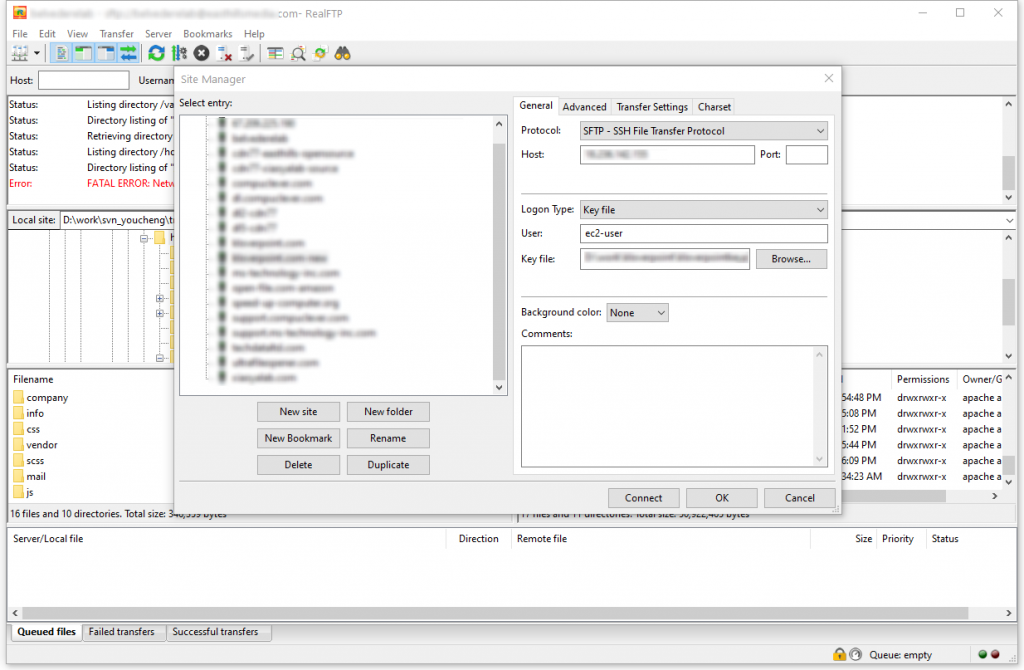
To access the Site Manger, please click the menu “File” -> “Site Manager”, or press Ctrl+S.

Click the button “New site” to add a new site. Then, on the right, fill in the following information:
Protocol – select the type of server you will connect to, from the dropdown list
Host – fill in the server’s domain name or IP
Port – Only if it differs from the standards
Logon Type – the type of login that will take place.
User, Password, Key file, Account – some of these information are required depending on your selected Logon Type.

To connect to one server, in Site Manager, select that serve first, and then click the button “Connect”.

How to Upload Files?

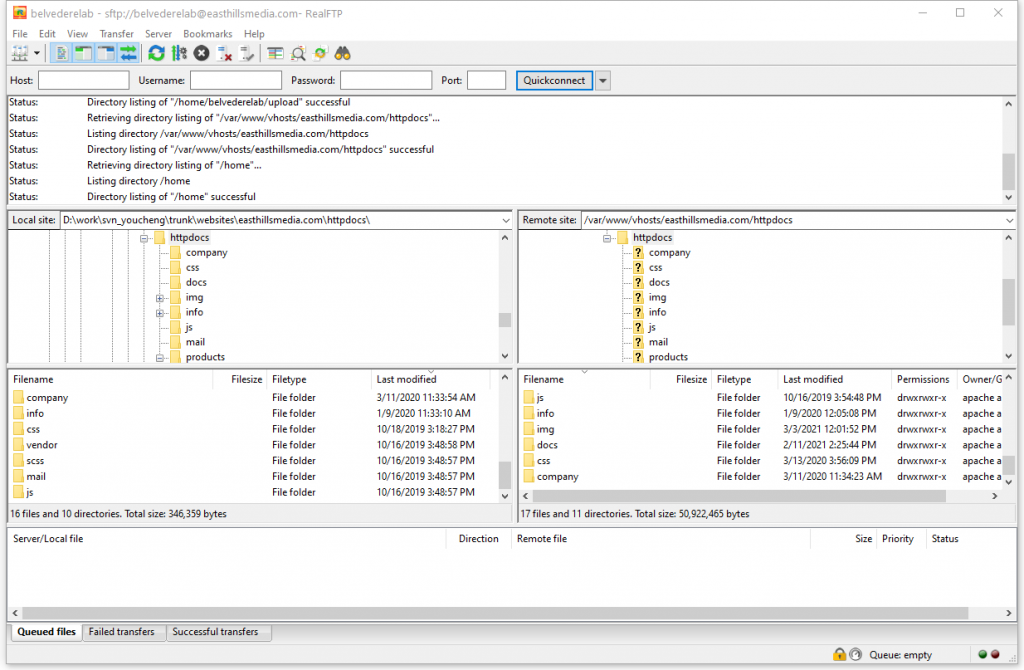
After getting connected to your server, you can upload files or folders simply by drag and drop.

Sponsored Links

First, on the left side (Local site), navigate to the local folder that the files or sub-folders to be uploaded.

Second, on the right side (Remote site), navigate to the destination folder.

Finally, select one or multiple files and/or folders on the left side, drag them to the right side and drop. The uploading will start now. 

How to Download Files?

After getting connected to your server, you can download files or folders simply by drag and drop. 

First, on the left side (Local site), navigate to the local destination folder.

Second, on the right side (Remote site), navigate to the folder that contains the files and/or sub-folders.

Finally, select one or multiple files and/or folders on the right side, drag them to the left side and drop. The downloading will start now. 

How to Rename a File on Server?

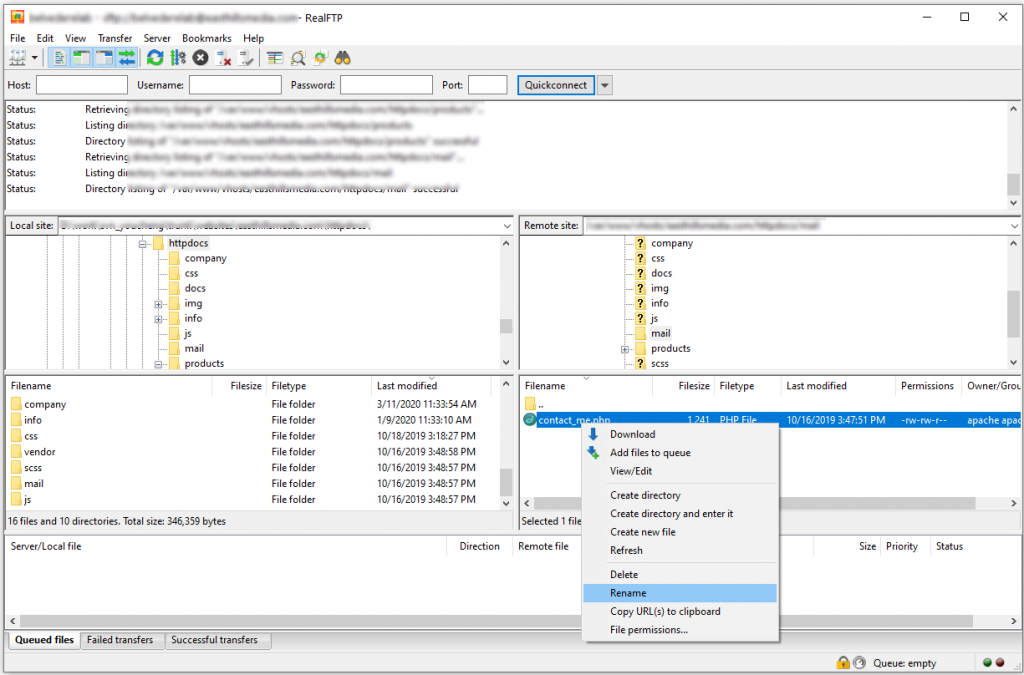
RealFTP allows you to directly rename a file on server.

Sponsored Links

First, on the right side (Remote site), navigate to find the file, then right click it and select “Rename”.

How to Move a File on Server?

After getting connected to the server, on the right side (Remote site), navigate to the folder or file that you want to move, and then drag and drop it onto the folder that you want it to be moved to. The moving will start now.

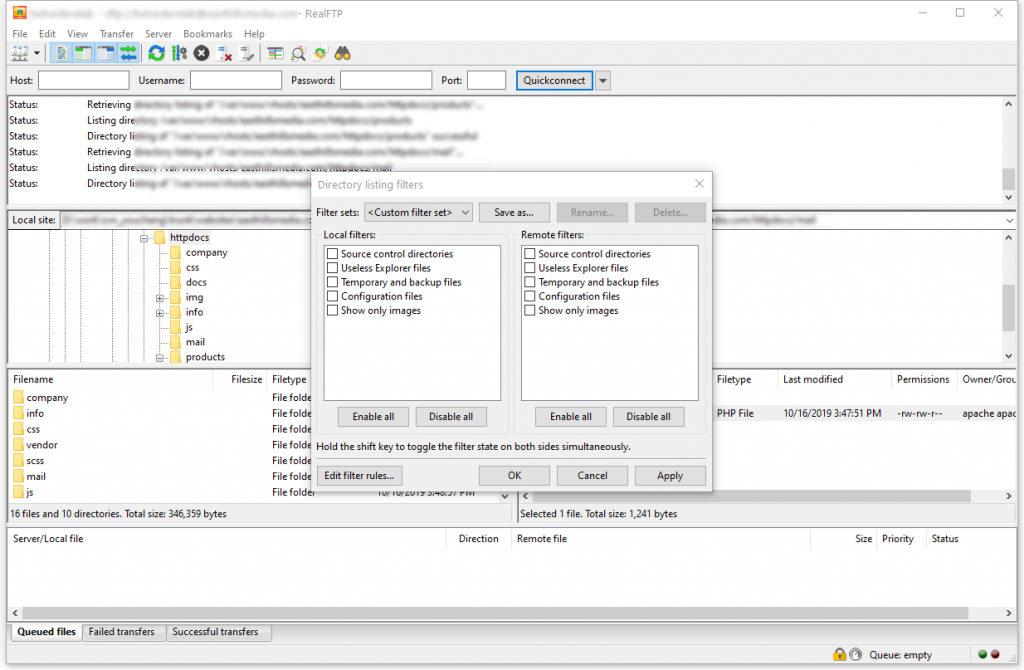
File Filters

File filters or Directory listing filters provides a way to filter out files and directories with respect to both visibility and transfers.

Sponsored Links

You can access the filters by clicking the menu “View” -> “Directory listing filters”

There are several pre-defined filters that you can directly use, and you can also add you own filters.

Directory Comparison

RealFTP provides a way to quickly see the differences between the files on the local computer and on the server.

First, make sure that both in the Local site and in the Remote site you have navigated to the folders that are supposed to map to each other.

Second, click the menu “View” -> “Directory comparison” -> “compare file size” or “compare modification time”.

Then, click the menu “View” -> “Directory comparison” -> “Hide identical files” if you want to see only the different files.

Finally, click the menu “View” -> “Directory comparison” -> “Enable”.

Now you can see color-coded differences between copies of the same file on the local computer and the server.

Synchronized Browsing

If you have an identical directory structure on the local computer and the server, RealFTP provides a easy way for you to navigate on both the Local site and the Remote site. That’s Synchronized Browsing.

Sponsored Links

To enable Synchronized Browsing, create a new site in the Site Manager, and on the Advanced tab, ensure that the Default local directory and the Default remote directory have the same structure. Then check “use synchronized browsing”, save your settings and connect.

Bookmarks

The bookmark feature provides you a way to quickly access frequently used folders on both the local computer and the server. To use the bookmark feature, follow these steps:
1, Navigate to the folder on local site and on the remote site.
2, Click the menu “Bookmarks” -> “Add Bookmark”
3, In the bookmark window, select “Global bookmark” or “Site-specific bookmark”, give it a name, and click the button “OK”.
4, You can use the new bookmark in the menu “Bookmarks” now.

E-mail Support

RealFTP is a easy-to-use software with a lot of advanced features, and the guide above is just a much-simplified version to let you quickly start. If you have any further questions or feed-backs about the app, please feel free to reach us by email. We are here to listen and help.

Xiaoya Lab